Your drive replacement is complete. You can resume normal operations.
Replace drive in E5700 (60-drive shelf)
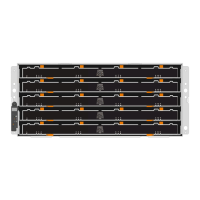
You can replace a drive in a 60-drive shelf.
About this task
The Recovery Guru in SANtricity System Manager monitors the drives in the storage array and can notify you
of an impending drive failure or an actual drive failure. When a drive has failed, its amber Attention LED is on.
You can hot-swap a failed drive while the storage array is receiving I/O operations.
This task applies to DCM and DCM2 drive shelves.
This procedure is for like-for-like shelf IOM hot-swaps or replacements. This means you can
only replace an IOM12 module with another IOM12 module or replace an IOM12B module with
another IOM12B module. (Your shelf can have two IOM12 modules or have two IOM12B
modules.)
Before you begin
• Review drive handling requirements in
Requirements for E5700 drive replacement.
What you’ll need
• A replacement drive that is supported by NetApp for your controller shelf or drive shelf.
• An ESD wristband, or you have taken other antistatic precautions.
• A management station with a browser that can access SANtricity System Manager for the controller. (To
open the System Manager interface, point the browser to the controller’s domain name or IP address.)
Step 1: Prepare to replace drive (60-drive)
Prepare to replace a drive in a 60-drive shelf by checking the Recovery Guru in SANtricity System Manager
and completing any prerequisite steps. Then, you can locate the failed component.
Steps
1. If the Recovery Guru in SANtricity System Manager has notified you of an impending drive failure, but the
drive has not yet failed, follow the instructions in the Recovery Guru to fail the drive.
2. If needed, use SANtricity System Manager to confirm you have a suitable replacement drive.
a. Select Hardware.
b. Select the failed drive on the shelf graphic.
c. Click the drive to display its context menu, and then select View settings.
d. Confirm that the replacement drive has a capacity equal to or greater than the drive you are replacing
and that it has the features you expect.
For example, do not attempt to replace a hard disk drive (HDD) with a solid-state disk (SSD). Similarly,
if you are replacing a secure-capable drive, make sure the replacement drive is also secure-capable.
3. If needed, use SANtricity System Manager to locate the drive within the storage array.
a. If the shelf has a bezel, remove it so you can see the LEDs.
b. From the drive’s context menu, select Turn on locator light.
52



 To Next Page