SELF-INSTALLATION GUIDE
1
WiFi Adapter
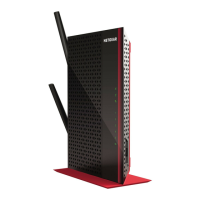
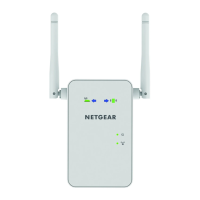
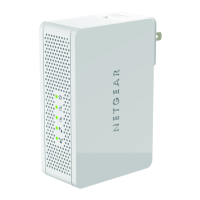
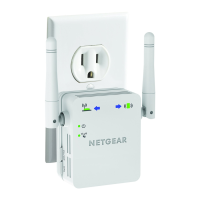
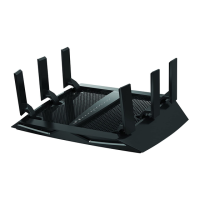
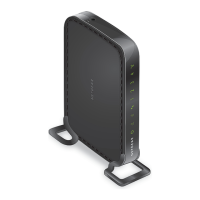
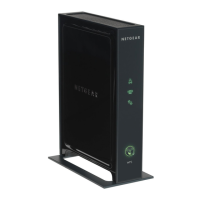
Netgear N300 WiFi Range Extender Model E X2700
1. Connect the WiFi Adapter to your WiFi network
Follow the instructions on page 3.
2. Connect your phone to your wireless adapter
Connect one of the provided Ethernet cables into the WiFi adapter and into the LAN port
on the power adapter. Connect another Ethernet cable into the phone port on the power
adapter and into the LAN port on the back of your OceSuite
®
phone.
3. Connect your handset
Connect your phone handset into the phone port on the back of your OceSuite phone. You
may also connect a headset into the headset port on the back of your OceSuite phone.
4. Connect your PC to your phone
Connect one of the provided Ethernet cables to your computer and into the PC port on the
back of your OceSuite phone.
Once your phone has completed the initial startup, press Activate, then enter your OceSuite
extension and PIN. The first time you login to the customer portal, you will be prompted to choose your
PIN. If your phone does not complete the startup and activation process, contact your organization’s
designated administrator. Your administrator may need to activate your user profile or location.
Login to your OceSuite phone at we.windstream.com.
Initial startup
Initial startup
1 Connect the WiFi Adapter to your WiFi network
Follow the instructions on page 4.
2 Connect your phone to your wireless adapter
Connect one of the provided Ethernet cables into the WiFi adapter
and into the LAN port on the power adapter. Connect another
Ethernet cable into the phone port on the power adapter and into
the LAN port on the back of your OfficeSuite
®
phone.
3 Connect your handset
Connect your phone handset into the phone port on the back of your
OfficeSuite phone. You may also connect a headset into the headset
port on the back of your OfficeSuite phone.
4 Connect your PC to your phone
Connect one of the provided Ethernet cables to your computer and
into the PC port on the back of your OfficeSuite phone.
Once your phone has completed the initial startup, press Activate, then
enter your OfficeSuite extension and PIN. The first time you login to the
MyOfficeSuite portal, you will be prompted to choose your PIN. If your
phone does not complete the startup and activation process, contact
your organization’s designated administrator. Your administrator may
need to activate your user profile or location.
Login to your OfficeSuite phone at
http://myofficesuite.broadviewnet.com.
PC Port
LAN Port
Phone Port
Headset Port
Ethernet Cable
Computer
(optional)
4
2
Ethernet Cable
Handset
Headset
Power
Power
Adapter
3
3
2WIFI ADAPTER
|
INSTALLATION GUIDE WINDSTREAM
|

 Need help?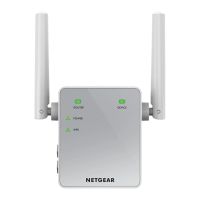



 To Next Page
 General