5
SELF-INSTALLATION GUIDE
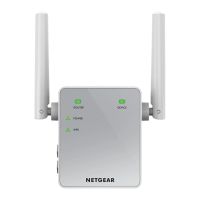
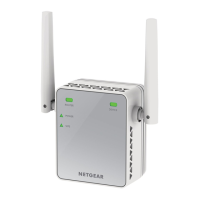
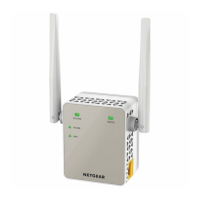
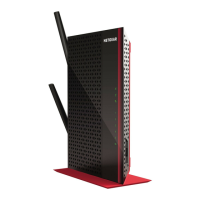
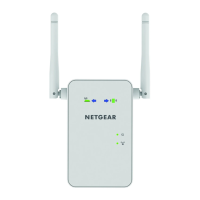
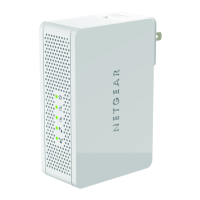
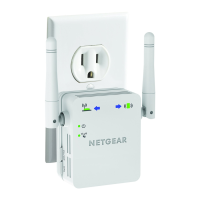
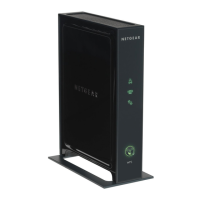
WIFI ADAPTER
1. On your computer, access your list of available WiFi connections and connect to
NETGEAR_EXT. Aer the connection with the computer or WiFi device is
established, the Device Link LED lights.
2. Launch a web browser and go to hp://www.mywifiext.net.
3. Click the New Extender Setup buon to launch the Create Account page.
4. Complete the fields on the page to setup your login credentials and click the
Next buon.
5. Select your WiFi network, enter your WiFi password and click Next.
6. Select a name for your WiFi Adapter network by changing the Network Name
field and choose whether you want the password to match the existing WiFi
password, enter a new password or have no password from the drop down list.
Then select Next.
7. Verify the data, check the “Click the Continue buon aer you connect your
WiFi devices” buon and click Continue.
8. You will receive a verification that the WiFi adapter has been successfully
configured. You may register the device if you choose, or skip registration.
9. Unplug your WiFi adapter and plug it into an electrical outlet close enough to your
OceSuite phone that it can be connected via an Ethernet cable.
10. Plug one end of the Ethernet cable into the WiFi adapter and the other into the
phone port on the power adapter.
Installation
without WPS


 To Next Page
 Loading...