EasyManua.ls Logo

NETGEAR GS516TP - User Manual

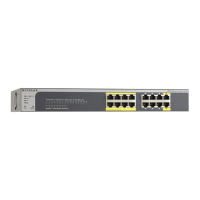
NETGEAR GS516TP
2 pages
Print Icon
To Next Page IconTo Next Page
Loading...
Installation Guide
NETGEAR Smart Switch™ GS516TP
Package Contents
NETGEAR Smart Switch™ GS516TP
Rubber footpads for tabletop installation
AC power cord
Rack-mount kit for rack installation
Installation guide
Smart Switch resource CD that includes the Smart Control Center Utility and
GS516TP Hardware Installation Guide. (A link to the online GS516TP Software
Administration Manual is on the resource CD.)
Configure the Switch
Install the Smart Control Center Utility and use it to configure the switch.
Install the Smart Control Center Utility on a Computer
1. Insert the resource CD into your CD drive.
2. Run the Setup program to install the Smart Control Center Utility.
The Installation Wizard guides you through the installation.
Connect Your Smart Switch
If you have a DHCP server in your network, see Connect the Switch to Your
Network.
If you are using static IP addresses in your network, first see Configure the Switch
with a Static IP Address, and then see Connect the Switch to Your Network.
Configure the Switch with a Static IP Address
If you are using a static IP address in your network, configure the switch IP address
before connecting the switch to your network. The default IP address of the switch is
192.168.0.239.
Note: If you are using a DHCP server in your network, this procedure does not apply
to you; instead, go directly to Connect the Switch to Your Network.
1. Set up the computer with a static IP address in the 192.168.0.x subnet.
2. Connect the computer to the switch.
3. Configure the IP address of the switch to match your network configuration.
Connect the Switch to Your Network
1. Connect each computer to an RJ-45 network port on the switch front panel.
Use Category 5 (Cat 5) or better Ethernet cable terminated with an RJ-45
connector to make these connections.
2. Connect the switch to your network.
3. Power on the switch by connecting the AC power cord to an outlet, or by
connecting an Ethernet cable from PD ports 15 or 16 (or both) to a PSE
device.
4. Verify that the computer with the Smart Control Center Utility is on the same
subnet as the switch.
Internet
Configure the Switch with the Smart Control Center
Utility
1. Double-click the Smart Control Center Utility icon on your desktop or
click the icon in the Windows Start menu to run the utility and view this screen.
2. Click the Discover button.
The Smart Control Center Utility finds the switch and displays its MAC address,
IP address, and model number.

Question and Answer IconNeed help?

Do you have a question about the NETGEAR GS516TP and is the answer not in the manual?

Overview

The NETGEAR Smart Switch GS516TP is a managed Ethernet switch designed for small to medium-sized businesses, offering advanced network control and Power over Ethernet (PoE) capabilities.

Function Description:

The primary function of the GS516TP is to provide network connectivity and management for multiple devices. It acts as a central hub, allowing various network devices (computers, IP cameras, wireless access points, etc.) to communicate with each other and with the internet. As a "Smart Switch," it offers a balance between unmanaged switches (simple plug-and-play) and fully managed switches (extensive features), providing a user-friendly web-based interface for configuration and monitoring. A key feature is its Power over Ethernet (PoE) capability, which allows it to deliver electrical power along with data over standard Ethernet cables. This eliminates the need for separate power outlets for PoE-compatible devices, simplifying deployment and reducing cabling complexity.

Important Technical Specifications:

  • Model: GS516TP
  • Type: Smart Switch
  • Ports: 16 RJ-45 network ports (likely Gigabit Ethernet, given the "Smart Switch" and "PoE" designation, though not explicitly stated for all ports in the provided text, the "ProSafe® 16-Port Gigabit PoE Smart Switch" label on page 2 confirms Gigabit Ethernet).
  • PoE Support: The switch supports Power over Ethernet, indicated by "PoE" in the model name and the mention of "PD ports 15 or 16" for power input. This implies it can act as a Power Sourcing Equipment (PSE) to power other devices.
  • Default IP Address: 192.168.0.239 (for static IP configuration).
  • Management: Web-based GUI accessible via the Smart Control Center Utility.
  • Rack-Mountable: Includes a rack-mount kit for installation in standard server racks.
  • Tabletop Installation: Also supports tabletop placement with included rubber footpads.
  • Power: AC power cord included. Can also be powered via Ethernet cable from a PSE device on PD ports 15 or 16.
  • Firmware Version: Example shown as 6.0.1.1.
  • Boot Version: Example shown as 2.0.0.8.
  • MAC Address: Unique identifier for the device, e.g., 00:00:00:23:45:01.

Usage Features:

  • Easy Setup: The installation guide outlines a straightforward setup process using the Smart Control Center Utility.
  • Network Configuration Flexibility:
    • DHCP Support: Automatically obtains an IP address if a DHCP server is present on the network, simplifying setup for most users.
    • Static IP Configuration: Allows manual assignment of a static IP address for networks requiring fixed IP addressing. This involves setting up a computer with a static IP in the same subnet as the switch (default 192.168.0.x) before connecting to the network.
  • Smart Control Center Utility: A dedicated software utility (included on a resource CD) for discovering, configuring, and monitoring the switch.
    • Device Discovery: Automatically finds NETGEAR Smart Switches on the network, displaying their MAC address, IP address, and model number.

    • Web Browser Access: Provides a direct link to the switch's web-based management interface for detailed configuration.
    • Basic Management: Features like DHCP Refresh, Reboot Device, Configure Device, and Change Password are available directly from the utility.
  • Web-Based Management Interface: A comprehensive graphical user interface (GUI) accessible via a web browser for advanced configuration.
    • Login Security: Requires a password (default "password") for access.
    • System Information: Displays critical device details such as system name, location, contact, serial number, time, uptime, base MAC address, and firmware versions.
    • Network Settings: Allows configuration of IP settings, VLANs, QoS, security, and other network parameters.
    • PoE Management: Enables control and monitoring of Power over Ethernet functionality.
  • LED Indicators: LAN port status LEDs provide visual feedback on network connectivity and activity for each port.
  • Flexible Powering Options: Can be powered by an AC cord or, uniquely, by Power over Ethernet from a PSE device on specific ports (15 or 16), offering redundancy or deployment flexibility.

Maintenance Features:

  • Firmware Updates: While not explicitly detailed in the provided text, the presence of "Firm W" (Firmware) and "Software Version" in the device list and system information implies that firmware can be updated to enhance features, improve performance, or address security vulnerabilities.
  • Troubleshooting Tips: The manual provides common troubleshooting steps:
    • Power Sequence: Recommends powering on the switch first, waiting two minutes, then powering on the computer.
    • Cable Connections: Emphasizes checking Ethernet cable connections and verifying LAN port status LEDs.
    • Network Settings Verification: Advises checking computer network settings, especially for DHCP or static IP configurations.
    • Utility Rediscovery: Suggests using the "Discover" button in the Smart Control Center Utility if the switch is not found.
  • Online Resources:
    • Product Registration: Users are encouraged to register their product at https://my.netgear.com for support.
    • Web Support: http://support.netgear.com provides access to product updates and web support.
    • Documentation: The software administration manual (available at http://downloadcenter.netgear.com) offers detailed information for setting up, configuring, and using the smart switch.
  • Technical Support: NETGEAR recommends using official support resources and registering the product for telephone support.

NETGEAR GS516TP Specifications

General IconGeneral
BrandNETGEAR
ModelGS516TP
CategorySwitch
LanguageEnglish

Related product manuals