EasyManua.ls Logo

NETGEAR ProSafe GS510TP - User Manual

NETGEAR ProSafe GS510TP
32 pages
Print Icon
To Next Page IconTo Next Page
Loading...
350 East Plumeria Drive
San Jose, CA 95134
USA
October 2011
202-10886-01
1.0
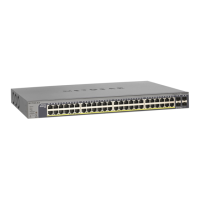
NETGEAR GS510TP Smart
Switch
Hardware Installation Guide

Other manuals for NETGEAR ProSafe GS510TP

Questions and Answers

  • A
    Ariel GarzaJul 26, 2025
    Why is file transfer slow on my NETGEAR ProSafe GS510TP Switch?
    • J
      jmoralesJul 26, 2025
      Slow file transfers on your NETGEAR Switch can occur if the half-duplex or full-duplex settings on the switch and the connected device are not the same. To resolve this, ensure the attached device is set to auto-negotiate.
  • H
    halvarezJul 31, 2025
    What to do if a device is not recognized on NETGEAR Switch network?
    • B
      Brianna HebertAug 1, 2025
      If a segment or device isn't recognized as part of the network when using your NETGEAR Switch, verify that the cabling is correct and ensure all connectors are securely positioned in the required ports. Equipment may have been accidentally disconnected. This issue can arise if one or more devices are not properly connected, or if the cabling doesn't meet Ethernet guidelines.
  • J
    Jordan RyanAug 7, 2025
    What to do if ACT LED is flashing continuously on NETGEAR ProSafe GS510TP?
    • M
      Michael JonesAug 7, 2025
      If the ACT LED is flashing continuously on all connected ports and the network is disabled on your NETGEAR Switch, a network loop (redundant path) has likely been created. Break the loop by ensuring that there is only one path from any networked device to any other networked device.
  • J
    Jason BeckAug 13, 2025
    How to fix NETGEAR ProSafe GS510TP when link LED is off?
    • A
      Allen RobinsonAug 13, 2025
      If the Link LED is off or intermittent on your NETGEAR Switch, the port connection may not be working. Here's what you can do: * Check the crimp on the connectors. * Make sure that the plug is properly inserted and locked into the port at both the switch and the connecting device. * Ensure all cables used are correct and comply with Ethernet specifications. * Check for a defective PC adapter card, cable, or port by testing them in an alternate environment where all products are functioning.
  • C
    Carol HenryAug 19, 2025
    How to troubleshoot NETGEAR ProSafe GS510TP Switch when power LED is off?
    • C
      Caitlin AguilarAug 19, 2025
      If the Power LED is off on your NETGEAR Switch, it means no power is being received. Check the power cord connections and the connected device. Also, ensure all cables used are correct and comply with Ethernet specifications.

Summary

Introduction

PoE Features

Describes the Power over Ethernet (PoE) features supported by the GS510TP, specifically IEEE 802.3at PSE.

Physical Description

GS510 TP Front-Panel Configuration

Describes the configuration and components of the GS510TP Smart Switch's front panel, including ports and LEDs.

Installation

Step 1: Preparing the Site

Details the site requirements and preparations necessary before installing the NETGEAR GS510TP Smart Switch.

Step 2: Installing the Switch

Provides instructions for installing the GS510TP Smart Switch on a flat surface or in a rack.

Step 3: Checking the Installation

Outlines the steps to verify the installation of the GS510TP Smart Switch before applying power.

Step 4: Connecting Devices to the Switch

Guides users on how to connect devices, such as PCs, to the GS510TP Smart Switch using RJ-45 ports.

Step 5: Applying AC Power

Explains the procedure for connecting the GS510TP Smart Switch to a power source and applying AC power.

Troubleshooting

Troubleshooting Chart

Lists common symptoms, their causes, and solutions for troubleshooting issues with the GS510TP Smart Switch.

Technical Specifications - Protocols and Management

Hardware and Environmental Specifications

Compliance and Safety

NETGEAR ProSafe GS510TP Specifications

General IconGeneral
BrandNETGEAR
ModelProSafe GS510TP
CategorySwitch
LanguageEnglish

Related product manuals