EasyManua.ls Logo

NETGEAR GS516UP - User Manual

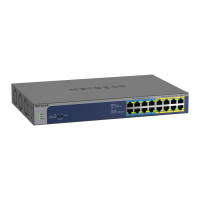
NETGEAR GS516UP
6 pages
Print Icon
To Next Page IconTo Next Page
Loading...
NETGEAR, Inc.
350 East Plumeria Drive
San Jose, CA 95134, USA
NETGEAR INTERNATIONAL LTD
Floor 1, Building 3,
University Technology Centre
Curraheen Road, Cork,
T12EF21, Ireland
Installation Guide
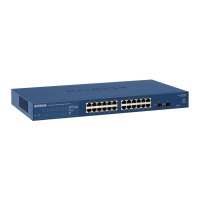
16-Port Gigabit Ethernet Unmanaged
Ultra60 PoE++ Switch, Model GS516UP
24-Port Gigabit Ethernet Unmanaged
Ultra60 PoE++ Switch, Model GS524UP
Package contents
• SwitchmodelGS516UPorGS524UP
• Powercord(variesbyregion)
• Rack-mountkit
• Fourrubberfeet
• InstallationguideandInsightyer
Note: WerecommendthatyouuseaCategory5e(Cat5e)cableorhigher-ratedcablefor
GigabitEthernetconnections.
Thisswitchisdesignedforindooruseonly.Ifyouwanttoconnecttoadevicelocated
outdoors,theoutdoordevicemustbeproperlygroundedandsurgeprotected,andyou
mustinstallanEthernetsurgeprotectorinlinebetweentheswitchandtheoutdoordevice.
Failuretodosocandamagetheswitch.
WARNING: Beforeconnectingthisswitchtooutdoorcablesordevices,see
https://kb.netgear.com/000057103forsafetyandwarrantyinformation.
1. Register with the NETGEAR Insight app
1. SearchforNETGEAR Insightanddownloadthelatestapp.
2. SetupaNETGEARaccountifyoudonothaveone.
3. Tapthemenuintheupper-leftcorner.
4. TapREGISTER ANY NETGEAR DEVICE.
5. Entertheserialnumberlocatedonthebottomoftheswitch,orusethe
cameraonyourmobiledevicetoscantheserialnumberbarcode.
6. TapGO.
Theswitchisregisteredandaddedtoyouraccount.Youcannowviewthe
switchintheNETGEARInsightapp.
Note: Becausethisisanunmanagedswitch,youcannotcongureormanageit
inNETGEARInsight.
2. Connect the switch
PoE++LEDlighting
Internet
GS524UPswitch
Sample connections
PoE++PTZcamera
PoE+securitycamera
Router
3. Check the LEDs
Whenyouconnectthepowercordtotheswitchandplugitintoanelectrical
outlet,theLEDsindicatethestatus.
LED Description
Power
Solid green.Theswitchispoweredonandoperatingnormally.
Off. Powerisnotsuppliedtotheswitch.
Fan
Off.Thefanisworkingcorrectly.
Solid yellow.Thefanisnotworkingcorrectly.
PoEMax
(Thestatusof
theswitch’sPoE
budget)
Off.Sufcient(morethan7Wof)PoEpowerisavailable.
Solid yellow.Lessthan7WofPoEpowerisavailable.
Blinking yellow.Atleastonceduringtheprevioustwominutes,less
than7WofPoEpowerwasavailable.
LeftportLED



Solid green.1000Mbpslinkonthisport.
Blinking green.1000Mbpsactivityonthisport.
Solid yellow.100Mbpsor10Mbpslinkonthisport.
Blinking yellow.100Mbpsor10Mbpsactivityonthisport.
Off.Nolinkisdetectedonthisport.
RightPortLED
Solid Green.TheportisdeliveringPoEpower..
Off.TheportisnotdeliveringPoEpower.
Solid yellow.APoEfaultoccurred.
PoE mode
The DIP switches on the front panel let you to select the following PoE++ modes:
• 802.3bt mode.Themodefordevicesthatarefullycompliantwith
IEEE802.3bt(PoE++).ThisisthedefaultmodeforallPoE++ports.
• pre-802.3bt mode.Themodefordevicesthatcanreceivepowerhigher
than30WbutthatarenotfullycompliantwithIEEE802.3bt(PoE++).
Continued on the next page.
Computer
Internet
PoE++
non-PoE
ModelGS516UPprovidesPoE++(802.3bt)poweronports1–8withupto60Wto
eachportandPoE+(802.3at)poweronports9–16withupto30Wtoeachport.The
totalPoEpowerbudgetfortheswitchis380WacrossallactivePoEports.
ModelGS524UPprovidesPoE++(802.3bt)poweronports1–16withupto60Wto
eachportandPoE+(802.3at)poweronports17–24withupto30Wtoeachport.
ThetotalPoEpowerbudgetfortheswitchis480WacrossallactivePoEports.
PoE++speaker
PoE+
PoE+accesspoint
ReadyNAS
Question and Answer IconNeed help?

Do you have a question about the NETGEAR GS516UP and is the answer not in the manual?

Overview

This document describes the NETGEAR 16-Port Gigabit Ethernet Unmanaged Ultra60 PoE++ Switch (Model GS516UP) and the 24-Port Gigabit Ethernet Unmanaged Ultra60 PoE++ Switch (Model GS524UP), providing installation instructions, specifications, and troubleshooting tips. These switches are designed for indoor use to provide Gigabit Ethernet connections with Power over Ethernet (PoE) capabilities.

Function Description

The NETGEAR GS516UP and GS524UP are unmanaged Gigabit Ethernet switches that provide high-speed network connectivity and Power over Ethernet (PoE) functionality. They are designed to power various PoE-compatible devices such as IP cameras, wireless access points, and VoIP phones directly through the Ethernet cable, eliminating the need for separate power outlets for these devices. Being "unmanaged," these switches offer plug-and-play simplicity without requiring complex configuration or management.

The GS516UP is a 16-port switch, while the GS524UP is a 24-port switch. Both models support Gigabit Ethernet (1 Gbps), 100 Mbps, and 10 Mbps speeds on all RJ-45 ports. They feature Ultra60 PoE++ (IEEE 802.3bt) on a subset of their ports, delivering up to 60W per port, and PoE+ (IEEE 802.3at) on the remaining ports, delivering up to 30W per port. This allows them to power a wide range of devices with varying power requirements.

Important Technical Specifications

Model GS516UP:

  • RJ-45 Ports: 16 Gigabit Ethernet (1 Gbps, 100 Mbps, and 10 Mbps).
  • PoE++ Ports: 8 (ports 1-8), delivering up to 60W per port (802.3bt).
  • PoE+ Ports: 8 (ports 9-16), delivering up to 30W per port (802.3at).
  • Maximum PoE Budget: 380W for the entire switch.
  • AC Power Input: 100-240V ~ 50/60 Hz, 8–4A.
  • Dimensions (W x D x H): 13.0 x 8.2 x 1.7 in. (330 x 207 x 43 mm).
  • Weight: 5.73 lb (2.6 kg).

Model GS524UP:

  • RJ-45 Ports: 24 Gigabit Ethernet (1 Gbps, 100 Mbps, and 10 Mbps).
  • PoE++ Ports: 16 (ports 1-16), delivering up to 60W per port (802.3bt).
  • PoE+ Ports: 8 (ports 17-24), delivering up to 30W per port (802.3at).
  • Maximum PoE Budget: 480W for the entire switch.
  • AC Power Input: 100-240V ~ 50/60 Hz, 8-4A.
  • Dimensions (W x D x H): 15.4 x 8.7 x 1.7 in. (390 x 220 x 43 mm).
  • Weight: 6.83 lb (3.1 kg).

Common Specifications:

  • Operating Temperature: 32-122°F (0-50°C).
  • Operating Humidity: 10%-90% relative humidity, noncondensing.
  • Compliance: FCC class A, UL 62368-1, CB, CE LVD, CE class A, VCCI class A, RCM class A, KC, BSMI.
  • Recommended Cable: Category 5e (Cat 5e) or higher-rated cable for Gigabit Ethernet connections.
  • PoE Power Prioritization: PoE power is prioritized in ascending port order. If power requirements exceed the budget, PDs on higher-numbered ports are disabled first to support lower-numbered, higher-priority ports.
  • Maximum Cable Length for PoE: 328 feet (100 meters). Shorter cables are recommended if a device receives insufficient PoE power.

Usage Features

  • Plug-and-Play Simplicity: As unmanaged switches, these devices require no complex configuration, making them easy to deploy.
  • PoE++ (802.3bt) and PoE+ (802.3at) Support: Provides flexible power options for a wide range of powered devices (PDs), including high-power devices like PoE++ LED lighting, PTZ cameras, and speakers, as well as standard PoE+ access points and security cameras.
  • DIP Switches for PoE Mode Selection: The front panel features DIP switches to select between two PoE++ modes for ports 1-4 (and 5-8, 9-12, 13-16 depending on the model):
    • 802.3bt mode (Default): For devices fully compliant with IEEE 802.3bt (PoE++).
    • Pre-802.3bt mode: For devices that can receive power higher than 30W but are not fully compliant with IEEE 802.3bt. This mode can be selected if a PD does not power up in the default mode.
  • LED Indicators: Comprehensive LEDs provide visual status updates for:
    • Power: Solid green (on), Off (no power).
    • Fan: Off (working correctly), Solid yellow (not working correctly).
    • PoE Max (PoE budget status): Off (sufficient PoE power >7W), Solid yellow (less than 7W available), Blinking yellow (less than 7W available at least once in the last two minutes).
    • Left Port LED (Link/Activity): Solid green (1000 Mbps link), Blinking green (1000 Mbps activity), Solid yellow (100 Mbps or 10 Mbps link), Blinking yellow (100 Mbps or 10 Mbps activity), Off (no link).
    • Right Port LED (PoE Status): Solid Green (delivering PoE power), Off (not delivering PoE power), Solid yellow (PoE fault).
  • Rack-Mountable Design: Includes a rack-mount kit and instructions for secure installation in a standard equipment rack. Four rubber feet are also provided for desktop placement.
  • Outdoor Device Connection Safety: While designed for indoor use, the switch can connect to outdoor devices if the outdoor device is properly grounded and surge protected, and an Ethernet surge protector is installed inline between the switch and the outdoor device. This prevents damage to the switch.

Maintenance Features

  • NETGEAR Insight App Registration: Users can register the switch with the NETGEAR Insight app by scanning the serial number. While unmanaged, this allows viewing the switch in the app, though configuration and management are not supported.
  • PoE Troubleshooting Guide: The manual provides specific tips for diagnosing and resolving common PoE issues:
    • PoE Max LED solid yellow: Disconnect one or more PoE devices to prevent oversubscription.
    • PoE LED solid yellow (PoE fault): Indicates a short circuit, excessive power demand, current exceeding classification limit, or voltage outside the permitted range. The primary solution is to check the attached PD, disconnect/reconnect it, or restart the switch.
  • Support and Community Resources: NETGEAR offers online support at netgear.com/support for FAQs, downloads, and troubleshooting. A community forum (community.netgear.com) is also available for peer advice.
  • Warranty Information: Users are advised to consult kb.netgear.com/000057103 for safety and warranty information, especially regarding outdoor connections. The terms and conditions are available at netgear.com/about/terms-and-conditions.

NETGEAR GS516UP Specifications

General IconGeneral
BrandNETGEAR
ModelGS516UP
CategorySwitch
LanguageEnglish

Related product manuals