EasyManua.ls Logo

NETGEAR Orbi RBK53 - User Manual

NETGEAR Orbi RBK53
2 pages
Print Icon
To Next Page IconTo Next Page
Loading...
INTERNET INTERNET
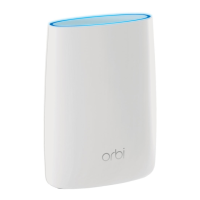
1. Connect Your Orbi Router
a. Unplug your modem, remove and replace the backup battery if it uses one, and plug the
modem back in.
b. Place your Orbi router.
We recommend that you place your Orbi router in the middle of your house.
c. Use the included Ethernet cable to connect your modem to the yellow Internet port on
your Orbi router.
Note: If you want to connect your Orbi router to an existing gateway, we recommend
that you turn o your existing gateway’s WiFi.
d. Connect your Orbi router to a power source.
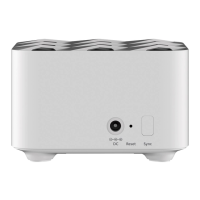
The Power LED on the back of the Orbi router lights green. If the Power LED does not
light, press the Power On/O button.
e. Wait for the Orbi routers ring LED to light white.
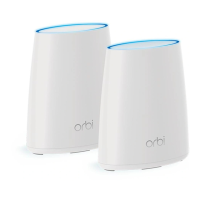
2. Place Your Orbi Satellites
a. Place your Orbi satellites in opposite corners of your house, but still within range of the
Orbi router.
If your house has multiple floors, place your Orbi satellites on dierent floors.
b. Connect an Orbi satellite to a power source.
The Power LED on the back of the Orbi satellite lights green. If the Power LED does not
light, press the Power On/O button.
The Orbi satellite’s ring LED lights white while the satellite attempts to sync with the
Orbi router.
Modem
2. Place Your Orbi Satellites (Continued)
3. Set Up Your Orbi Network
Quick Start Guide
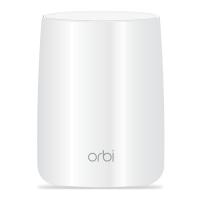
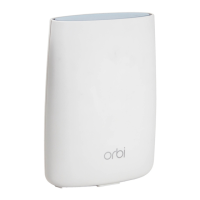
Orbi router
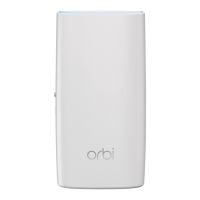
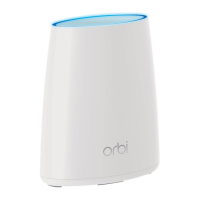
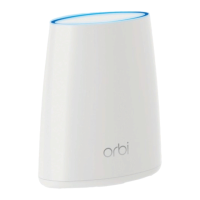
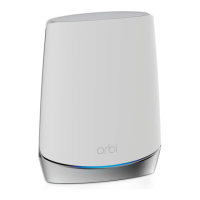
Orbi satellite
Orbi satellite
Aer the Orbi satellites ring LED lights white, it lights one of the following colors for about
three minutes and then turns o:
Blue
The connection between the Orbi router and Orbi satellite is good.
Amber
The connection between the Orbi router and Orbi satellite is fair. Consider moving
the Orbi satellite closer to the Orbi router.
Magenta
The Orbi satellite was unable to connect to the Orbi router. Move the Orbi satellite
closer to the Orbi router.
Note: If the ring LED still lights magenta aer about one minute, press the Sync
button on the back of the Orbi router and on the back of the Orbi satellite. If the Orbi
satellite successfully syncs with the Orbi router, the satellites ring LED lights white
then lights blue to indicate a good connection, and then turns o.
Repeat these steps to connect the second Orbi satellite.
a. Connect your computer or mobile device to the Orbi router or satellites with an
Ethernet or WiFi connection:
Ethernet. Use an Ethernet cable to connect your computer to the Orbi router or
satellites.
WiFi. Use the preassigned WiFi network name (SSID) and password on the label of
the Orbi router or satellites to connect to the Orbi WiFi network.
b. Set up your network using one of the following options:
NETGEAR Orbi app. Download the NETGEAR Orbi app on your mobile device. You
can scan a QR code on the other side of this quick start guide to get the app. Launch
the app and follow the onscreen instructions.
Web browser. Launch a web browser and visit orbilogin.com. If a login window
opens, enter the user name and password. The user name is admin and the default
password is password. Follow the onscreen instructions.
The Orbi routers ring LED turns o aer the setup is complete.
Question and Answer IconNeed help?

Do you have a question about the NETGEAR Orbi RBK53 and is the answer not in the manual?

Summary

Connect Your Orbi Router

Place Your Orbi Satellites

Satellite Placement

Place satellites in opposite corners or on different floors, ensuring they remain within router range.

Satellite Power Connection

Connect the satellite to a power source and observe the Power LED and ring LED status.

Set Up Your Orbi Network

Device Connection

Connect your computer or mobile device to the Orbi router/satellites via Ethernet or Wi-Fi.

Network Configuration Options

Use the NETGEAR Orbi app or a web browser (orbilogin.com) to complete the network setup.

Summary

Connect Your Orbi Router

Place Your Orbi Satellites

Satellite Placement

Place satellites in opposite corners or on different floors, ensuring they remain within router range.

Satellite Power Connection

Connect the satellite to a power source and observe the Power LED and ring LED status.

Set Up Your Orbi Network

Device Connection

Connect your computer or mobile device to the Orbi router/satellites via Ethernet or Wi-Fi.

Network Configuration Options

Use the NETGEAR Orbi app or a web browser (orbilogin.com) to complete the network setup.

Overview

The NETGEAR Orbi is a whole-home WiFi system designed to provide seamless and high-performance internet coverage throughout a user's residence. The system typically includes an Orbi router and one or more Orbi satellites, which work together to create a mesh WiFi network.

Function Description:

The primary function of the Orbi system is to eliminate WiFi dead zones and provide strong, consistent internet access in every corner of a home. The Orbi router connects to the user's modem, acting as the central hub of the network. The Orbi satellites extend the WiFi signal from the router, creating a unified network that devices can seamlessly roam across without experiencing drops in connection. This mesh technology ensures that devices automatically connect to the strongest available signal, whether it's from the router or a satellite. The system supports various internet-connected devices, including computers, mobile devices, smart home devices, and more.

Important Technical Specifications:

  • Model Numbers: The Orbi router is identified as Model RBR50, and the Orbi satellites are Model RBS50.
  • Connectivity:
    • Internet Port: The Orbi router features a yellow Internet port for connecting to a modem. Orbi satellites do not include an Internet port.
    • Ethernet Ports: Both the Orbi router and satellites are equipped with multiple Ethernet ports for wired connections to devices like computers, gaming consoles, or smart TVs.
    • USB Port: A USB port is present on both the router and satellites, though its specific function (e.g., for storage or printer sharing) is not detailed in the provided manual.
  • LED Indicators:
    • Ring LED: A prominent Ring LED (not shown in image but mentioned) on the Orbi router and satellites indicates the status of the device and the connection quality between the router and satellites.
      • White: Indicates the device is powering on or attempting to sync.
      • Blue: Signifies a good connection between the Orbi router and Orbi satellite.
      • Amber: Indicates a fair connection, suggesting the satellite might need to be moved closer to the router.
      • Magenta: Denotes that the Orbi satellite was unable to connect to the Orbi router.
    • Power LED: Located near the Power On/Off button, this LED indicates the power status (green when powered on).
  • Buttons:
    • Power On/Off Button: Allows users to manually turn the device on or off.
    • Sync Button: Used to establish or re-establish the connection between the Orbi router and satellites. It also functions as a WPS (Wi-Fi Protected Setup) button for easy device pairing.
    • Reset Button: A small, recessed button (typically requiring a paperclip) to restore the device to its factory default settings.
  • Power: The system uses power adapters (three included for a typical router + two satellite setup) to connect to a DC power connector on each device.

Usage Features:

  • Easy Setup: The Orbi system offers two primary methods for setup:
    • NETGEAR Orbi App: A mobile application available for download on Apple App Store and Google Play Store. Users can scan a QR code to quickly access the app and follow on-screen instructions for guided setup.
    • Web Browser: Users can access the setup interface by navigating to orbilogin.com in a web browser. The default login credentials are "admin" for the username and "password" for the password.
  • Flexible Placement:
    • Router: Recommended to be placed in the middle of the house for optimal coverage.
    • Satellites: Should be placed in opposite corners of the house but within range of the Orbi router. For multi-floor homes, satellites should be placed on different floors.
  • Connection Monitoring: The Ring LED provides immediate visual feedback on the connection quality between the router and satellites, helping users optimize satellite placement.
  • Wired and Wireless Connectivity: Supports both wired Ethernet connections for devices requiring high stability and wireless WiFi connections using the preassigned network name (SSID) and password found on the device label.
  • Seamless Roaming: Devices automatically switch between the router and satellites to maintain the strongest possible signal without interruption.
  • Troubleshooting Guidance: The manual provides clear instructions for troubleshooting connection issues, such as pressing the Sync button if the Ring LED remains magenta.

Maintenance Features:

  • Firmware Updates: While not explicitly detailed in the provided manual, NETGEAR Orbi systems typically receive firmware updates through the app or web interface to improve performance, add features, and address security vulnerabilities.
  • Reset Functionality: The Reset button allows users to restore the device to its factory settings, which can be useful for troubleshooting persistent issues or reconfiguring the network.
  • Support Resources: NETGEAR provides comprehensive support through its website (www.netgear.com/support), offering product registration, help articles, latest downloads, user manuals, and a community forum. Official NETGEAR support resources are recommended for assistance.
  • Regulatory Compliance: Information regarding EU Declaration of Conformity and general regulatory compliance is available on the NETGEAR website, ensuring users can access important safety and compliance details.

NETGEAR Orbi RBK53 Specifications

General IconGeneral
BrandNETGEAR
ModelOrbi RBK53
CategoryWireless Router
LanguageEnglish

Related product manuals