EasyManua.ls Logo

NETGEAR WG311v3 - User Manual

NETGEAR WG311v3
48 pages
Print Icon
To Next Page IconTo Next Page
Loading...
202-10091-03
February 2007
NETGEAR, Inc.
4500 Great America Parkway
Santa Clara, CA 95054 USA
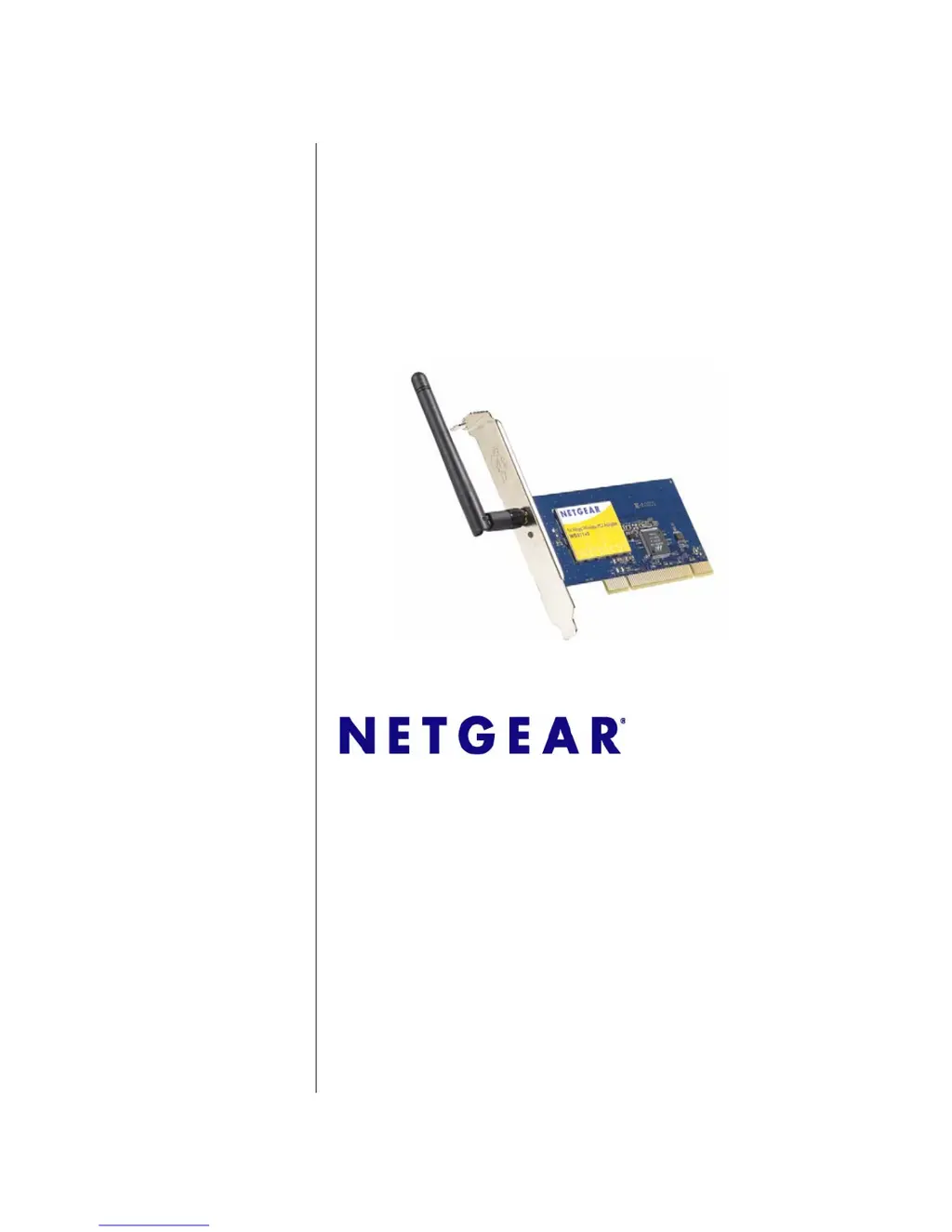
NETGEAR 54 Mbps
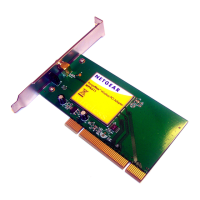
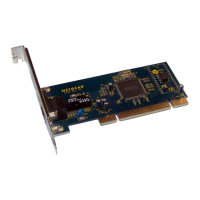
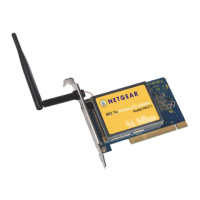
Wireless PCI Adapter
WG311v3 User Manual

Other manuals for NETGEAR WG311v3

Questions and Answers

  • J
    Joshua PetersonAug 13, 2025
    Why can my NETGEAR Adapter connect to the access point but not the internet?
    • A
      Ashley ThomasAug 13, 2025
      This issue with your NETGEAR Adapter could stem from a physical layer or a network configuration problem. First, ensure that the access point is physically connected to the Ethernet network. Secondly, verify that the IP addresses and Windows networking parameters are configured correctly. Finally, try restarting the cable or DSL modem, router, access point, and your computer.
  • D
    Devin ChaneyAug 17, 2025
    What to do if my NETGEAR Adapter cannot connect to an available access point?
    • K
      Kathryn LopezAug 17, 2025
      If your NETGEAR Adapter cannot connect to an available access point with a good signal, it might be because the access point is WPA-PSK protected, requiring the correct WPA-PSK passphrase. Alternatively, if the access point uses WEP protection (either 64 or 128 bit encryption), you'll be prompted to enter the WEP encryption security information.
  • B
    Bradley RoyAug 20, 2025
    Why is the wireless LED blinking on my NETGEAR Adapter but not connected?
    • J
      James SanchezAug 21, 2025
      If the wireless LED on your NETGEAR Adapter is blinking, but it's not connecting to an access point, the access point may not be powered on. Also, verify that the access point and the NETGEAR Adapter are configured with the same wireless parameters, specifically the SSID and wireless security settings.
  • K
    kelseyhallAug 25, 2025
    What to do if NETGEAR Adapter is not assigned an IP address?
    • A
      Antonio HudsonAug 25, 2025
      If your NETGEAR Adapter isn't getting an IP address, it might be because you upgraded the software and didn't restart your computer. Try restarting your computer or connecting to a different access point. Shutting down the Smart Wizard or disabling/enabling the card usually does not resolve the issue.
  • H
    Henry AlexanderAug 28, 2025
    How to fix NETGEAR Adapter when the LEDs are not lit?
    • A
      Amanda VelasquezAug 28, 2025
      If the LEDs on your NETGEAR Adapter are not lit, it could be that the adapter is not installed properly in the PCI slot, or the software is not loaded. Try removing and reinstalling the NETGEAR Adapter. Check the Windows device manager to see if the adapter is recognized and enabled, and reload the software if necessary. If possible, try installing the adapter in a different PCI slot in your computer.
  • M
    Melissa MilesAug 31, 2025
    How to stop NETGEAR Adapter Smart Wizard from asking to save settings?
    • P
      Patricia CrawfordAug 31, 2025
      To stop the Smart Wizard from repeatedly asking you to save settings on your NETGEAR Adapter, simply click 'Apply' before you close the Smart Wizard.
  • D
    donaldcookSep 4, 2025
    Why are there two NETGEAR Adapter icons in the system tray?
    • D
      deborahwalkerSep 4, 2025
      If you see two NETGEAR Adapter icons in the system tray, it means you have an older software version installed. This needs to be removed.
  • M
    Marcus PrestonSep 8, 2025
    What to do if my NETGEAR WG311v3 connects to an access point but not the internet?
    • A
      arobertsSep 8, 2025
      If your NETGEAR PCI Card connects to an access point but fails to connect to other computers or the Internet, it could stem from a physical layer issue or a network configuration problem. Verify that the access point is physically connected to the Ethernet network and that all IP addresses and Windows networking parameters are correctly configured. As a solution, try restarting your cable or DSL modem, router, access point, and notebook PC.

Summary

Safety and Regulatory Notices

FCC Statement

Explains compliance with FCC rules for Class B digital devices.

RF Exposure and SAR Information

Details SAR compliance and RF exposure information according to FCC guidelines.

Canadian and EU Compliance Notices

States compliance with Canadian standards and refers to EU Declaration of Conformity.

About This Manual

Manual Conventions and Scope

Outlines typographical conventions, formats used, and the manual's scope.

Navigating and Printing the Manual

Explains how to use the HTML version and how to print pages or the entire manual.

Chapter 1 Basic Setup

System Requirements and Pre-Setup

Lists minimum system requirements and necessary pre-installation steps.

Initial Adapter Installation

Covers hardware installation, software setup, and default settings.

Connection Status Indicators

Explains the meaning of the adapter's LED, icon colors, and status bar.

Software Management

Guides users on removing and upgrading the wireless adapter software.

Chapter 2 Network Connections and Wireless Security

Disabling Windows Configuration Utility

Instructions to disable Windows' native wireless configuration for using the Smart Wizard.

Smart Wizard Overview and Network Scanning

Introduction to the Smart Wizard and how to view wireless networks.

Network Connection and Profile Management

Steps to find networks, create, and manage connection profiles.

Wireless Security Setup

Details on configuring WEP, WPA2-PSK, and WPA-PSK encryption.

Advanced and Statistics Settings

Configuration options for advanced settings and viewing performance statistics.

About Page Information

Displays software version, driver, and hardware details.

Chapter 3 Troubleshooting

Common Troubleshooting Tips

Provides solutions for typical problems encountered with the adapter.

Specific Connection Issues

Addresses Ad Hoc mode problems and Windows XP connection issues.

Appendix A Technical Specifications

Appendix B Related Documents

NETGEAR WG311v3 Specifications

General IconGeneral
InterfacePCI
Wireless StandardIEEE 802.11g
Frequency Band2.4 GHz
Data RateUp to 54 Mbps
Antenna TypeExternal
SecurityWEP, WPA, WPA2
Data Link ProtocolIEEE 802.11b, IEEE 802.11g
Compliant StandardsIEEE 802.11b, IEEE 802.11g
Antenna Gain2 dBi
Operating Systems SupportedWindows 2000, Windows XP

Related product manuals