button to start reading barcodes. When the signal is good, the scanned data will be
uploaded right away to the computer and show up at where the cursor locates. With
no signal or weak signal, the data will be automatically saved in the handheld and
uploaded to the computer when the signal restores.
Note: only barcode will be displayed when using the Wireless Scanner function.
Data upload: upload data sent or unsent to the computer PC Software or text/excel file.
Unsent data refers to those that has never been sent to the computer and sent data are
those that has been sent to the computer but can be sent again. Press F1 to start
wireless transmission or F2 for a cable transmission to the PC Software.
Header & Trailer: This option allows you to append a header and/or a trailer to the
barcode. Header or trailer characters include space, tab, carriage return, linefeed,
comma and semicolon. Default is none. Use the left / right arrow key to switch among
characters and OK to confirm.
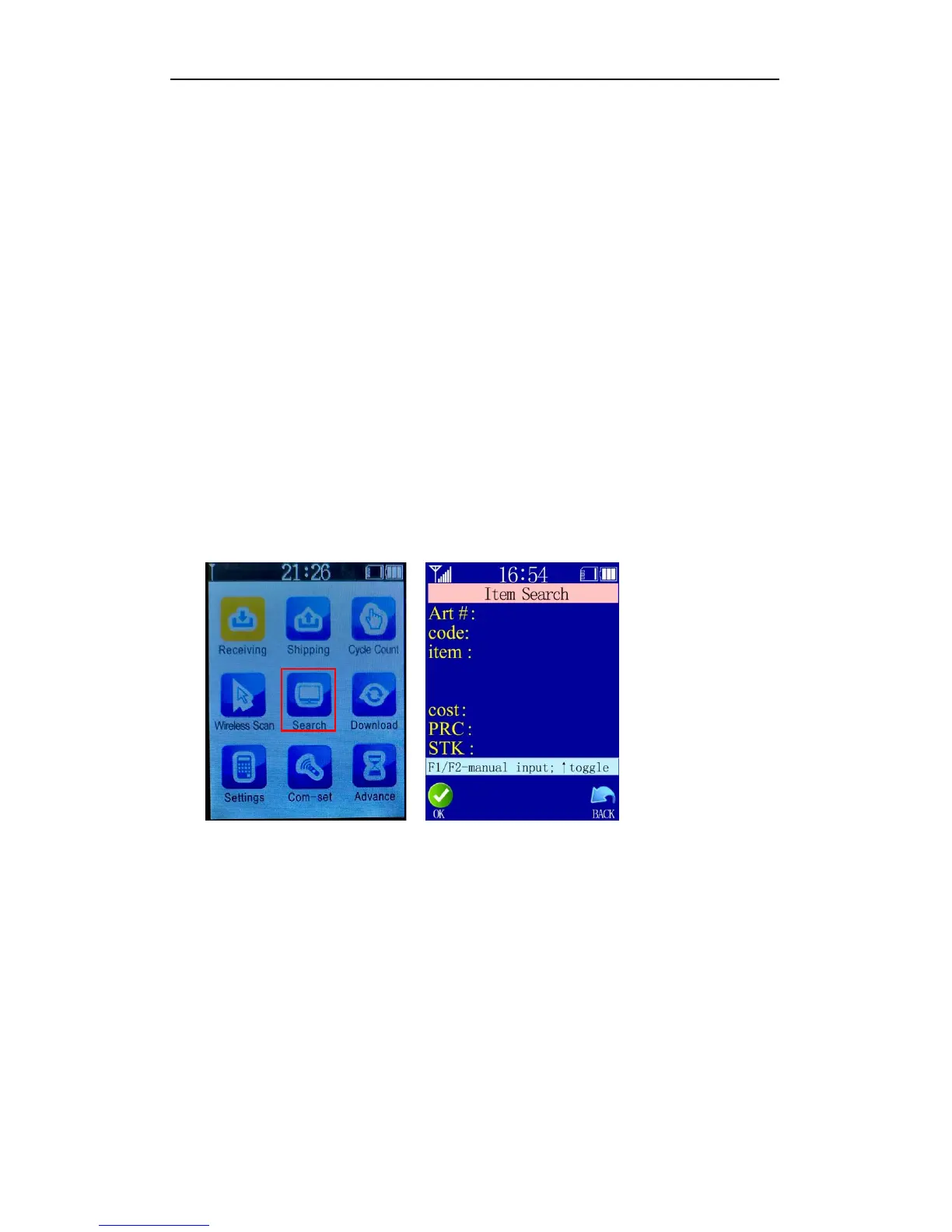
2.3.4 Search
Input or scan Art# or barcode to look up item information, then press F3 to look up Lot#.
Use up or down arrow keys to view if there are more than one Lot#. If the screen says
“Item not found, try again!”, it means the item is missing in the item file.
2.3.5 Download
Item file download must work together with the PC application. Please refer to chapter
“3.2.2 Download Item File” for details.
2.3.6 Settings
basic settings:set date, time, auto power off time and standby time.
Use up or down arrow keys to move among options and OK to confirm.
Then input characters with the button and OK to save.
2.3.7 Com-set
normal mode: one receiver to multiple handheld


 To Next Page