Got Questions? Let Us Help! Email
SUPPORT@NEUMITECH.COM
PLAYING VIDEOS
After powering on, the media player will display the main menu. Select the
Videos
icon from the main menu,
then select the USB drive or Micro SD Card to browse for video files to play. Find the video you would like to
play, press the
OK
button on the remote and it will begin playing. The media player can also be configured to
automatically start playing videos whenever it is turned on – please refer to the settings section for how to
configure and use this automatic playback feature.
During video playback, you can...
• Pause or resume playback using the
OK
button. Press the
Return
button to stop.
• Press the
Left/Right
buttons to quickly skip backward or forward. Press and hold the
Left/Right
buttons to use the timeline slider to quickly get to a point in the video.
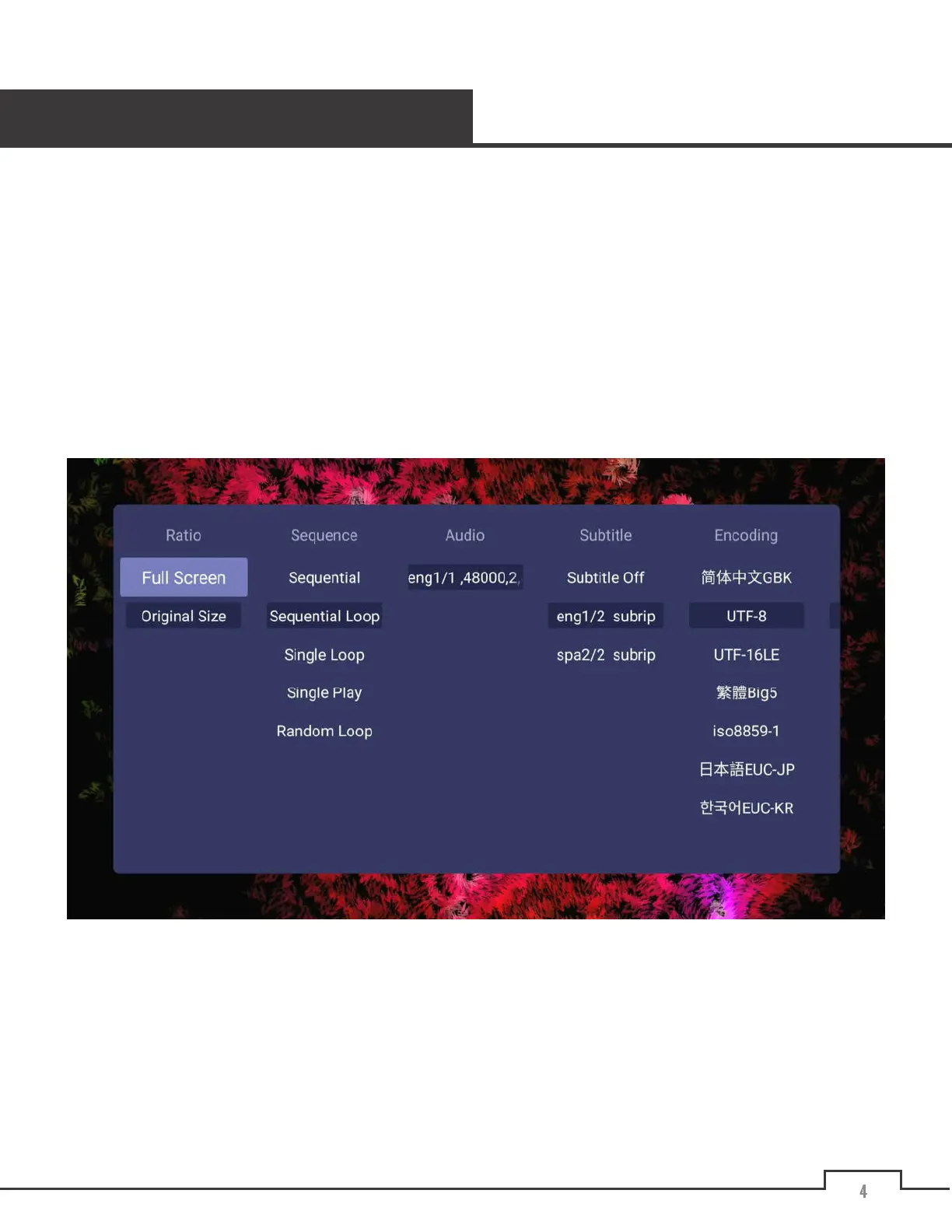
• Additional photo display options are available by pressing the
Menu
button:


 To Next Page