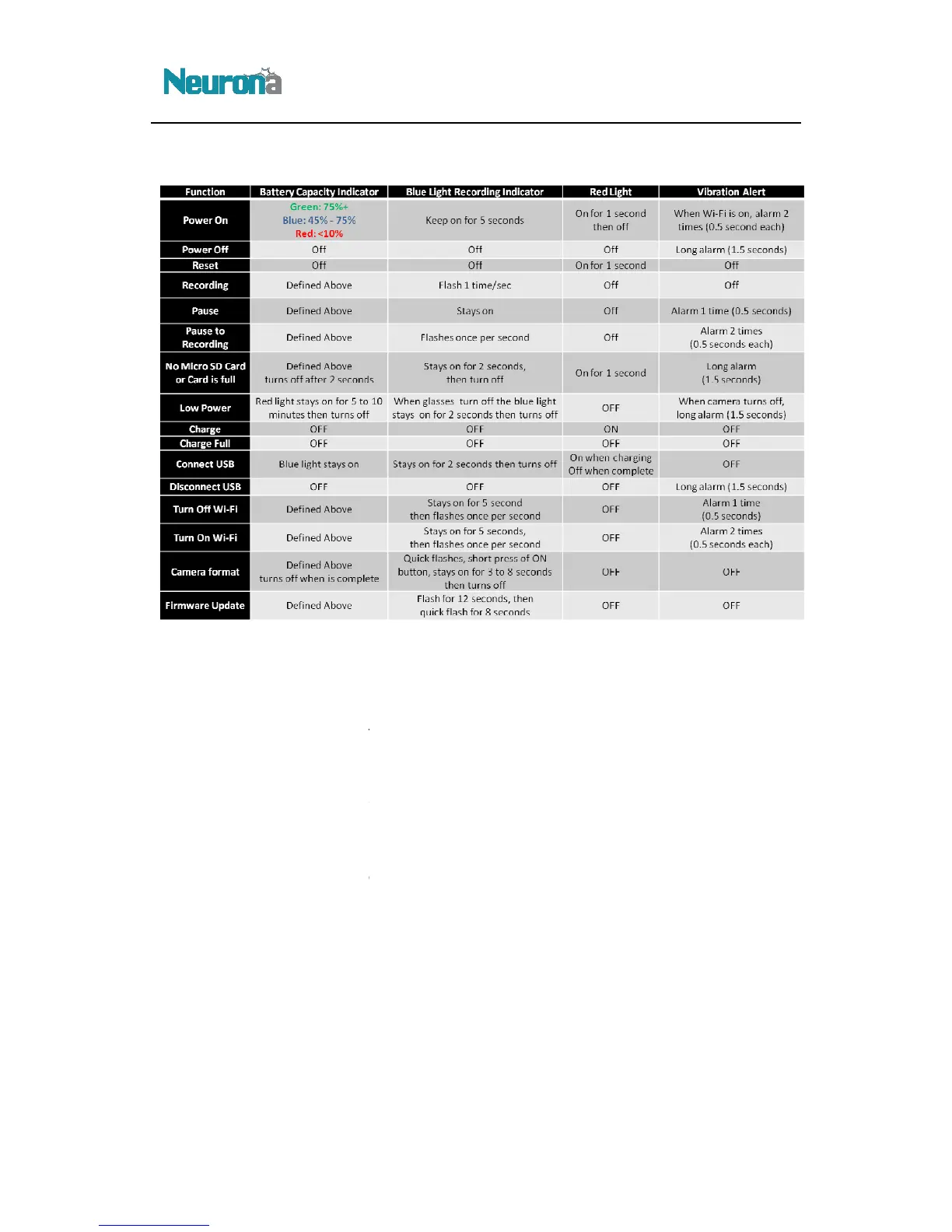
12.
13. Firmware Update
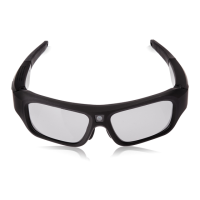
To upgrade the OpticHD Glasses firmware, please follow the steps below:
1)
Using the provided USB cable,
2)
Using the file browser of the computer (i.e. Windows Explorer), navigate to the microSD card
drive that was mounted in step 1 above.
3)
Download the latest firmware from www.myneurona.com/support (i.e. Fwxxxxx.bin)
root directory of the microSD card
4)
Disconnect the OpticHD Glasses from the computer
5)
Press the ON button and the
flashes for 8 seconds
6) Remove the micro
slot in the computer.
7)
Once mounted, navigate again to the root directory of the microSD card and delete the
firmware file.
8)
Insert the microSD card back into the OpticHD Glasses and power on.
14. Time Setting
To update the time used by the OpticHD Glasses during recording, please follow the steps below:
To upgrade the OpticHD Glasses firmware, please follow the steps below:
Using the provided USB cable,
connect the OpticHD Glasses to the computer.
Using the file browser of the computer (i.e. Windows Explorer), navigate to the microSD card
drive that was mounted in step 1 above.
Download the latest firmware from www.myneurona.com/support (i.e. Fwxxxxx.bin)
root directory of the microSD card
.
Disconnect the OpticHD Glasses from the computer
.
Press the ON button and the
blue light will slowly flash for 12 seconds,
,
indicating that the firmware update is complete.
from the OpticHD Glasses and
plug it directly into the microSD card
Once mounted, navigate again to the root directory of the microSD card and delete the
Insert the microSD card back into the OpticHD Glasses and power on.
To update the time used by the OpticHD Glasses during recording, please follow the steps below:
Using the file browser of the computer (i.e. Windows Explorer), navigate to the microSD card
Download the latest firmware from www.myneurona.com/support (i.e. Fwxxxxx.bin)
to the
quick
indicating that the firmware update is complete.
plug it directly into the microSD card
Once mounted, navigate again to the root directory of the microSD card and delete the
To update the time used by the OpticHD Glasses during recording, please follow the steps below:


 To Next Page