6
Get started
Step 1. Make sure that IFPD and X10D are connected properly.
Step 2. At the signal source selection of the devices such as IFPD, chose the signal source
X10D is connected.
X10D has no power button. It is powered on upon power connection.
Note
Start X10D
Standby mode
Wake Up
Press icon in the bottom toolbar X10D will go into the standby mode. (Please also see the
section “Bottom toolbar”.)
Or use may set the time to standby mode at Power Management in System Setting.
When the Android box is in standby mode, tap the IFPD screen at the signal source X10D is
connected and X10D wakes up.
When mouse is connected, move the mouse and it will wake X10D up.
●
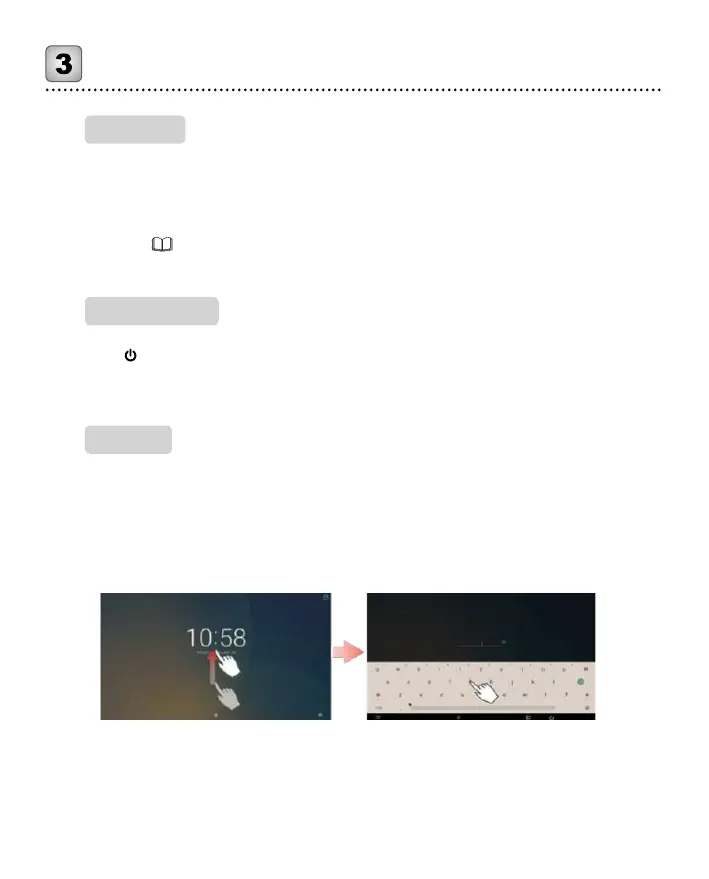
If screen lock is active in X10D, swipe up the screen and enter the key. After entering the
correct key, it goes to the last page before getting in to the standby mode.
For setting screen lock, go to Security in system setting, Users may set the lock method,
lock time, and power button lock.
●
If screen lock is off, tap the IFPD screen and X10D directly goes to the last page shown
before going to standby mode.
Standby state Enter password


 To Next Page