12
Floating toolbar
Bottom toolbar
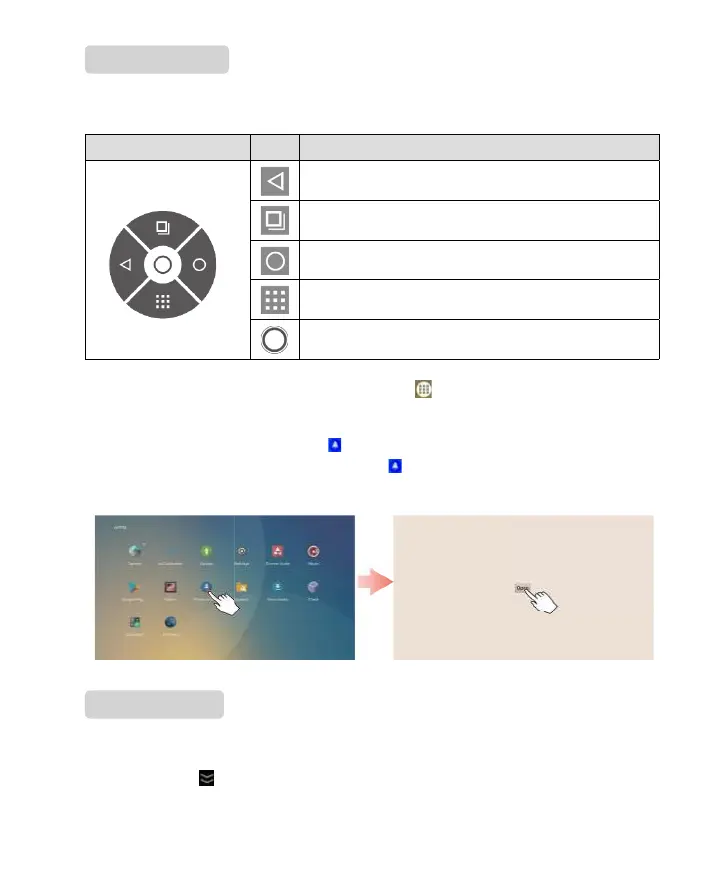
Floating toolbar provides various shortcut introduced below.
Enabling and disabling the oating toolbar: Click the icon on the home page to access
the
Application List
submenu.
Bottom toolbar appears by swiping up from the bottom of the screen, as in the following gure.
You may click the icon to hide it or it will be automatically hidden if there is no access for
5 seconds.
Floating toolbar Icon Function
Return to previous menu/Exit.
Manage currently running applications.
Return to the main page.
Browse all applications.
Minimize/Maximize the oating toolbar.
●
If the oating bar is not activated, click to open Floate windows app and and then click
Open
.
●
If users want to disable the oating toolbar, click to open Floate windows app and and then
click
Close
.


 To Next Page