MENU DESCRIPTION
Adjusting Volume
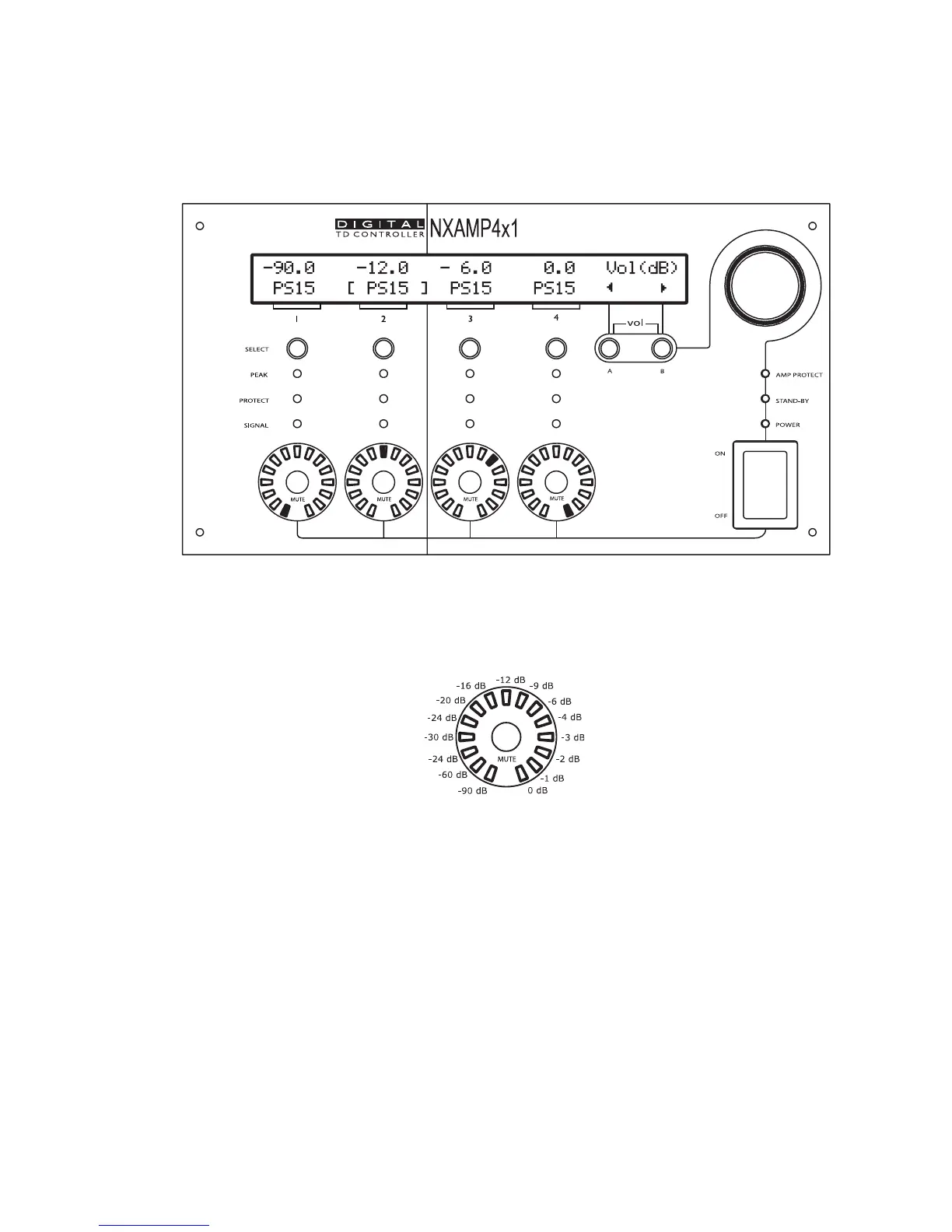
The volume of each channel can be adjusted from the Volume menu (unit is dB). Bellow is
a picture of this menu.
The volume setting for each channel can always be clearly seen from the front panel
surrounding LED (white/blue) around each mute button. The position of the LED gives the
value of the volume, like it would be for a traditional analog volume pot. The picture bellow
gives the attenuation value for each LED.
The attenuation value can also be read on the LCD screen. To change the attenuation for a
given channel, select the channel first by pressing the corresponding “select” button. The
channel name on screen will then be put between bracket (see on the picture above,
channel 2 is selected). Then turn the wheel to change the volume setting.
You can select multiple channels by pressing several ‘Select’ buttons at the same time.
When a selected channel reaches the maximum value, it will cease to increase by
continuing to turn the wheel, but other selected channels may still increase the setting: be
careful not to change a gap between two channel settings when selecting multiple channels
at the same time.
Please note that all the LEDS for volume indication are white except the last one
(corresponding to 0 dB attenuation) which is Blue. That allows to quickly checking that all
volumes are correctly set on a NXAMP powered TDcontroller.
PAGE 44 OF 140


 To Next Page