NEXUS 7 GUIDEBOOK GET STARTED 6
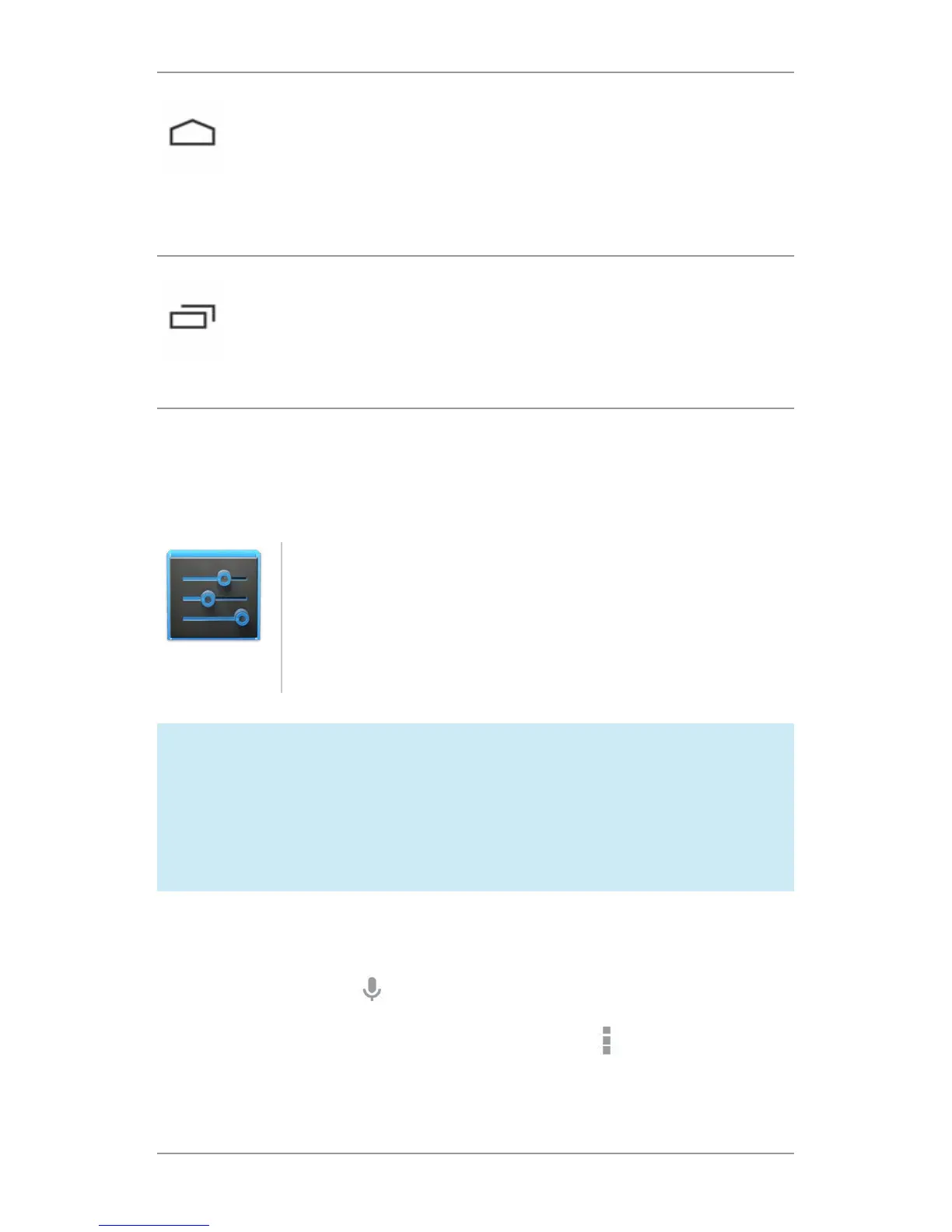
Home
Opens Home. If you’re viewing a left or right Home
screen, opens the central Home screen. To open
Google Now, swipe up. Google Now gives just what
you need to know, right when you need it.
Recent apps
Opens a list of thumbnail images of apps you’ve
worked with recently. To open an app, touch it. To re-
move a thumbnail from the list, swipe it left or right.
If you don’t use these buttons often, they may shrink to dots or
fade away, depending on the current app. To bring them back,
touch their location.
Settings
On the All Apps screen available from the Favor-
ites tray, notice the Settings icon. This brings you
to the Settings screens for your tablet, where you
can adjust things like network, sound, and account
settings, among many others.
TIP: In Android 4.2 and later, you can use Quick Settings to
toggle Wi-Fi, change display brightness, and more. To open
Quick Settings, swipe down from the top right corner of any
screen.
At the top of the screen you’ll nd Google Search, which lets you
search your tablet or the Internet. Touch Google to type your
search terms, or the
Microphone icon to speak them.
Many screens in apps and Settings include a Menu icon. Touch
it to explore additional options, often including a Help item that
provides more information about that screen.


 To Next Page