EasyManua.ls Logo

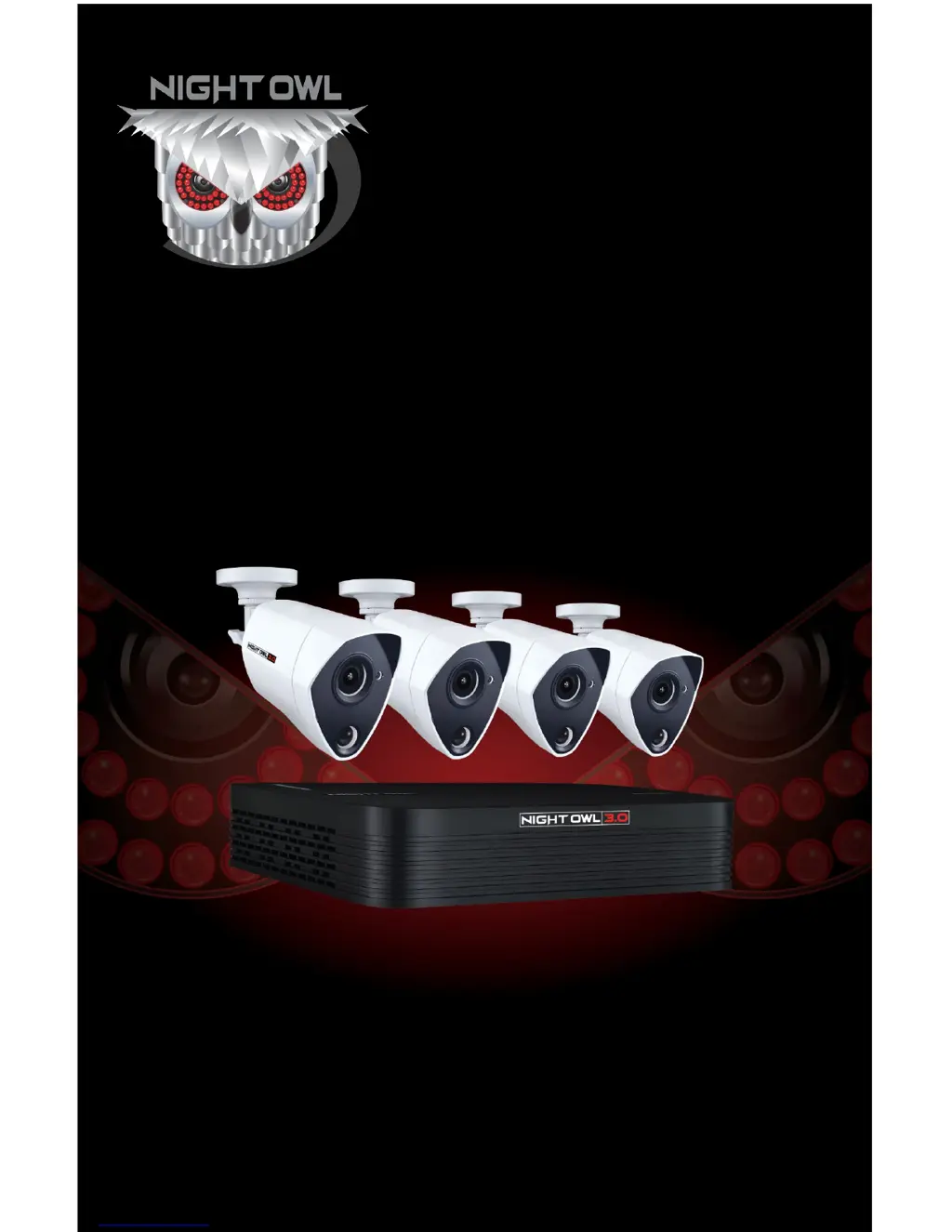
Night Owl THD301 Series - User Manual

Night Owl THD301 Series
81 pages
Print Icon
To Next Page IconTo Next Page
Loading...
www.NightOwlSP.com
USER’S MANUAL
THD301 SERIES

Table of Contents

Other manuals for Night Owl THD301 Series

Questions and Answers

  • L
    Lisa WilliamsAug 1, 2025
    How to fix a Night Owl THD301 Security System when hard drive is not detected?
    • C
      casey64Aug 2, 2025
      If the hard drive is not being detected by your Night Owl Security System, it may be due to loose or improperly connected hard drive cables. Remove the cover and check that the hard drive cables are firmly connected. Alternatively, the system may not have a hard drive installed. In that case, open the cover and install a 3.5" SATA hard drive.
  • B
    Beth CainAug 6, 2025
    Why is my Night Owl THD301 Security System not powering on?
    • C
      Christine WarnerAug 6, 2025
      Your Night Owl Security System might not be powering on due to a loose or unplugged power adapter cable. Ensure all cables are correctly connected and the power adapter is securely connected to the back of the unit. It could also be that the system isn't receiving sufficient power. Confirm the system is powered ON and try bypassing any power bars or surge protectors by connecting the power directly to the wall outlet. Check if there is power at the outlet by testing with another device.
  • C
    Cody BenjaminAug 11, 2025
    How to fix Night Owl THD301 when hard drive is full?
    • R
      Robin MahoneyAug 11, 2025
      If your Night Owl Security System's hard drive is full and the unit is no longer recording, it may be because overwrite is not enabled. To resolve this, go to the Record Menu, then Overwrite Recordings, and ensure that Overwrite is selected.
  • W
    Wyatt BartlettAug 16, 2025
    What to do if there is no picture on Night Owl THD301 Security System?
    • K
      Kimberly SmithAug 17, 2025
      If there is no picture being displayed on selected channels of your Night Owl Security System, the camera cables might be loose or disconnected. Check the camera video cable and connections, disconnect and reconnect the cable at both the system and the camera. You can also try moving the camera to another channel or using another cable.
  • V
    vbowersAug 21, 2025
    What to do if Night Owl THD301 Security System mouse is not detected?
    • A
      amy14Aug 21, 2025
      If the mouse is not being detected by your Night Owl Security System, first ensure the mouse cable is firmly connected to the USB Mouse port on the front panel. If that doesn't work, power off the system by disconnecting the power cable, then firmly connect the USB mouse to the USB Mouse port on the front panel. Finally, reconnect the power cable to the DC 19V port on the rear panel.
  • A
    Antonio StephensAug 27, 2025
    Why does my Night Owl THD301 have video but no sound?
    • A
      Amanda AguilarAug 27, 2025
      If your Night Owl Security System displays video but has no sound, check the AUDIO connection to the DVR to ensure audio cables are not loose or disconnected. Also, the audio channels could be disabled. Left-click on a channel in Live View to open the Channel Toolbar, locate the Volume control, and ensure that the channel(s) are not low or muted. If you are using external speakers, make sure that their volume is turned up.

Summary

FCC Warnings

Safety Instructions

Specifications

Camera Installation

Standard Camera Power

Describes the standard procedure for connecting camera power.

DVR Installation

Getting Started

Startup Wizard

Guides through the initial setup process for the DVR system.

Camera Test

Explains how to test camera connections during the startup wizard.

Network Check

Guides on connecting the DVR to the internet via Ethernet.

Password Creation

Guides on creating an admin password and recovery email.

Channel Settings Configuration

Explains how to configure individual channel settings like name and recording.

Wizard Completion

Indicates the successful completion of the startup wizard.

System Login Procedure

Explains how to log in to access system settings and features.

Menus and Settings

Video Playback

Allows searching, viewing, tagging, and exporting recorded video.

Normal Playback

Explains the playback controls and timeline for recorded video.

Search and Export Recordings

Retrieves and backs up recorded video footage from the DVR.

Camera Management Overview

Adjusts individual camera settings like name, display, and image.

Motion Detection Configuration

Configures motion detection sensitivity and pre/post-record settings.

Privacy Mask Setup

Protects sensitive areas by masking parts of the camera view.

Recording Schedule Setup

Defines recording times and modes (Continuous, Motion, None) for each channel.

Hard Drive Management

Manages the DVR's hard drive, including formatting.

System Configuration

Manages system-wide settings including network and user access.

General System Settings

Configures language, date, time, and mouse pointer speed.

Network Configuration

Configures network settings for remote access and email notifications.

Network General Settings

Manually configures network settings like IP address and DHCP.

Remote Access Setup

Guides on pairing the Night Owl X app for remote viewing.

Email Notification Setup

Configures email settings for sending alarm notifications.

User Account Management

Manages Admin, Guest, and Operator accounts for DVR access.

Maintenance Overview

Handles system upkeep, including firmware updates and backups.

Device Information

Shows specific DVR details like model, serial, and firmware version.

Firmware Upgrade

Updates the DVR's firmware using a USB storage device.

Warranty Information

Troubleshooting Common Issues

Night Owl THD301 Series Specifications

General IconGeneral
SeriesTHD301
Video Resolution1080p
Hard Drive Capacity1TB
Remote ViewingYes
Motion DetectionYes
ConnectivityWired
WiredYes
Channels8
Night VisionYes
Weather ResistanceYes (for cameras)

Related product manuals