EasyManua.ls Logo

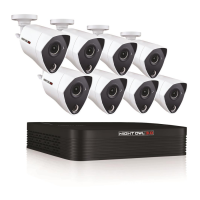
Night Owl VDP2 Series - User Manual

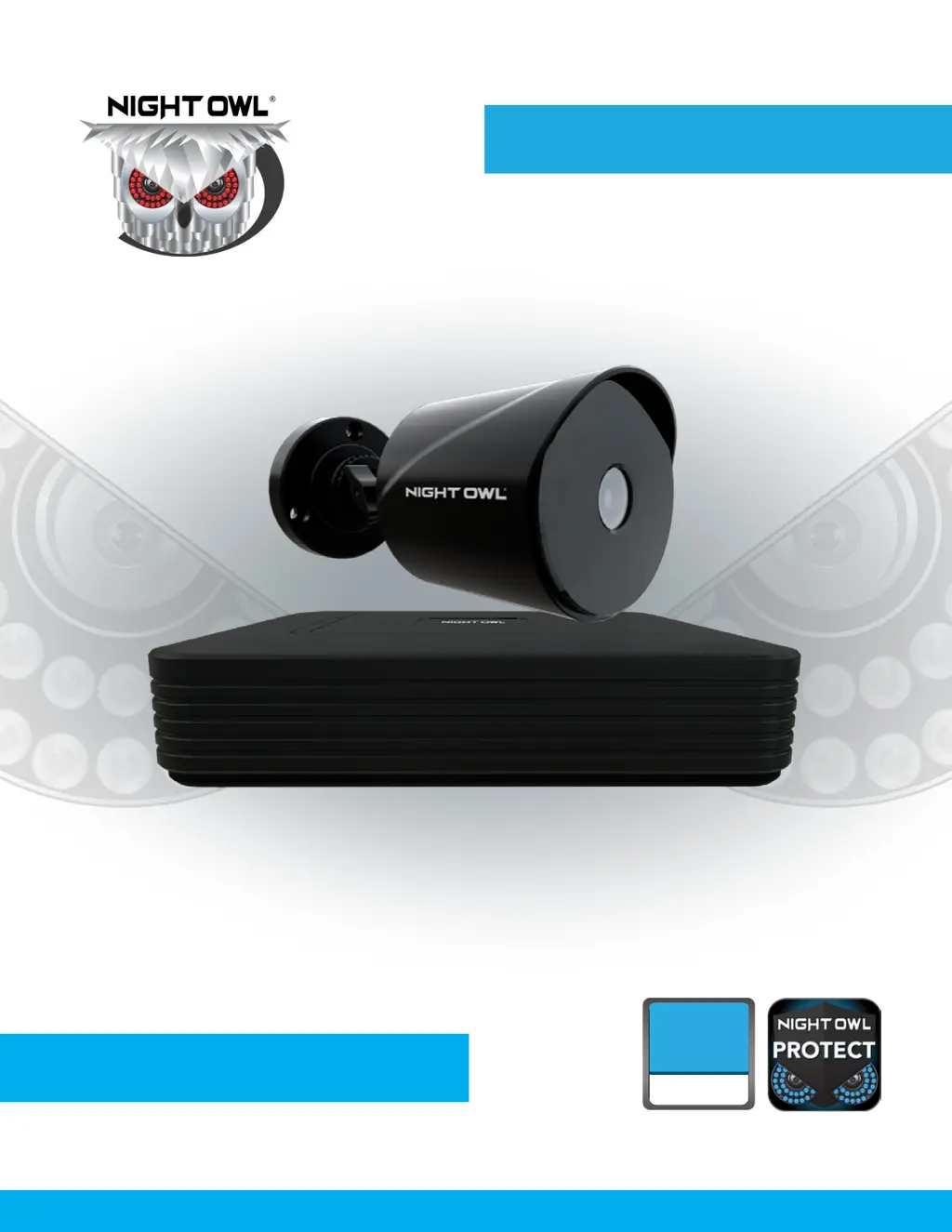
Night Owl VDP2 Series
57 pages
Print Icon
To Next Page IconTo Next Page
Loading...
VDP2 SERIES
Support.NightOwlSP.com
24/7
SUPPORT
English
Español / Français
USER’S MANUAL
VDP2 Series
DVR Component Model #: DVR-VDP2-81
Firmware Version: 20210201
Camera Component Model #: CM-DP2BK-B

Questions and Answers

  • G
    Gregory HarrisJul 29, 2025
    Why is there no picture on my Night Owl VDP2 Security System?
    • M
      Meghan CunninghamJul 29, 2025
      If there is no picture displayed from your camera, the camera cables might be loose or disconnected. Check the camera video cable and its connections. Disconnect and then reconnect the cable at both the system and the camera. You might also try moving the camera to another channel or using a different cable.
  • K
    Karen SanchezAug 4, 2025
    What to do if my Night Owl Security System is not receiving power?
    • R
      Ryan FloresAug 5, 2025
      If your Night Owl Security System isn't powering up, it could be due to a loose or unplugged power adapter cable. Ensure all cables are correctly connected, and the power adapter is securely connected to the back of the unit. If the system still doesn't receive power, and the LED indicators are off, check the power source. If connected to a power bar or surge protector, bypass it and plug directly into the wall outlet. Confirm the outlet has power by testing it with another device, like a phone charger, or try another outlet.
  • J
    josephjacksonAug 12, 2025
    What to do if my Night Owl Security System mouse is not detected?
    • J
      John MartinezAug 12, 2025
      If your mouse isn't detected by the system, ensure the mouse cable is firmly connected to the USB Mouse port on the front panel. If that doesn't work, power off the system by disconnecting the power cable, then firmly connect the mouse to the USB Mouse port. Finally, reconnect the power cable to the DC 19V port on the rear panel to reset the system.
  • M
    Marcus RoseAug 20, 2025
    How to fix a full hard drive on Night Owl VDP2?
    • M
      Michelle MendozaAug 20, 2025
      If your hard drive is full and the system has stopped recording, the overwrite function may not be enabled. To resolve this, go to the Menu, then HDD, and ensure that Overwrite is set to Auto. This will allow the system to continue recording by overwriting older footage.

Summary

Safety, Compliance, and Warranty

FCC Warnings and Compliance

FCC warnings and compliance information regarding radio frequency interference.

Safety Instructions

Crucial guidelines for safe operation, handling, and installation of the DVR.

Product Warranty and Disclaimer

Details product warranty terms, coverage, exclusions, and important legal disclaimers.

Initial Setup Guide

Verify Package Contents

Confirm all included components are present before starting system installation.

Download and Create Account

Guide to downloading the Night Owl Protect App and creating a user account for system management.

Connect Your System

Step-by-step instructions for physically connecting all system components like cameras and DVR.

Set Up Your DVR

Wizard to configure DVR settings, including network, language, and basic preferences.

Install the Cameras

Instructions on how to physically mount and secure the security cameras to desired locations.

System Operation and Features

Live View and Navigation

Explains the main live viewing screen, its status indicators, and how to navigate through camera feeds.

Event Playback and Video Backup

Guides users through searching recorded events and backing up video clips to external storage.

Configuration and Management

General, Network, and Camera Settings

Configuration for display, network connectivity, camera specifics, and recording parameters.

System, Device, and Advanced Settings

Manages system time, HDD status, device information, maintenance, and event notifications.

Troubleshooting and User Information

Troubleshooting Common Issues

Common problems, their causes, and step-by-step solutions for system operational issues.

User Information and Support

Place to record system details and access support resources like FAQs and tutorials.

Night Owl VDP2 Series Specifications

General IconGeneral
Resolution1080p
Motion DetectionYes
ConnectivityWi-Fi
Remote AccessYes (via Night Owl Connect App)
Night VisionYes
Operating Temperature-4°F to 122°F (-20°C to 50°C)
Weather ResistanceYes

Related product manuals