EasyManua.ls Logo

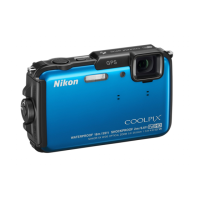
Nikon COOLPIX AW110 - User Manual

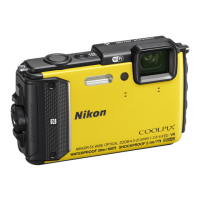
Nikon COOLPIX AW110
252 pages
Print Icon
To Next Page IconTo Next Page
Loading...
En
Reference Manual
DIGITAL CAMERA

Table of Contents

Questions and Answers

  • R
    Richard BaileySep 22, 2025
    Why does saving images take time on my Nikon Digital Camera?
    • U
      ureevesSep 22, 2025
      Saving images may take longer on your Nikon Digital Camera when the noise reduction function is in operation, when flash is set to auto with red-eye reduction, when taking pictures in Hand-held in Night portrait, Hand-held in Night landscape, HDR set to On in Backlighting, or Easy panorama scene modes. Saving time also takes longer if Continuous is set to Pre-shooting cache, Continuous H: 120 fps or Continuous H: 60 fps, or when using smile timer while shooting.
  • C
    Catherine WaltersAug 23, 2025
    What to do if my Nikon COOLPIX AW110 is on but does not respond?
    • R
      Ricky BennettAug 23, 2025
      If your Nikon Digital Camera is on but not responding, first wait for any recording to finish. If the problem continues, turn the camera off. If it still doesn't turn off, remove and reinsert the battery. If you're using an AC adapter, disconnect and reconnect it. Note that any data being recorded will be lost, but previously recorded data will remain unaffected.
  • H
    hcookAug 25, 2025
    Why is the monitor blank on my Nikon COOLPIX AW110 Digital Camera?
    • J
      John SmithAug 26, 2025
      The monitor on your Nikon Digital Camera might be blank because the camera is off, the battery is exhausted, or it is in standby mode to save power. Press the power switch, shutter-release button, A button, c button or b (e movie-record) button. If the flash is charging, wait until it has finished. The camera might also be connected to a computer via USB, a TV via audio/video or HDMI cable, or a smart device using Wi-Fi for remote control.
  • A
    acookAug 26, 2025
    Why are my Nikon Digital Camera pictures too dark?
    • R
      Rachael PerezAug 27, 2025
      Pictures might be too dark if the flash is turned off, the flash window is blocked, or the subject is beyond the flash range. You can adjust exposure compensation or raise the ISO sensitivity. If the subject is backlit, set the scene mode to Backlighting with HDR set to Off, or set the flash mode to fill flash.
  • B
    Brittany CastilloAug 27, 2025
    How to fix blurred pictures on my Nikon COOLPIX AW110?
    • D
      David BrownAug 27, 2025
      To fix blurred pictures on your Nikon Digital Camera, consider using the flash, vibration reduction, or motion detection features. You can also use Best Shot Selector or stabilize the camera with a tripod, using the self-timer for even better results.
  • B
    bailey90Sep 18, 2025
    Why are areas not affected by red-eye also corrected on my Nikon COOLPIX AW110?
    • W
      William GutierrezSep 18, 2025
      When auto with red-eye reduction or fill flash with red-eye reduction is used in Night portrait mode, In-Camera Red-Eye Fix might be incorrectly applied to areas not affected by red-eye. To avoid this, set the flash mode to something other than auto with red-eye reduction or select a scene mode other than Night portrait.
  • J
    Jasmine RogersSep 15, 2025
    Why are pictures too bright on my Nikon COOLPIX AW110?
    • N
      Nicole GonzalezSep 15, 2025
      If your Nikon Digital Camera pictures are too bright, adjust the exposure compensation.
  • C
    carlosmckaySep 16, 2025
    Why does the screen for setting time zone and date is displayed when camera is turned on on my Nikon COOLPIX AW110 Digital Camera?
    • G
      Gregory WatsonSep 16, 2025
      The screen for setting the time zone and date may appear when your Nikon Digital Camera is turned on because the clock battery is exhausted, and all settings have been restored to their default values.
  • M
    Megan RichmondSep 6, 2025
    Why do bright specks appear in pictures shot using flash on my Nikon COOLPIX AW110?
    • P
      pagekaraSep 6, 2025
      Bright specks may appear in pictures shot with flash on your Nikon Digital Camera because the flash is reflecting off particles in the air. Set the flash to off to resolve this issue.
  • R
    Rachel RodriguezSep 3, 2025
    How to fix the monitor screen if it is hard to see on Nikon COOLPIX AW110?
    • W
      Whitney AnthonySep 4, 2025
      If the monitor screen is hard to see on your Nikon Digital Camera, ensure the monitor is clean. If the issue persists, adjust the monitor screen brightness.

Summary

Introduction

Read This First

Important initial information and safety guidelines for new users.

For Your Safety

Crucial safety precautions to prevent damage and injury.

Notices

Legal notices, including FCC compliance and regional warnings.

<Important> Shockproof, Waterproof, Dustproof, Condensation, GPS

Detailed information on the camera's rugged capabilities and GPS features.

Wi-Fi (Wireless LAN Network) Function

Instructions and regulations for using the camera's wireless network capabilities.

Parts of the Camera and Main Functions

The Camera Body

Identification and description of the camera's physical components and external features.

Principle Functions of the Controls

Explanation of the main functions of the camera's buttons and controls for shooting and playback.

Basic Menu Operations

Guide on how to navigate and use the camera's menu system for settings.

Monitor Screen

Overview of information displayed on the camera's monitor during shooting and playback.

The Basics of Shooting and Playback

Preparation 1 Charge the Battery

Step-by-step instructions for charging the camera's battery.

Preparation 2 Insert the Battery

Guide on how to correctly insert and remove the camera's battery.

Preparation 3 Insert a Memory Card

Instructions for inserting, formatting, and removing memory cards.

Step 1 Turn the Camera On

Procedure for powering on the camera and initial setup steps.

Step 2 Select a Shooting Mode

How to choose and set the camera's shooting modes for different scenarios.

Step 3 Frame a Picture

Guidance on composing shots, using zoom, and readying the camera.

Step 4 Focus and Shoot

Steps for focusing, taking pictures, and notes on recording images.

Step 5 Play Back Images

How to view, navigate, and manage recorded images on the camera.

Step 6 Delete Unwanted Images

Instructions on how to delete images, including selected or all images.

Shooting Features

G (Easy Auto) Mode

Explanation of the automatic shooting mode that optimizes settings for the scene.

Scene Mode (Shooting Suited to Scenes)

Details on various scene modes and their optimal shooting conditions.

Special Effects Mode (Applying Effects When Shooting)

How to apply creative effects to images directly during shooting.

Smart Portrait Mode (Shooting Smiling Faces)

Using face and smile detection for automatic shooting of portraits.

A (Auto) Mode

Basic shooting operations with adjustable shooting menu options.

Features That Can Be Set Using the Multi Selector

Functions adjustable via the multi selector, like flash, self-timer, and exposure.

Features That Can Be Set Using the MENU (Menu) Button (Shooting Mode)

Settings accessible via the shooting menu, varying by mode.

Focusing on Subject

Techniques and options for achieving accurate focus on subjects.

Playback Features

Playback Zoom

How to enlarge images for detailed viewing and cropping.

Viewing Several Images (Thumbnail Playback and Calendar Display)

Methods to view multiple images simultaneously or by date.

Selecting Certain Types of Images for Playback

How to filter and select images based on mode, album, or date.

Features That Can Be Set Using the MENU (Menu) Button (Playback Mode)

Options available in the playback menu for managing and editing images.

Using the Screen for Selecting Images

Procedures for selecting single or multiple images for various operations.

Connecting the Camera to a TV, Computer, or Printer

Instructions for transferring images and viewing them on external devices.

Recording and Playing Back Movies

Recording Movies

Steps to start, stop, and manage movie recording settings.

Focus and Exposure During Movie Recording

How focus and exposure are handled during movie capture.

Features That Can Be Set Using the MENU (Menu) Button (Movie Menu)

Settings specific to movie recording, like options and autofocus.

Playing Back Movies

How to play, pause, and control playback of recorded movies.

Using GPS;Displaying Maps

Starting GPS Data Recording

How to enable and use the camera's GPS function to record location data.

Displaying Maps

Viewing current location or shooting location on the camera's internal map.

Using Altimeter and Depth Gauge

Information on displaying and recording altitude and water depth data.

Features That Can Be Set Using the MENU (Menu) Button (GPS Options Menu)

Settings related to GPS, including data recording, units, and logs.

Using the Wi-Fi (Wireless LAN) Feature

Functions that Can Be Performed Using Wi-Fi

Overview of remote shooting and photo transfer capabilities via Wi-Fi.

Installing the Software on the Smart Device

Steps to download and install the necessary mobile application.

Connecting the Smart Device to the Camera

Guide to establishing a Wi-Fi connection between the camera and a smart device.

General Camera Setup

The Setup Menu

Accessing and modifying general camera settings like welcome screen and time.

Reset All

Restoring camera settings to their factory default values.

Reference Section

Using Easy Panorama (Shooting and Playing back)

Instructions for capturing and viewing panorama images.

Favorite Pictures Mode

Organizing and playing back selected images in albums.

Auto Sort Mode

Automatically categorizing and displaying images based on content.

List by Date Mode

Viewing images sorted by their capture date.

Playing Images in a Sequence

Managing and viewing burst shots or sequences as a group.

Editing Still Images

Functions for retouching, adjusting, and manipulating still photos.

Connecting the Camera to a TV (Viewing Images on a TV)

Steps to connect the camera to a television for image viewing.

Connecting the Camera to a Printer (Direct Print)

How to print images directly from the camera to a compatible printer.

Editing Movies

Tools for trimming and saving specific segments of recorded movies.

The Shooting Menu (A (Auto) Mode)

Detailed settings available within the camera's auto shooting mode.

The Smart Portrait Menu

Options for enhancing portraits, like skin softening and smile detection.

Movie Menu

Settings for recording movies, including resolution and high-speed options.

The Playback Menu

Options for managing, editing, and printing images after capture.

Error Messages

Technical Notes and Index

Caring for the Products

Guidelines for maintaining the camera and its accessories for longevity.

Caring for the Camera

Specific instructions for cleaning and storing the camera body and components.

Troubleshooting

Solutions for common problems encountered with the camera's operation.

USER LICENSE AGREEMENT FOR MAP DATA AND LOCATION NAME DATA

Legal terms and conditions governing the use of map and location data.

Specifications

Technical details and performance characteristics of the camera.

Supported Standards

List of industry standards supported by the camera for file formats and connectivity.

Index

Alphabetical listing of topics and their corresponding page numbers for quick reference.

Nikon COOLPIX AW110 Specifications

General IconGeneral
Effective Pixels16.1 MP
Optical Zoom5x
LensNIKKOR lens
Aperturef/3.9-4.8
DustproofYes
Built-in GPSYes
Wi-FiYes
Storage MediaSD/SDHC/SDXC memory cards
Image Sensor1/2.3-in. CMOS
Focal Length5.0-25.0 mm (angle of view equivalent to that of 28-140 mm lens in 35mm [135] format)
Lens Construction12 elements in 10 groups
Digital ZoomUp to 4x
Vibration ReductionLens-shift VR
ISO SensitivityISO 125-1600
Display Size3.0-inch
LCD ScreenOLED with anti-reflection coating
WaterproofUp to 18 m (59 ft)
ShockproofYes (up to 2 m)
FreezeproofYes (down to -10°C)
Battery LifeApprox. 250 shots
Dimensions110.1 x 65.3 x 24.5 mm
WeightApprox. 193 g (including battery and memory card)
File FormatJPEG
Movie RecordingFull HD 1080p
Shutter Speed1/1500-1 s; 4s (Fireworks scene mode)

Related product manuals