EasyManua.ls Logo

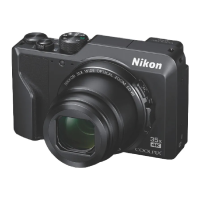
Nikon coolpix A300 - User Manual

Nikon coolpix A300
44 pages
Print Icon
To Next Page IconTo Next Page
Loading...
DIGITAL CAMERA
Quick Start Guide
En
For Smart Device Users ii
Introduction iv
Parts of the Camera 1
Getting Started
2
Basic Shooting and Playback Operations 12
Other Functions 17
Technical Notes 21
Read this manual thoroughly before using the camera.
To ensure proper use of the camera, be sure to read “For
Your Safety” (page viii).
After reading this manual, keep it in a readily accessible
place for future reference.

Other manuals for Nikon coolpix A300

Questions and Answers

  • D
    Dr. Erica BakerSep 8, 2025
    Why can't I take pictures or record movies with my Nikon Digital Camera?
    • E
      Elizabeth WalkerSep 8, 2025
      If you can't take pictures or record movies, make sure the camera isn't in playback mode by pressing the A button, shutter-release button, or b (e) button. If menus are displayed, press the d button. Also, check if the flash is charging or if the battery is exhausted.
  • R
    Robert MurphyAug 23, 2025
    Why is my Nikon Digital Camera not turning on?
    • D
      Danielle ReevesAug 23, 2025
      The most likely reason is that the battery is exhausted. Please replace or charge the battery.
  • E
    eric08Aug 25, 2025
    How to fix Nikon coolpix A300 that cannot focus?
    • W
      William OwensAug 25, 2025
      If your camera is having trouble focusing, it could be due to several reasons. The subject might be too close, try using scene auto selector mode, Close-up scene mode, or macro mode. The subject may be hard to focus on. Try setting AF assist to Auto in the setup menu. Alternatively, try turning the camera off and then on again.
  • N
    Nathan WilsonAug 27, 2025
    What to do if my Nikon coolpix A300 battery cannot be charged?
    • K
      Karen HubbardAug 27, 2025
      First, confirm all connections are secure. If connected to a computer, charging issues may arise if 'Charge by computer' is off in the setup menu, or if the camera is turned off during charging. Battery charging is not possible if the camera’s display language and date and time have not been set, or the date and time were reset after the camera’s clock battery was exhausted; use the Charging AC Adapter to charge the battery. Charging may also stop if the computer enters sleep mode or depending on the computer’s specifications, settings, and status.
  • H
    Holly CastilloAug 27, 2025
    Why does my Nikon Digital Camera turn off without warning?
    • C
      Cynthia MooreAug 27, 2025
      Your Nikon Digital Camera may turn off without warning for several reasons: * The camera automatically turns off to save power (auto off function). * The camera and battery may not work properly at low temperatures. * The inside of the camera has become hot. If the camera turns off due to overheating, leave it off until the inside cools down, then try turning it on again.
  • M
    Michelle KirbySep 22, 2025
    How to enable date stamp on Nikon coolpix A300 Digital Camera?
    • A
      Aaron TorresSep 22, 2025
      To enable the date stamp, ensure that 'Time zone and date' has been set in the setup menu.
  • M
    Michael SmithSep 16, 2025
    What does 'O' flashing on the screen of my Nikon coolpix A300 mean?
    • W
      Wesley McmahonSep 16, 2025
      If you see 'O' flashing on the screen, it indicates that the camera clock hasn't been set. Images and movies saved before setting the clock will have default dates. Set the correct time and date in the setup menu. Note that the camera clock's accuracy may vary, so periodically compare it with a more accurate timepiece and reset as needed.
  • A
    Alicia RamirezSep 18, 2025
    Why are no indicators displayed on the screen of my Nikon coolpix A300 Digital Camera?
    • U
      ublackSep 18, 2025
      If no indicators are displayed, it's likely that 'Hide info' is selected for 'Photo info' in 'Monitor settings' within the setup menu. Check these settings to restore the display of indicators.
  • C
    Chase MillsSep 7, 2025
    Why are my Nikon coolpix A300 Digital Camera images too bright (overexposed)?
    • T
      Tracy LewisSep 7, 2025
      If your images are consistently too bright, try adjusting the exposure compensation.
  • C
    Crystal CrossSep 4, 2025
    What to do if the flash does not fire on my Nikon coolpix A300 Digital Camera?
    • M
      Mr. Thomas Ramsey MDSep 4, 2025
      If the flash isn't firing, check if the flash mode is set to off. Also, some scene modes or enabled functions might restrict the flash.

Summary

For Smart Device Users

SnapBridge Service Overview

Introduction to Nikon's SnapBridge for enriching image experience and connecting camera to smart devices.

Download SnapBridge App

Instructions for downloading and installing the SnapBridge app for iOS and Android devices.

Key SnapBridge Features

Explains auto transfer, NIKON IMAGE SPACE, remote control, and photo information imprinting.

Introduction

Important First Steps

Essential introductory information and instructions before using the camera and its manuals.

Download Manuals & Software

Guide to downloading the Reference Manual and ViewNX-i software from the Nikon Download Center.

Nikon Product Support

Information on contacting Nikon representatives for technical assistance with Nikon products.

Parts of the Camera

Camera Body Component Guide

Identifies and labels key components and buttons on the Nikon COOLPIX A300 camera body.

Getting Started

Attach Camera Strap

Step-by-step instructions on securely attaching the camera strap to the device.

Insert Battery & Memory Card

Guide to correctly inserting the battery and memory card into their respective slots.

Format Memory Card

Instructions for formatting a memory card for first-time use in the camera for compatibility.

Remove Battery & Memory Card

Procedures for safely removing the battery and memory card from the camera.

Memory Card & Internal Storage

Details on using memory cards or the camera's internal memory for saving data.

Charge Camera Battery

Detailed steps for charging the camera's battery using the AC adapter and USB cable.

Camera Setup

Connect to Smartphone;Tablet

Connect the COOLPIX A300 camera to a smartphone or tablet using Bluetooth and Wi-Fi.

Camera Device Pairing

Instructions for pairing the camera with Android and iOS devices via NFC or Bluetooth.

Manual Camera Menu Setup

Configure camera settings like language, time zone, and date via the camera's menu interface.

Basic Shooting & Playback

Shooting Images Guide

Instructions for holding the camera steady, framing shots, and using the shutter button.

Playback Images Guide

Steps to enter playback, select images with multi selector, and zoom in on photos.

Delete Images from Camera

How to delete the current image, selected images, or all images from the camera's memory.

Other Camera Functions

Select Shooting Mode

Overview of shooting modes: Scene auto selector, Scene mode, Special effects, Smart portrait, Auto mode.

Adjust Shooting Settings

How to adjust flash mode, self-timer, macro mode, and exposure compensation with the multi selector.

Navigate Camera Menus

Guide to using shooting, movie, playback, network, and setup menus via the MENU button.

Technical Notes

Supported Memory Cards

Information on supported memory card types and recommendations for movie recording.

Product Trademark Information

List of trademarks and registered trademarks for the camera and its software.

Export & Travel Precautions

Guidelines on export controls and compliance with regulations for international product use.

Nikon coolpix A300 Specifications

General IconGeneral
Sensor TypeCCD
Effective Pixels20.1 million
Optical Zoom8x
Digital Zoom4x
Battery TypeEN-EL19 Rechargeable Li-ion Battery
TypeCompact digital camera
Autofocus (AF)Contrast-detect AF
Monitor TypeTFT LCD
Shutter TypeMechanical and CMOS electronic shutter
ApertureElectronically-controlled ND filter (-2.6 AV) selection
Built-in FlashYes
Flash ControlTTL auto flash with monitor preflashes
Movie RecordingYes
Movie Frame Rate30 fps
ConnectorsHi-Speed USB
Tripod Socket1/4 (ISO 1222)
Operating EnvironmentTemperature: 0°C to 40°C (32°F to 104°F), Humidity: 85% or less (no condensation)
Image ProcessorEXPEED C2
Focal Length4.5-36.0 mm (angle of view equivalent to that of 25-200 mm lens in 35mm [135] format)
ISO Sensitivity80-1600
Display Size2.7 in.
Image StabilizationLens-shift VR
Video Resolution1280 x 720
LensNIKKOR lens
Focus Range[W]: Approx. 50 cm (1 ft 8 in.) to infinity, [T]: Approx. 1.5 m (5 ft) to infinity
Monitor ResolutionApprox. 230k-dot
Storage MediaSD, SDHC, SDXC memory cards
File SystemDCF, Exif 2.3
File FormatsJPEG
Image Size (pixels)5152 x 3864
ISO Sensitivity (Auto mode)80-1600
Shutter Speed1/1500-1 s
Self-Timer2, 10 s
Exposure Compensation–2.0 to +2.0 EV in steps of 1/3 EV
Scene Modesportrait, landscape, sports, night portrait, party/indoor, beach, snow, sunset, dusk/dawn, night landscape, close-up, food, museum, fireworks show, black and white copy, backlighting, pet portrait
Movie Recording TimeUp to 29 minutes
Wi-FiIEEE 802.11b/g
Power SourcesEN-EL19 rechargeable battery
Battery LifeApprox. 240 shots when using EN-EL19
DimensionsApprox. 95.9 x 58.0 x 20.1 mm (3.8 x 2.3 x 0.8 in.) excluding projections
LCD Monitor Size2.7 in.
LCD Monitor Resolution460, 000 dots
Flash Range[T]: 1.5 m (5 ft)

Related product manuals