EasyManua.ls Logo

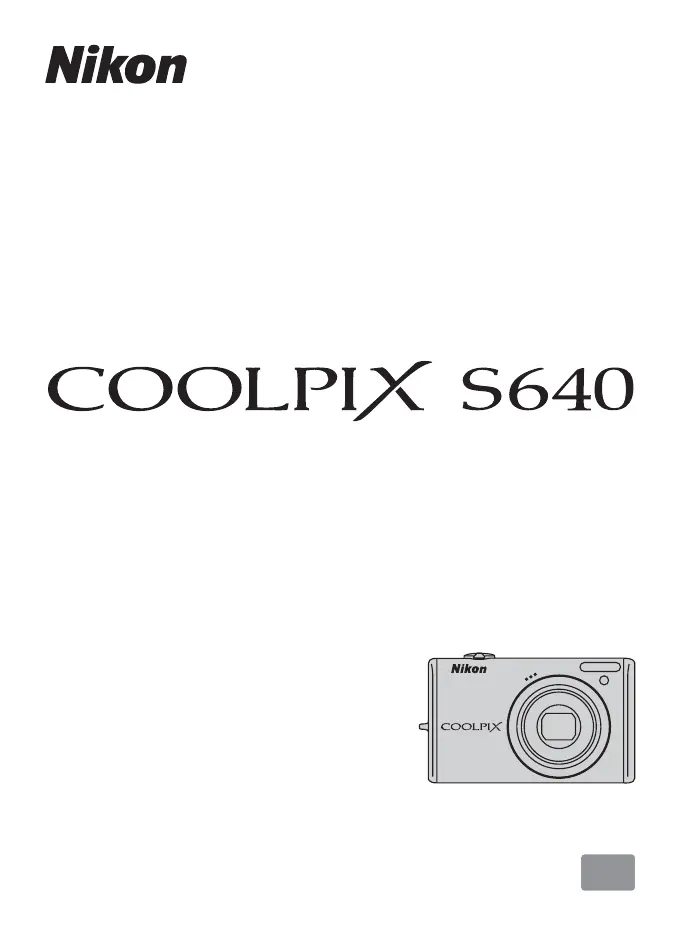
Nikon Coolpix S640 - User Manual

Nikon Coolpix S640
176 pages
Print Icon
To Next Page IconTo Next Page
Loading...
En
Users Manual
DIGITAL CAMERA

Table of Contents

Other manuals for Nikon Coolpix S640

Questions and Answers

  • H
    Hannah WalkerSep 18, 2025
    Why isn't the PictBridge startup screen displayed when my Nikon Coolpix S640 Digital Camera is connected to a printer?
    • T
      Tamara LoweSep 18, 2025
      If the PictBridge startup screen is not displayed when the camera is connected to a printer, with some PictBridge-compatible printers, the PictBridge startup screen may not be displayed and it may be impossible to print pictures when Auto is selected for the Charge by computer option in the setup menu. Set the Charge by computer option to Off and reconnect the camera to the printer.
  • D
    Derrick GriffinAug 25, 2025
    Why isn't my Nikon Digital Camera battery charging when connected to the computer?
    • R
      Robert CarlsonAug 25, 2025
      If the battery inserted into your Nikon Digital Camera is not charging when connected to a computer, it could be due to a few reasons. First, the battery does not charge when the camera is turned off, so charge the battery while the camera is on. Also, charging stops if the computer enters sleep mode, so ensure the computer stays awake during charging. Depending on your computer's specifications, settings, and power supply, it may be impossible to charge the battery via computer connection; in this case, use a wall charger instead.
  • M
    Michael McguireAug 25, 2025
    Why did my Nikon Digital Camera settings reset?
    • R
      Renee RamirezAug 26, 2025
      If camera settings reset on your Nikon Digital Camera, it is because the backup battery is exhausted; all settings were restored to their default values. Replace the backup battery.
  • J
    Jennifer SimsAug 26, 2025
    How to fix blurred pictures on Nikon Digital Camera?
    • E
      Emily SimpsonAug 27, 2025
      If the pictures taken with your Nikon Digital Camera appear blurred, try the following solutions: Use the camera flash. Enable vibration reduction. Activate Best Shot Selector. Stabilize the camera using a tripod.
  • K
    Karen CunninghamSep 22, 2025
    Why are the pictures to be printed not displayed on my Nikon Coolpix S640 Digital Camera?
    • J
      John BennettSep 22, 2025
      If pictures to be printed are not displayed on your Nikon Digital Camera, the memory card might contain no pictures. Replace the memory card.
  • J
    juan74Sep 23, 2025
    Why is date imprint not available on Nikon Coolpix S640 Digital Camera?
    • J
      Jessica ReidSep 23, 2025
      If date imprint is not available on your Nikon Digital Camera, it is because the date has not been set. Set the date.
  • H
    holmesalanSep 9, 2025
    Why doesn't the AF-assist illuminator light on my Nikon Coolpix S640?
    • J
      Justin WalterSep 9, 2025
      If the AF-assist illuminator does not light on your Nikon Digital Camera, it could be because Off is selected for AF assist in the setup menu. Turn AF assist On. Also, the AF-assist illuminator turns off automatically in some scene modes. Check the selected scene mode.
  • D
    David FrazierSep 12, 2025
    Why do my pictures appear smeared on my Nikon Coolpix S640?
    • C
      Christopher WigginsSep 12, 2025
      If pictures appear smeared on your Nikon Digital Camera, the lens might be dirty. Clean the lens.
  • J
    Jason BradfordSep 3, 2025
    How to improve monitor readability on Nikon Digital Camera?
    • S
      Stephanie BrownSep 3, 2025
      If the monitor of your Nikon Digital Camera is hard to read, try adjusting the monitor brightness. If the monitor is dirty, clean it.
  • L
    Linda ConleySep 1, 2025
    What to do if my Nikon Coolpix S640 Digital Camera won't take a picture?
    • J
      Joe OrtegaSep 1, 2025
      If you're unable to take a picture when pressing the shutter-release button on your Nikon Digital Camera, make sure the camera is not in playback mode; if it is, press the A button. Also, ensure that menus are not displayed by pressing the d button. Check if the battery is exhausted and charge or replace it if necessary. If the flash lamp is blinking red, wait until the flash is charged.

Summary

For Your Safety

Safety Warnings and Precautions

Essential safety guidelines and warnings for operating the camera safely.

Notices and Compliance

U.S.A. FCC Compliance

Federal Communications Commission (FCC) statement on radio frequency interference.

Introduction to the Manual

About This Manual

Overview of the manual's content, symbols, and conventions.

Memory Cards Explained

Learn about using memory cards for image storage.

First Steps: Getting Started

Battery Installation and Charging

Guide to inserting, charging, and handling the camera battery.

Initial Camera Setup

Set up the camera's language, date, time, and time zone.

Memory Card Setup

Learn to insert, remove, and format memory cards for optimal use.

Basic Photography: Auto Mode

Step 1: Power On and Select Auto Mode

Turn on the camera and select Auto mode for basic shooting.

Step 2: Framing and Focusing

Learn to frame subjects and achieve focus for capturing images.

Step 3: Taking Pictures

How to press the shutter button to take a photo.

Step 4: Viewing and Deleting Photos

Review captured images and learn how to delete unwanted ones.

Scene Modes for Specific Situations

Understanding Scene Modes

Explore optimized camera settings for various shooting scenarios.

Scene Mode Features

Learn about functions available within different scene modes.

Smart Portrait Mode Guide

Using Smart Portrait Mode

Capture portraits automatically using face and smile detection features.

Playback and In-Camera Editing

Browsing Images

Navigate through images using thumbnail, calendar, or list views.

Editing Pictures On-Camera

Enhance, resize, and crop images directly on the camera.

Movie Recording and Playback

Recording Movies

Steps for recording video clips with sound.

Managing Movie Files

Learn to play and delete recorded movie files.

Connecting and Transferring Data

Connecting to a TV

Display camera photos and videos on a television screen.

Connecting to a Computer

Transfer images and videos to a computer for storage and management.

Direct Printing with PictBridge

Print photos directly to a PictBridge-compatible printer.

Camera Menu System Overview

Shooting Menu Settings

Configure camera settings like ISO, white balance, and AF.

Playback Menu Functions

Access features for editing, organizing, and protecting photos.

Setup Menu Configuration

Adjust system settings, language, date, time, and camera preferences.

Troubleshooting Common Camera Issues

Power, Display, and Setting Problems

Resolve common issues with the monitor, power, and camera settings.

Shooting and Playback Errors

Troubleshoot errors during shooting or image playback.

Technical Specifications

Camera Specifications Summary

Detailed technical data of the Nikon COOLPIX S640 camera.

Supported Standards and Accessories

Information on supported standards and approved accessories for the camera.

Nikon Coolpix S640 Specifications

General IconGeneral
Megapixel12.2 MP
Camera typeCompact camera
Sensor typeCCD
Image sensor size1/2.33 \
Maximum image resolution4000 x 3000 pixels
Still image resolution(s)640 x 480, 1024 x 768, 2048 x 1536, 2592 x 1944, 3264 x 2448, 3968 x 2232, 4000 x 3000
Digital zoom4 x
Optical zoom5 x
Focal length range2.7 - 6.6 mm
InterfaceUSB 2.0
Digital SLRNo
Effective sensor resolution12.39 pixels
Focus adjustmentAuto
Super Macro focusing range0.02 m
Internal memory45 MB
Compatible memory cardssd, sdhc
Display diagonal2.7 \
USB version2.0
Product colorWhite
Battery typeEN-EL12
Weight and Dimensions IconWeight and Dimensions
Depth20.5 mm
Width91 mm
Height55 mm
Weight110 g

Related product manuals