67
4
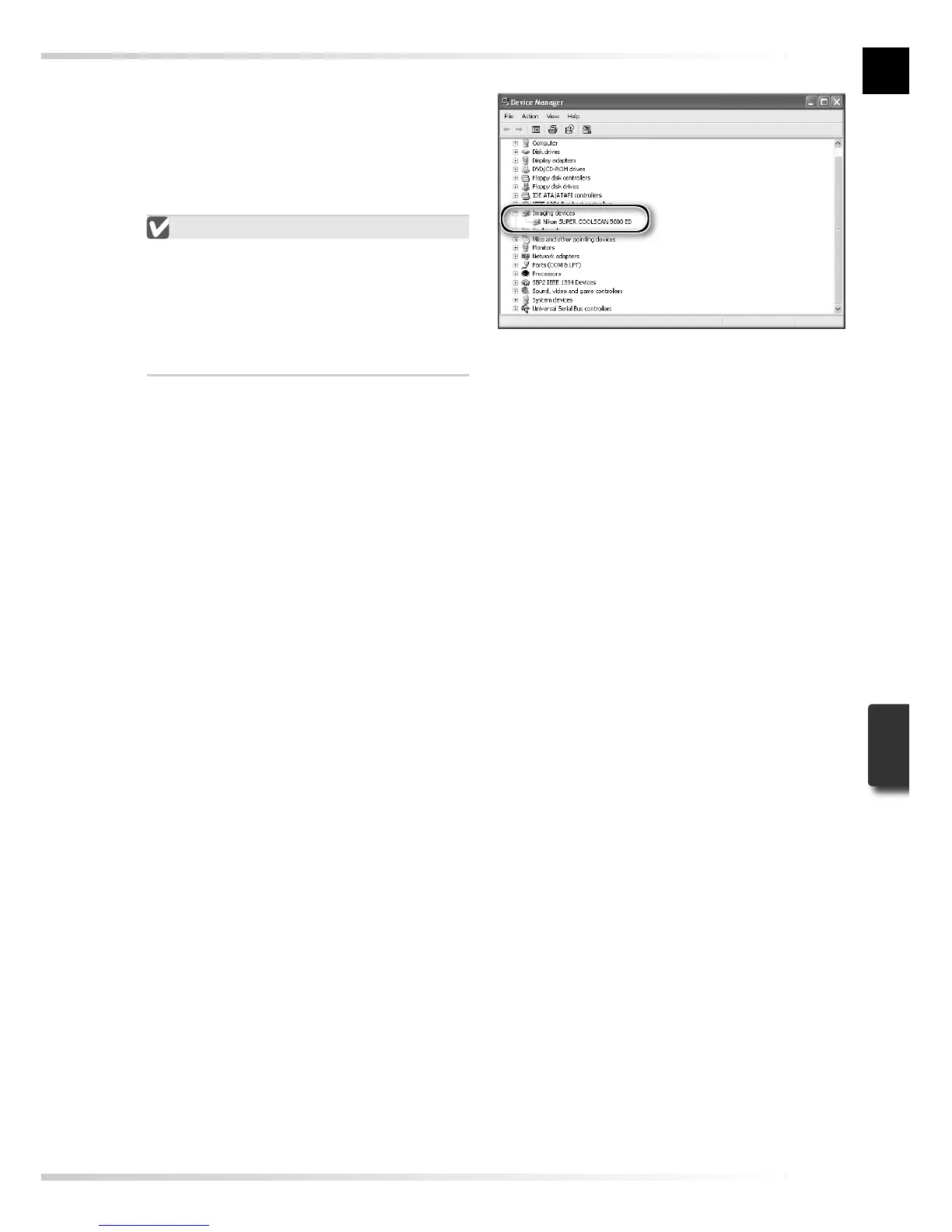
Check that the scanner is listed as an imaging device
Click the “+” next to “Imaging devices”
(Windows XP, Windows 2000 Profes-
sional) or “Imaging Device” (Windows
Me, Windows 98 SE) and confi rm that
the scanner is listed.
If the Scanner Is Not Listed
If the scanner is not listed or appears
next to a “!”, “?”, or “×”, the drivers
have not been correctly installed. Dis-
connect the scanner and uninstall Nikon
Scan, then reinstall Nikon Scan and re-
connect the scanner.






 To Next Page