EasyManua.ls Logo

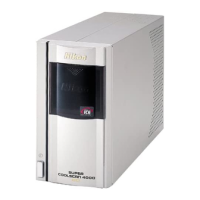
Nikon CoolScan IV ED - User Manual

Nikon CoolScan IV ED
112 pages
Print Icon
To Next Page IconTo Next Page
Loading...
i
User’s Manual
i
Product Documentation
The documentation for this product includes the manuals listed below. Please be sure to read all
instructions thoroughly to get the most from your Nikon scanner.
User’s Manual (this manual)
This manual provides instructions for setting up and using your scanner.
Nikon Scan 3 Reference Manual (on CD)
This electronic manual provides complete operating instructions for the software that makes your
scanner run, Nikon Scan 3. It is available on the reference CD provided with your scanner, where it can
be viewed using Adobe Acrobat Reader 4.0 (available on the reference CD) or later. Installation and
viewing instructions are included in the User’s Manual.
En

Table of Contents

Other manuals for Nikon CoolScan IV ED

Questions and Answers

  • K
    Karen OwensJul 26, 2025
    What to do if my Nikon CoolScan IV ED does not turn on?
    • N
      nataliewhiteJul 26, 2025
      If your Nikon Scanner isn't turning on, try these steps: First, reconnect the power cable. Then, ensure the scanner is turned on. If it still doesn't work, test the outlet with another device to rule out a fuse or circuit breaker issue. You can also try turning the scanner off, removing the FH-3, and then turning it back on. As a final step, turn the scanner off, disconnect it from the computer, wait five seconds, and then turn it on again.
  • S
    Sarah HaasAug 17, 2025
    How to fix film jamming in the SA-21 strip-film adapter of Nikon CoolScan IV ED?
    • D
      Dorothy WatsonAug 17, 2025
      If film jams in the SA-21 strip-film adapter, first click OK, then check that the film is suitable for use in the SA-21. Wait until the status LED is glowing steadily and re-insert the film. See 'Maintenance: Caring for Adapters' for instructions on cleaning the SA-21.
  • B
    barbara88Nov 1, 2025
    Why my computer does not recognize the Nikon CoolScan IV ED Scanner?
    • Y
      youngtiffanyNov 1, 2025
      If your computer isn't recognizing the Nikon Scanner, try the following: First, ensure the scanner is turned on. If that doesn't work, remove the FH-3, then turn the scanner off and on again. Next, disconnect and reconnect the scanner cable, making sure the scanner is off when you do so. Also, remove any other hardware connected to the same bus as the scanner. Note that your computer system must meet the minimum system requirements, see the Nikon Scan 3 Reference Manual for more information on system requirements. Ensure that the interface board is compatible with Nikon Scan, if you are using the 4000 ED, check the compatibility information provided with your scanner. Check the documentation for your IEEE 1394 or Firewire interface board to ensure that the interface board is correctly inst...
  • M
    Mr. Jeffrey FernandezNov 8, 2025
    What to do if the status LED flashes rapidly on my Nikon Scanner?
    • D
      Darren MartinNov 8, 2025
      If the status LED on your Nikon Scanner is flashing rapidly while connected to your computer, it could indicate a connection error or hardware malfunction. First, turn off both the scanner and computer, disconnect the scanner, wait five seconds, and then turn the scanner back on. If the LED continues to flash rapidly, it may be a hardware issue. You can also turn the scanner off, reconnect it to your computer, restart your computer, and then turn the scanner on again. Try disconnecting other devices using the same interface as the scanner. Re-installing Nikon Scan or updating the device drivers for the USB or IEEE 1394/Firewire interface (Windows only) may also resolve the issue. Ensure the film is properly inserted; eject and re-insert if necessary. Avoid using the scanner in environments...

Summary

Overview of the Users Manual

About This Manual

Explains the manual's purpose, scope, and intended audience.

Manual Structure Explained

Details the manual's organization, chapters, and how to read it.

Getting the Most from Your Scanner

Tips for Optimal Scanning Results

Offers advice and techniques for achieving the best possible scanner performance.

Film Care and Protection

Provides guidance on handling film to prevent damage and ensure scan quality.

Scanner Connectivity Precautions

Outlines important safety and operational notes for connecting the scanner.

Setup Guide for Your Nikon Scanner

Scanner Installation Steps

Covers unpacking, physical setup, and initial power connection procedures.

Software and Driver Installation

Guides on installing Nikon Scan software, reference manuals, and necessary system updates.

Registering Scanner with Windows OS

Details the process of installing hardware drivers and registering the scanner with Windows.

Performing Your First Scan

Introduces the fundamental procedures for scanning an image.

Nikon Scan Quick Reference

Nikon Scan Window Overview

Explains the main interface elements of the Nikon Scan software.

Control Area and Tool Functions

Describes the functions of buttons and menus for scan control and settings.

Information Panel and Preview Area

Explains the status displays and image preview capabilities.

Reference and Maintenance Information

Troubleshooting Scanner Issues

Provides solutions for common scanner operational problems and error messages.

SA-21 Adapter Film Jam Solutions

Offers specific troubleshooting steps for film jams within the SA-21 adapter.

Scanner Maintenance and Care Guide

Provides guidance on cleaning, storing, and servicing the scanner and its parts.

Optional Accessories Guide

Lists and describes available optional accessories for enhancing scanner functionality.

Scanner and Accessory Specifications

Presents detailed technical specifications for the scanner and its various accessories.

Appendices for Advanced Setup

Installing IEEE 1394;Firewire Interface Board

Provides step-by-step instructions for installing the hardware interface board.

IEEE 1394 Update for Windows 98 SE

Details the procedure for installing a specific driver update for Windows 98 SE.

Nikon CoolScan IV ED Specifications

General IconGeneral
TypeFilm Scanner
Film Format35mm
Optical Resolution2900 dpi
Bit Depth14-bit
InterfaceUSB 1.1
SoftwareNikon Scan
Dynamic Range3.8 D

Related product manuals