2
1
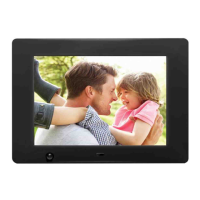
MEET YOUR NIXPLAY CLOUD FRAME
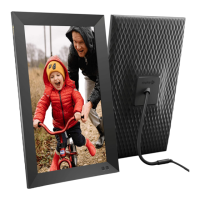
FRONT OF CLOUD FRAME
BACK OF CLOUD FRAME
REMOTE
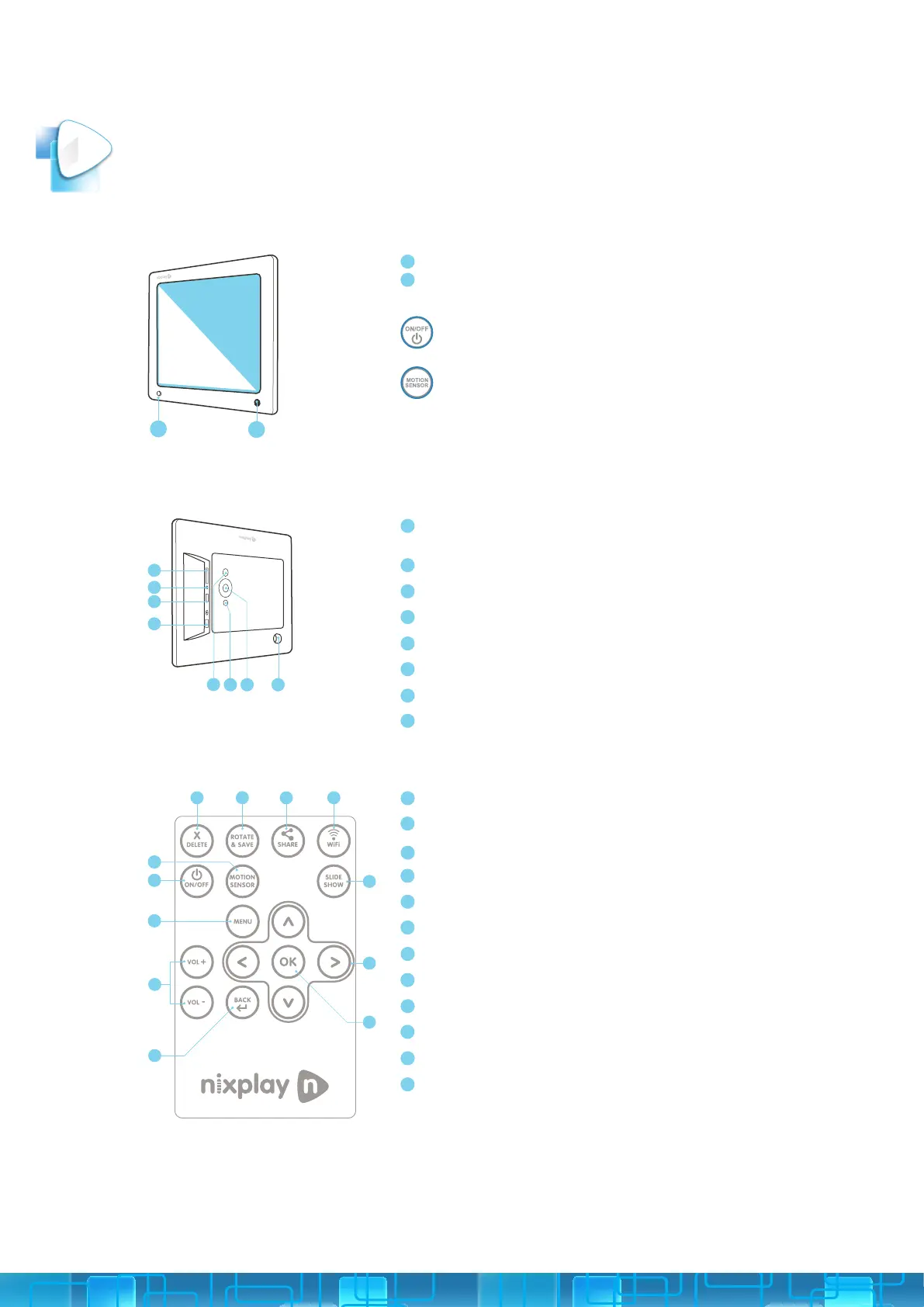
Motion Sensor - to adjust motion sensor settings select the Motion Sensor
button on the remote (labeled L below)
IR Sensor for Remote - Receives signals from the remote
To Power On - press & hold ON/OFF button for about 3 seconds
Motion Sensor - Senses movement and turns the Cloud Frame ON and OFF
A
B
1.1
1.2
1.3
SD/SDHC Card Slot - Connect and view external photos and videos from the
memory card
Headphone/Speaker port - Connect your headphones or speakers
USB Port - Connect your USB ash drive and view photos and videos
Power Adapter DC-in (5V) - Plug in power cable for power
ON/OFF Button - Press and hold to power on the Cloud Frame
Menu Button - This will allow you to go back a step
4-way Menu Control and Play button - Helps you navigate and select
Stand screw hole
C
D
E
F
G
H
I
J
Delete - Delete selected photo
Rotate & Save - Rotates a selected photo 90 degrees at a time
Share - Coming soon
WiFi Setting - Coming soon
Slide Show - Starts the slideshow (whenever you are in the Frames settings)
UP/DOWN/LEFT/RIGHT - Navigate through the Cloud Frame’s menus
OK / Play - (Conrms changes made on Cloud Frame)
Back - Go Back a step in any of the Cloud Frame’s menus
Vol- / Vol+ - Adjust the volume when you watch a video
Menu - Goes directly to the main menu
ON / OFF - Turns your Frame on or puts it on standby
Motion Sensor - Allows you to turn the motion sensor on or o
C
D
E
F
G
A
B
H
I
J
K
L
A B C D
E
F
G
H
I
J
K
L
A
B
G H
I
J
C
D
E
F



 To Next Page