Need help?
Do you have a question about the Nixplay W15 and is the answer not in the manual?
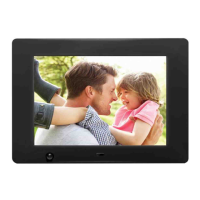
Describes the front panel features and components of the Nixplay Cloud Frame.
Details the components and ports located on the back of the Nixplay Cloud Frame.
Explains the functions and buttons of the remote control for the Nixplay Cloud Frame.
Guides on assembling the frame stand and preparing the remote control.
Instructions for plugging in the power adapter and connecting the frame to a WiFi network.
Steps for powering on the frame and waiting for the software update process.
Details on obtaining the serial number and activating the frame on the Nixplay website.
Managing photos, creating albums, and organizing slideshows within the Nixplay cloud.
Guides on creating new albums and uploading photos into them.
How to sort, select, move, or delete photos and albums.
Importing photos from Facebook, Picasa, and Instagram.
Guides on creating new slideshows and adding photos from albums.
Reordering, managing, and assigning slideshows to frames.
Details the dedicated email address for sending photos to the frame.
Configuring email filter and approved contacts for photo reception.
Explains email album organization and the most recent photo display setting.
Instructions for linking up to five Nixplay frames to a single account.
Customizing frame name, location, motion sensor, and recent photo display.
Configuring photo transition types, fit, startup order, and alerts.
How to start, view, and navigate through slideshows on the frame.
Accessing and viewing photos and videos from external USB drives and SD cards.
Connecting the frame to different WiFi networks.
Customizing transition types, photo fit, display duration, and sleep timers.
Setting time zone, updating software, and viewing frame technical information.
Information about the one-year warranty and how to obtain service.
How to get help, find FAQs, and contact the support team.
Compliance information regarding the WEEE directive and product recycling.
Essential safety guidelines to prevent fire, electric shock, and injury.
Warnings regarding electric shock, water exposure, and correct adapter usage.
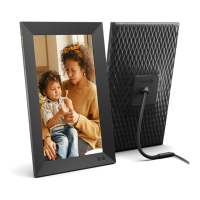
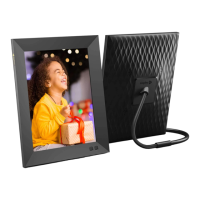
This document is a user manual for the Nixplay W15 Cloud Frame, a digital photo frame designed to display photos and videos, with a strong emphasis on cloud-based management and social media integration. The frame offers a variety of features for displaying, organizing, and sharing digital memories.
The Nixplay W15 Cloud Frame serves as a smart display for digital photos and videos, leveraging cloud technology to provide a seamless and connected experience. Its primary function is to showcase slideshows of personal memories, which can be managed remotely through a Nixplay Cloud Account. The frame is designed to be user-friendly, allowing for easy setup and continuous updates of content.
The core of the Nixplay Cloud Frame experience revolves around its cloud account. Users can upload photos, create albums, and organize slideshows online. These slideshows are then sent directly to the paired Cloud Frame, allowing for dynamic content updates without needing physical interaction with the frame itself. This cloud integration enables users to manage their frame's content from anywhere with an internet connection.
Beyond personal uploads, the frame integrates with popular social media platforms such as Facebook, Picasa, and Instagram. This feature allows users to access and display photos directly from their social media accounts, expanding the range of content available for their slideshows.
An innovative feature is the ability to email photos directly to the frame. Each frame is assigned a unique @mynixplay.com email address, allowing friends and family to share photos effortlessly. The system includes privacy controls, such as an email filter and an "Approved Contacts" list, ensuring that only desired photos are displayed.
The frame also supports local media playback via USB and SD/SDHC cards, offering flexibility for displaying content that may not be stored in the cloud. This ensures that users can enjoy their photos and videos regardless of their preferred storage method.
Setting up the Nixplay W15 Cloud Frame involves a few straightforward steps. After assembling the stand and removing a plastic tab from the remote, the frame needs to be placed near a computer and plugged into a power source. The initial power-on and connection to a Wi-Fi network are crucial for the frame to receive software updates and connect to the user's Nixplay Cloud Account.
Once connected, the frame displays a 16-digit serial number, which is used to pair it with a Nixplay Cloud Account via the www.nixplay.com website. This pairing process is essential for activating the cloud features and beginning to upload and display photos.
The remote control is a central tool for interacting with the frame. It features buttons for power, menu navigation, volume control, and specific functions like deleting photos, rotating images, and starting slideshows. A motion sensor on the frame can be controlled via the remote, allowing the frame to turn on and off based on detected movement, conserving energy.
On the Nixplay Cloud Account website, users can manage their digital content comprehensively. This includes creating albums to store photos, adding photos to these albums (either by uploading from a computer or dragging and dropping files), and organizing them by name or date. The "Actions" menu allows for selecting, moving, or deleting multiple photos.
Slideshow creation is a key aspect of the frame's usage. Users can create multiple slideshows, add photos from their albums or social media, and arrange them in a desired order. These slideshows are then "published" and sent to the paired Cloud Frame. The ability to drag and drop slideshows onto specific frames in the "My Frames" section simplifies content distribution across multiple Nixplay frames.
Frame settings can be customized both through the cloud account and directly on the frame. These settings include the frame's name and location, motion sensor behavior (sleep after no motion or at a specific time), and "Most Recent Photos" display options (showing photos added in the last day, 3 days, or week first).
Slideshow settings on the frame allow for customization of photo transition types (e.g., Jump Cut, Cross Fade), time between transitions, and photo fit options (Fit To Screen, Fill Screen). Users can also set the frame's start-up mode (Main Menu, Startup Slideshow, USB, SD Card) and choose whether to display alerts.
The frame's interface allows for browsing slideshows that have been published from the cloud account. Users can select and view specific slideshows from a list. For local media, the frame provides a menu to browse content on connected USB drives or SD cards, with options to filter by videos or pictures.
The Nixplay W15 Cloud Frame incorporates several features to ensure its longevity and optimal performance. Software updates are critical for accessing the latest features and improvements. The frame automatically checks for updates when powered on or unplugged, and users are advised not to switch off or unplug the frame during this process to prevent data corruption.
The "Frame Information" section provides technical details such as model, firmware, serial number, frame ID, link address, and network address, which can be useful for troubleshooting or contacting support.
For energy saving, the frame includes a motion sensor that can automatically put the frame to sleep after a period of inactivity or at a specific scheduled time. This helps reduce power consumption and extends the life of the display.
The manual also outlines important safety information to ensure proper maintenance and prevent damage. This includes recommendations to avoid blocking ventilation openings, keeping the frame away from direct sunlight and heat sources, and not placing heavy or sharp objects on the LCD panel. It also advises against placing the frame on unstable surfaces and emphasizes using only the included AC adapter to avoid voiding the warranty.
In case of issues, the Nixplay website provides FAQs and a support page where users can get assistance. The product comes with a full one-year manufacturer's warranty, and users are encouraged to keep their original order information as proof of purchase for servicing needs. If the adapter is lost or fails, a replacement can be obtained by contacting the service department.
 General
| Aspect Ratio | 16:9 |
|---|---|
| Power Source | AC adapter |
| Motion Sensor | Yes |
| Display Size | 15.6 inches |
| Resolution | 1920 x 1080 pixels |
| Storage | 8GB |
| Wi-Fi | 802.11 b/g/n |
| Orientation | Landscape and portrait (auto-rotate) |
| Supported Media Formats | JPEG, PNG, MP4, MOV |
| Stand | Yes |
| Remote Management | Nixplay mobile app and web dashboard |
| Speakers | Built-in stereo speakers |


 To Next Page