2.Keyboard configuration
There are two modes for the keyboard, OFFICE mode and Custom mode.
OFFICE mode is also Standard mode, as for Custom mode, you can make different
configuration to the keyboard, the details for how to configuration and save under
custom mode are in below.
※ NOTE : Press the “Save” of main screen to save the configure when the configure be
completed.
How to configure backlight:
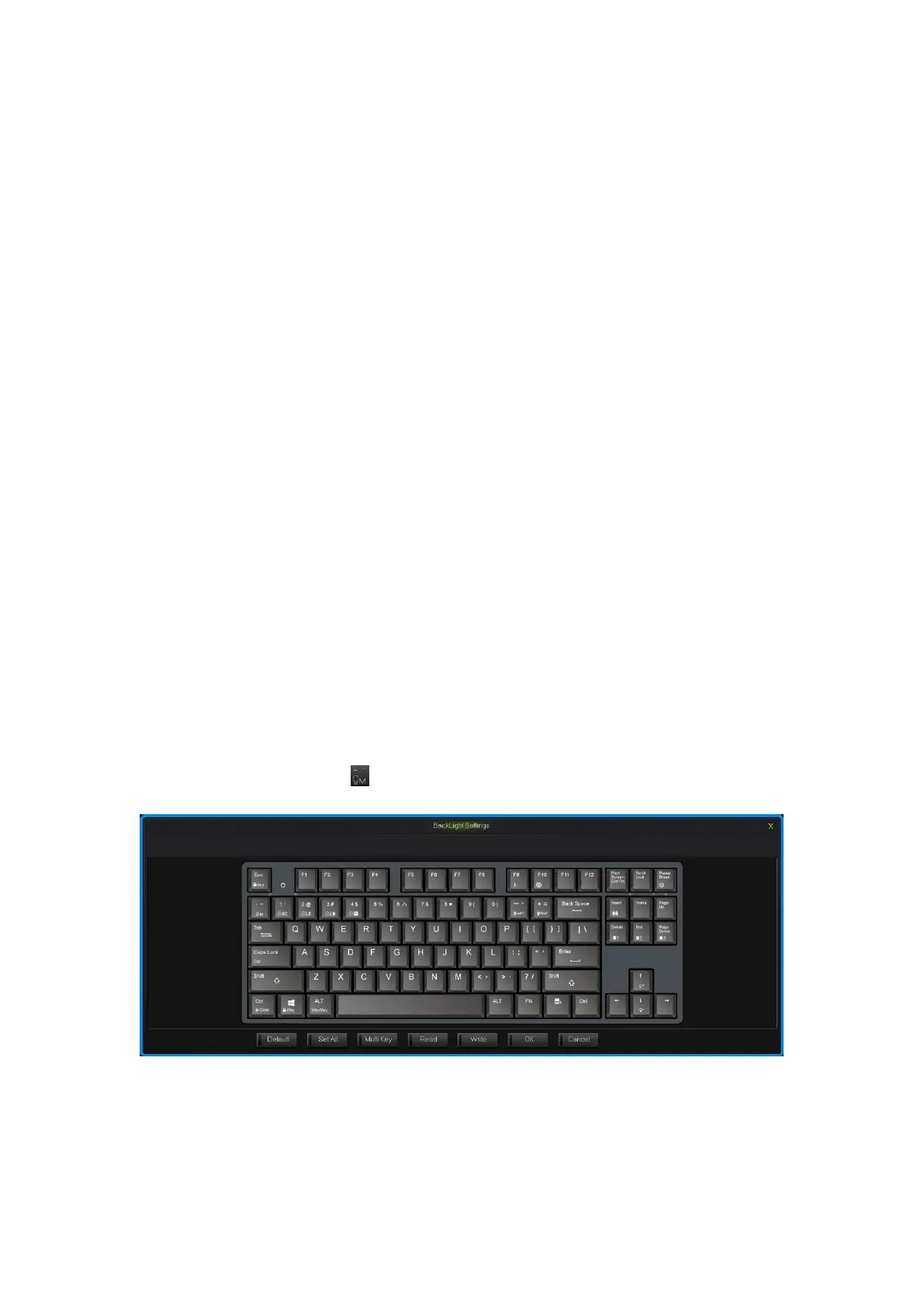
Single click the “LightSet” Key in the main screen of Programming software, the
dialog box of “Backlight settings panel” will pop out.
Single press “Set All” key, choose the color in the dialog box of “color” that pops out
and confirm. Then fast set up all the key color as the chosen color.
Single press “Multi key”key,the dialog box of “Set Multi Key panel” will pop
out,choose the key of need to be set and it will show the chosen status.Then single
pree the “Set Color”key,choose the color in the dialog box of “color“ that pops out
and confirm. Then set up much key color as the chosen color.
Single press on any key on the backlight interface, choose the color in the dialog box
of “color” that pops out and confirm. Then fast set up the chosen key color as the
chosen color.
Click into the “Program” Key after set up the backlight, finish the set up for custom
backlight.
Custom backlight are available under both modes. Exchange custom backlight and
normal backlight with “FN+ ”.
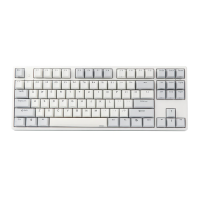
Backlight settings interface


 To Next Page