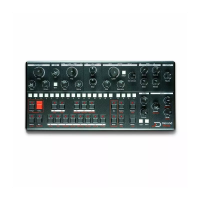
Curve mode
What’s good of an automation if you cant edit it ? Curve mode
allow you to precisely edit a recorded automation. Go to curve
mode by holding [FUNC] and pressing [UP]. The [SEQ] LED will
show the recorded automation with a color map.
Edit a curve
In curve mode, the recorded automation has anchor points
placed at each maximum and minimum points of the curve.
Similar to how this works in a DAW. When you move an anchor
point, it will move the full curve between the 2 anchor points
around the one being moved.
Moving an anchor point
To show every anchor points of the current curve, simply press
and hold the [UP] key, the anchor points will blink. To move an
anchor point in any direction, press the blinking step you want
to move, and drag it up or down, left or right. The curve will
update after you release the [SEQ] strip.
Morphing
The continuous strips allow for continuouis morphing between
all the patterns of a page. To be able to morph between the
patterns, enable morphing with the MORPH switch, go to pattern
mode by pressing pattern, and use your finger to morph between
the patterns on the [SEQ] strip. The “old” morphing feature via
[FUNC] + [CUTOFF] is also still available.
Tape Playhead
In player mode, if you enable morphing with the MORPH key, you
can use your finger as a playhead. This works in forward or
backward direction. When you release the SEQ strip, the


 To Next Page