VX400 All-in-One Controller User Manual
1 Overview
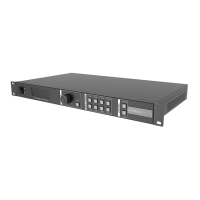
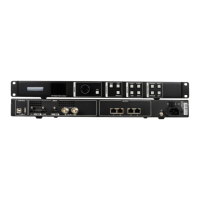
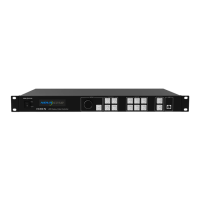
The VX400 is NovaStar's new all-in-one controller that integrates video processing and video control into one
box. It features 4 Ethernet ports and supports video controller, fiber converter and Bypass working modes. A
VX400 unit can drive up to 2.6 million pixels, with the maximum output width and height up to 10,240 pixels
and 8192 pixels respectively, which is ideal for ultra-wide and ultra-high LED screens.
The VX400 is capable of receiving a variety of video signals and processing high-resolution images. In
addition, the device features stepless output scaling, low latency, pixel-level brightness and chroma calibration
and more, to present you with an excellent image display experience.
What's more, the VX400 can work with NovaStar's supreme software NovaLCT and V-Can to greatly facilitate
your in-field operations and control, such as screen configuration, Ethernet port backup settings, layer
management, preset management and firmware update.
Thanks to its powerful video processing and sending capabilities and other outstanding features, the VX400
can be widely used in applications such as medium and high-end rental, stage control systems and fine-pitch
LED screens.
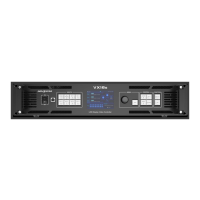
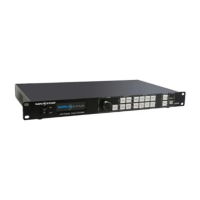
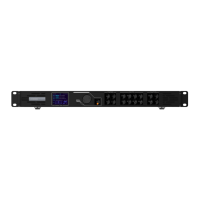
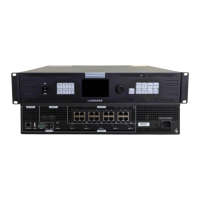
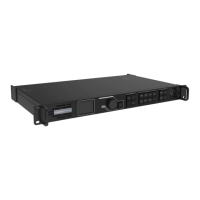
2 Appearance
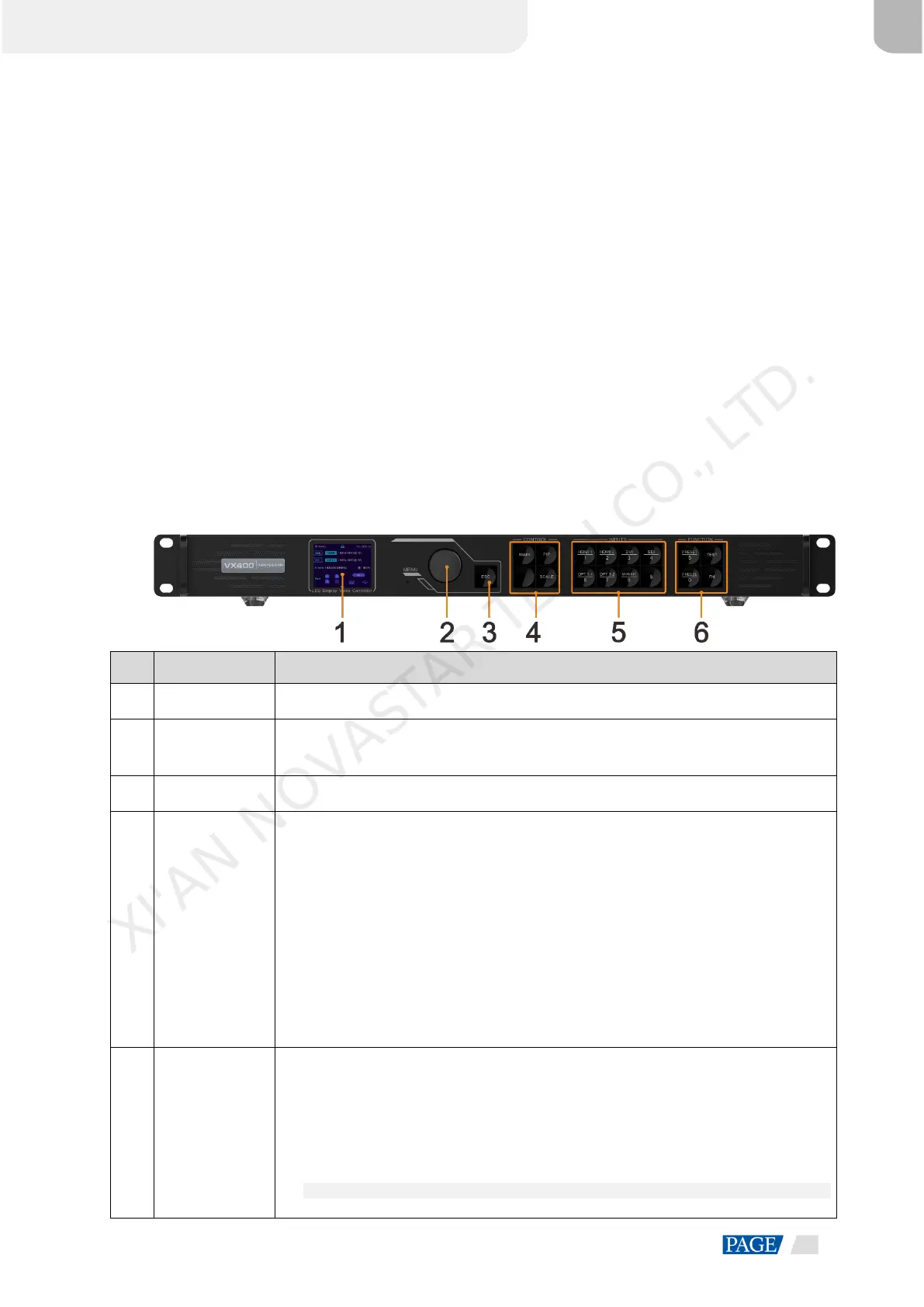
Front Panel
Display the device status, menus, submenus and messages.
Rotate the knob to select a menu item or adjust the parameter value.
Press the knob to confirm the setting or operation.
Exit the current menu or cancel an operation.
MAIN/PIP: Open or close a layer, and show the layer status.
Status LEDs:
− On (blue): The layer is opened.
− Flashing (blue): The layer is being edited.
− On (white): The layer is closed.
SCALE: A shortcut button for the full screen function. Press the button to make the
layer of the lowest priority fill the entire screen.
Status LEDs:
− On (blue): Full screen scaling is turned on.
On (white): Full screen scaling is turned off.
Show the input source status and switch the layer input source.
Status LEDs:
On (blue): An input source is accessed.
Flashing (blue): The input source is not accessed but used by the layer.
On (white): The input source is not accessed or the input source is abnormal.
Notes:
When a 4K video source is connected to OPT 1, OPT 1-1 has a signal but OPT 1-2 does
XI'AN NOVASTAR TECH CO., LTD.


 To Next Page