All rights reserved © AAT SYSTEMY BEZPIECZEŃSTWA SP. Z O.O.
N Control 6000 - User’s manual ver. 1.1
22
BASIC FUNCTIONS
In the displayed window, select the Main Stream option to display and rip the main stream.
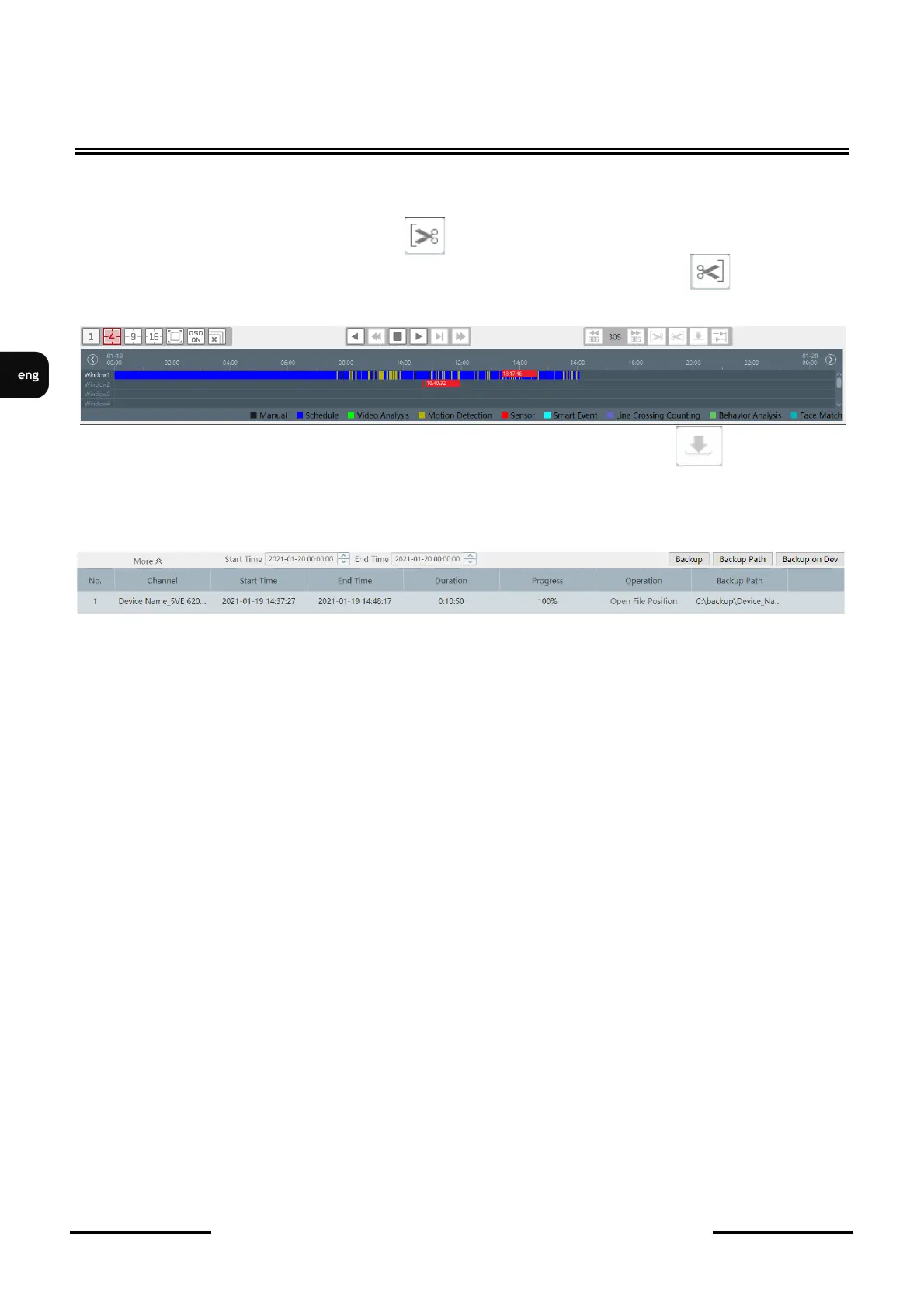
After loading the recordings bar, click on the bar at the point in time from which you want to start
copying recordings and click on the button .
Then select the point in time you want the recording to end and press the button a white bar
will be displayed on the time bar indicating the time of the clip to be copied.
Then select the point in time you want the recording to end and press the button .
After clicking the button, the Backup panel opens with information about the backup being made.
The saving path is displayed in the Backup Path column. Clicking the Open File Position item in the
Operation column opens the window in which the files are saved.
The Start Time and End Time fields contain information about the start and end time of the
recording file. The Progress column shows the percentage of the copy performed. If the field in the
Progress field displays a value of 100%, it means the backup is completed.
4.4. Copying recordings to the remote device
The program enables remote backup of recordings to a USB flash drive in the recorder. The copying
process can be started without the necessity to log into the recorder by a local user.
To start remote copying, select Backup in the Storage Playback section.
In the menu that opens, double-click on the selected channel from the list on the left to load the bar
showing the type and time of recordings. The selected time range of recordings should be marked by
clicking in the selected place on the bar and holding the left mouse button, select the end of the
recording and then release the mouse button. The copying process will start after clicking the Backup
on Dev button. (Be sure to connect the disk recorder to the USB port.) The Progress column shows
the percentage of the copying process. 100% means copying the material.



 To Next Page