2. On the web page clear the Hold Foreign Device Interface Network Print
Jobs checkbox.
3. Click Apply.
2.7 SafeCom Controller web interface
The SafeCom Controller web interface consists of multiple web pages, some of
which can be password-protected. Most web pages include online help. The
web interface is available in English.
2.7.1 Log in to the SafeCom Controller web interface
1. Open a web browser and enter the IP address of the SafeCom Controller
in the address field. Use of JavaScript (Active Scripting) must be enabled
(4.15).
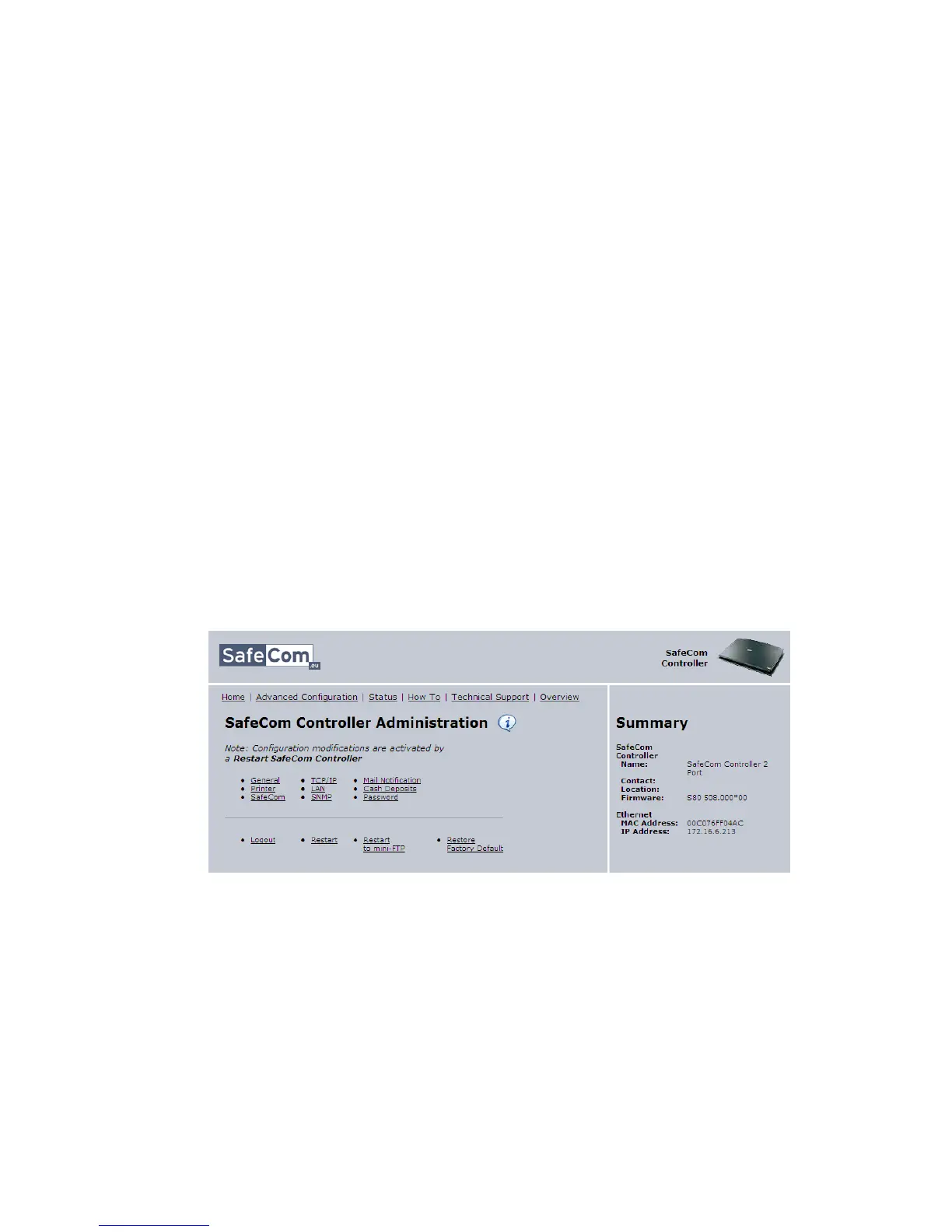
2. Click Advanced Configuration to open the Advanced Configuration web
page (2.7.2).
Note: If a password is set (2.8.3) you will be prompted for the password.
2.7.2 Advanced Configuration web page
The Advanced Configuration web page can be accessed from the link on the
SafeCom Controller opening page. If the page is password-protected you will be
prompted for a user name and password.


 To Next Page