Please note that the content may be updated without prior notice. To
access the most recent version of the manual book, please download
it from: https://www.obsbot.com
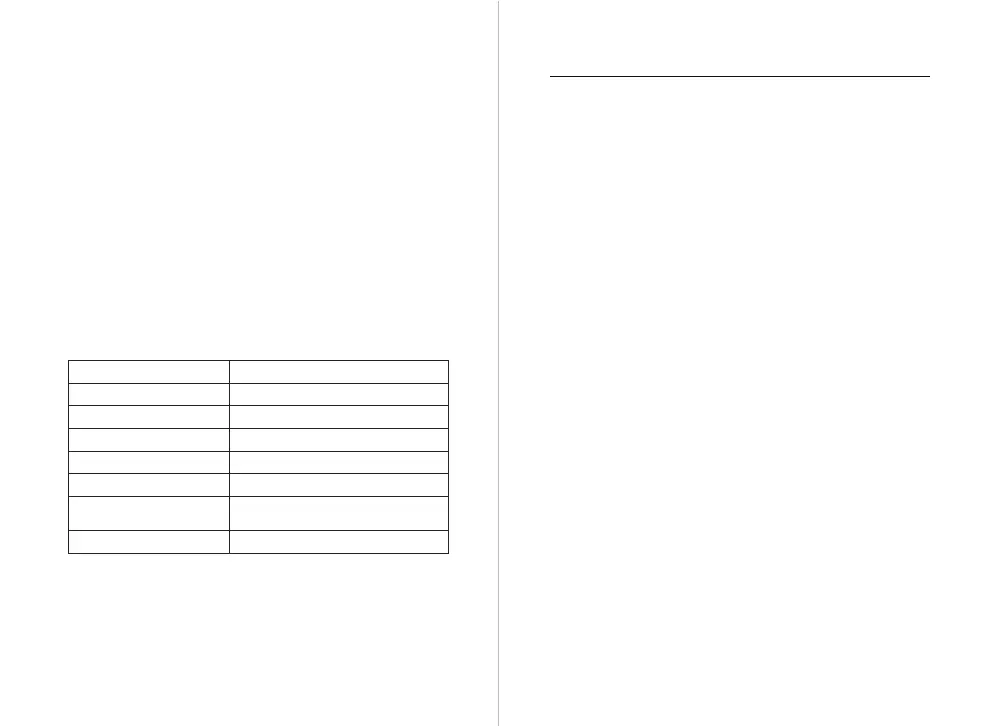
Indicator Description
Various Shooting Modes
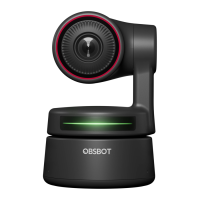
The OBSBOT Meet 2 offers three shooting modes, with landscape
mode being the default.
➀ Landscape shooting
This mode is suitable for conventional mounted cameras.
➁ Portrait shooting
Rotating the camera to vertically mount it will automatically enter
into the portrait mode.
⚠ The automatic rotation feature can only be used in software that
supports it, such as OBS, etc. Some other software may require
manual rotation.
➂ Up-side-down shooting
The camera can be installed upside down, and the screen will
automatically rotate for use.
Equipment Status Indicator status
Power-on initialization
Standard Mode
Auto framing
Firmware upgrading
Firmware upgrade failed
Device in fault,
such as AI errors, etc.
Blue light flashes slowly
Green light keeps on
Purple light keeps on
Blue/yellow flash alternately
Red light flashes slowly
Sleep mode Light off
Red light keeps on
Firmware Upgrade
Download and Installation
Download and install OBSBOT Center through
https://www.obsbot.com/download to further enhance your user
experience.
Software Overview
OBSBOT Meet 2 provides advanced users of Windows and Mac with a
control software for OBSBOT Center, which allows you to perform a
series of extended operations on the camera, such as enable or
disable auto framing, zoom in or out and so on.
OBSBOT Center
OBSBOT Meet 2 upgrades through OBSBOT Center software. When
firmware is available for update, there will be corresponding prompts
after connecting the device. Please follow the info on prompts.
⚠ Do not disconnect the camera during firmware upgrade process.


 To Previous Page
 Loading...