Need help?
Do you have a question about the OBSBOT Tiny and is the answer not in the manual?
Recommends watching instructional videos and reading the user manual to understand the usage process.
Provides links to access and watch tutorial videos for correct product use and extended functionality.
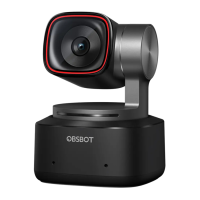
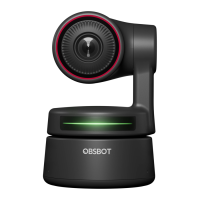
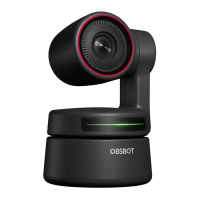
Describes OBSBOT Tiny as an AI-powered PTZ webcam using deep learning for tracking, framing, and gesture control.
Details the components and parts of the OBSBOT Tiny webcam with a visual diagram and list.
Explains how to mount the webcam on a monitor, desktop, or tripod using its adjustable magnetic mount.
Details the process of connecting the webcam to a computer via USB Type-C for automatic driver installation.
Details the 2-axis gimbal and its controllable rotation range for pan and tilt operations.
Explains how to activate privacy mode by pointing the lens down, disabling video and audio.
Describes the ability to mount the webcam upside down with automatic screen rotation for use.
Explains how to use gestures for functions like tracking and zoom, with a tutorial link.
Details the meaning of different color and flicker combinations of the camera indicator lights.
Introduces OBSBOT TinyCam as software for advanced settings and controls compatible with Windows and macOS.
Provides instructions and a URL to download the OBSBOT TinyCam software for further user experience.
Describes the main interface elements of the OBSBOT TinyCam software, including controls for gimbal and tracking.
Details various system settings within OBSBOT TinyCam, covering firmware version, device status, and gesture controls.
Explains the three tracking modes: Headroom, Standard, and Motion, with recommended usage scenarios.
Details how to adjust camera parameters, noting this feature only supports Windows.
Describes the anti-flicker feature that helps reduce flicker when shooting under fluorescent lights or a TV screen.
Allows users to preset the PTZ initial position for the camera.
Details managing up to 3 preset camera positions that can be added to the homepage.
Explains the option to enable global hotkeys and use a remote controller for camera operation.
Allows users to switch the language settings of the software.
Covers options for exporting logs, upgrading manuals, manual firmware upgrades, and restoring factory settings.
Instructs users on how to upgrade OBSBOT Tiny via TinyCam and provides a link to the upgrade guide.
The OBSBOT Tiny is an AI-powered PTZ (Pan-Tilt-Zoom) webcam designed for live streaming, video calls, and conferences. It leverages deep learning neural networks to provide advanced features such as AI tracking, auto-framing, and gesture control, offering users an enhanced and intuitive video experience.
The core function of the OBSBOT Tiny is to provide high-quality video capture with intelligent tracking capabilities. It's built to offer a seamless and efficient video experience, whether for professional use or personal communication. The device connects to computers via a USB Type-C port, ensuring fast and reliable data transfer. It is compatible with both Windows® and Mac® operating systems, making it versatile for a wide range of users.
The webcam features a 2-axis gimbal, allowing for precise control over its movement. The controllable rotation range for pan is ±150°, and for tilt is ±45°. This mechanical flexibility, combined with its AI capabilities, enables the camera to follow subjects smoothly and keep them in frame automatically.
The OBSBOT Tiny offers flexible placement options. It comes with an adjustable magnetic mount that allows it to be securely fixed to a monitor, placed directly on a desktop, or mounted on a tripod using its standard UNC 1/4-20 nut connector. To set up the Tiny, users simply connect it to their computer with the provided data cable. The webcam will automatically install the necessary drivers, and users should allow a few seconds for the installation to complete before accessing the device.
One of the primary features is its AI tracking and auto-framing. The camera can intelligently follow a designated target, ensuring they remain centered and in focus within the video frame. This is particularly useful for presentations, online classes, or any scenario where the subject needs to move freely without manually adjusting the camera.
The OBSBOT Tiny introduces an innovative gesture control system, allowing users to interact with the webcam using simple, natural hand gestures. This eliminates the need to press buttons or interrupt a workflow. Users can perform gestures to select or cancel a tracking target, as well as zoom in or out. When a gesture is recognized, the camera indicator lights will flash blue, confirming the action. For optimal gesture recognition, users should place their hand near their face with fingers splayed out.
The webcam supports 2x digital zoom. While a default 2x zoom setting is available, users can customize zoom settings from 1x to 2x via the OBSBOT TinyCam software, offering greater flexibility in framing shots. Both gesture control and manual control through the software can be used to adjust the zoom.
For privacy, the OBSBOT Tiny can be set to privacy mode by pointing the lens straight down. When activated, the indicator light turns yellow, signifying that both video and audio are cut off, ensuring complete privacy.
The device supports an upside-down mode, where it can be mounted inverted. The screen will automatically rotate to the correct orientation, making it adaptable to various mounting configurations.
To unlock the full potential of the OBSBOT Tiny, users can download and install the OBSBOT TinyCam software. This application provides advanced settings and controls, compatible with Windows and macOS. Through TinyCam, users can:
The camera indicator, composed of red, yellow, blue, and green lights, communicates the device's current status through different light combinations and flicker frequencies:
The OBSBOT Tiny's firmware can be upgraded through the OBSBOT TinyCam software. When a new firmware version is available and the device is connected, a prompt will appear, guiding the user through the upgrade process. It is crucial not to disconnect the OBSBOT Tiny during a firmware upgrade to prevent issues. Users can also access a firmware upgrade guide for detailed instructions.
Within the OBSBOT TinyCam's system settings, users can easily check the current software and firmware versions. Updates are automatically pushed to the device when new versions are released, ensuring the webcam always has the latest features and improvements.
The software allows users to put the device to sleep or wake it with a single click, helping to conserve power and manage device activity.
For troubleshooting or support, users can manually export log files. Additionally, the software provides an option to restore factory settings, which can be useful for resolving persistent issues or resetting all configurations to their default state.
It is normal for the bottom of the product to get warm if it is in working condition for an extended period.
The OBSBOT Tiny is designed to be a dynamic and intelligent webcam, offering a rich set of features that cater to modern video communication needs, all managed through an intuitive software interface and innovative gesture controls.
 General
| Frame Rate | 30 FPS |
|---|---|
| Focus Type | Autofocus |
| Built-in Microphone | Yes |
| Digital Zoom | 2x |
| Compatibility | Windows, macOS |
| Field of View | 90 degrees |
| Features | Gesture Control |
| Mounting | Magnetic |
| Sensor | 1/2.8-inch CMOS |

 To Next Page