Need help?
Do you have a question about the OBSBOT Tiny 4K and is the answer not in the manual?
Important consideration.
Users watch instructional videos and read the user manual first to understand the usage process.
User can access and watch tutorial videos through the following links to use the product correctly.
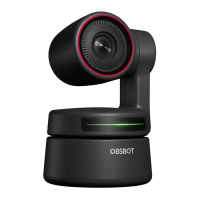
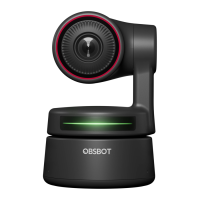
OBSBOT Tiny 4K is an Al-powered PTZ webcam with deep learning neural networks for Al tracking & auto framing, gesture control.
Suggests using USB 3.0 Port or USB 2.0 Port + DC Port for stable connection and power supply.
Lists operating system and processor requirements for OBSBOT Tiny 4K.
Lists recommended Apple computer models for optimal performance.
Specifies recommended CPU and RAM for PC configuration.
Identifies key components of the OBSBOT Tiny 4K camera with labels and descriptions.
Explains how to mount the webcam on a monitor, desktop, or tripod.
Details the steps for placing the webcam on a monitor using its flexible base.
Instructions for placing the OBSBOT Tiny 4K directly on a desktop surface.
Describes how to mount the camera onto a stand or tripod using the UNC ¼-20 nut connector.
Guides on connecting the webcam to Windows and Mac computers using USB-C cable and adapter.
Describes the 2-axis gimbal and its controllable rotation range for pan and tilt.
Explains how to activate privacy mode by pointing the lens down; it disables video and audio.
Details the support for upside down mounting and automatic screen rotation.
Explains how to use gestures for controlling tracking, zoom, and other functions without buttons.
Describes the process of gesture recognition, including indicator lights and hand gestures.
Details the 4x digital zoom and how to adjust zoom settings via gesture control or manual control.
Explains the two focusing methods: Auto-Focus and Manual Focus.
Users can switch to manual focus by closing the auto-focus function in OBSBOT TinyCam.
Explains that HDR is off by default and can be switched on in OBSBOT TinyCam for better video quality.
Describes the meaning of different colors and flicker patterns of the camera indicator lights.
Details indicator light patterns for initialization, gesture recognition, target locking, and errors.
Introduces OBSBOT TinyCam software for advanced settings, compatible with Windows and macOS.
Provides instructions to download OBSBOT TinyCam from the official website for an enhanced user experience.
Describes the main interface elements of the OBSBOT TinyCam software.
Explains how to access system settings within the software.
Details connecting and managing multiple devices within the software.
Describes one-click lock/cancel tracking target functionality.
Explains how to put the device to sleep or wake it.
Details manual zoom adjustment supporting up to 4x digital zoom.
Explains how to reset the gimbal to its initial position.
Describes manual control of the gimbal's movement.
Covers adding, deleting, and renaming preset camera positions.
How to find current software and firmware versions and automatic updates.
Configuration for gesture control to lock target and zoom.
Explains the three tracking modes: Headroom, Standard, and Motion.
Adjusting camera parameters, which only supports Windows.
Enabling Anti-Flicker to reduce flicker in rooms with fluorescent lights or when shooting screens.
Controls for HDR and Auto-Focus, including manual focus switching.
Details the Face Focus setting and its dependency on Auto-Focus.
Setting the preset PTZ initial position upon startup.
Enabling the feature to add up to 3 preset positions to the homepage.
Enabling global hotkeys and using a remote controller for the Tiny 4K.
Switching between multiple languages for the software.
Options include Export Log, Upgrade Manual, Firmware Upgrade, and Restore Factory Settings.
Details how to upgrade firmware via OBSBOT TinyCam, including precautions.
 General
| Resolution | 4K |
|---|---|
| AI Tracking | Yes |
| Auto-framing | Yes |
| Connectivity | USB-C |
| Max Resolution | 3840 x 2160 |
| Zoom | 4x Digital Zoom |
| Focus Type | Auto-focus |
| Compatibility | Windows, macOS |
| Microphone | Built-in dual microphones |
| Video Resolution | 4K, 1080p, 720p |
| AI Features | AI tracking, auto-framing |
| Sensor Type | 1/2.8'' CMOS |
| Mounting | tripod mount |
| Field of View | 86 degrees |

 To Next Page