EasyManua.ls Logo

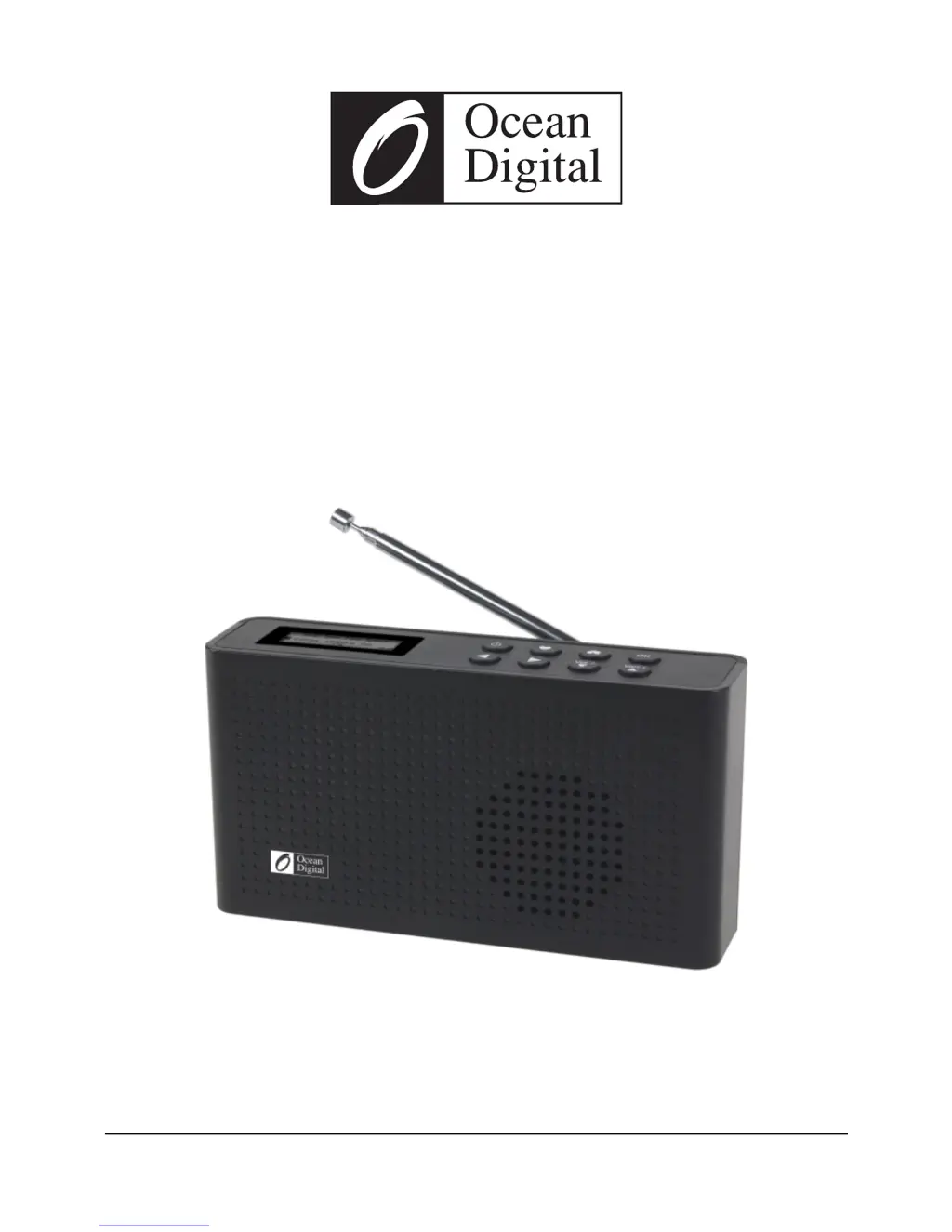
Ocean Digital WR-26 - User Manual

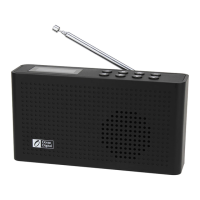
Ocean Digital WR-26
22 pages
Print Icon
To Next Page IconTo Next Page
Loading...
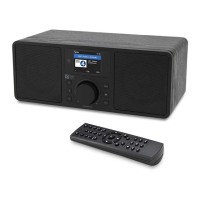
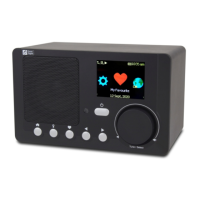
Portable Internet Radio
User Manual
Please read this user manual carefully before using the receiver
Model: WR-26

Questions and Answers

  • V
    Victoria MyersAug 5, 2025
    What to do if Ocean Digital WR-26 Radio can connect to the network but is unable to play particular stations?
    • M
      Mary RussellAug 5, 2025
      If your Ocean Digital Radio connects to the network but cannot play particular stations, there might be several reasons: * The station may not be broadcasting at the time you are trying to listen (remember to consider different time zones). * The station's server might be at full capacity due to too many listeners. * The station may have reached its maximum allowed number of simultaneous listeners. * The link on the radio could be outdated. Streaming links are updated regularly, but you can also contact customer service for assistance.
  • T
    tonyarodriguezAug 9, 2025
    Why is DAB/FM Radio reception poor on my Ocean Digital WR-26 Radio?
    • D
      danielreyesAug 9, 2025
      If the DAB/FM radio reception on your Ocean Digital Radio is poor, try adjusting the length and direction of the antenna to improve reception. Also, ensure that there isn't any other electrical equipment too close to your radio, as this can cause interference.
  • J
    Joshua LongAug 14, 2025
    How to troubleshoot no sound on Ocean Digital WR-26 Radio?
    • P
      patricia21Aug 14, 2025
      If there is no sound coming from your Ocean Digital Radio, first, adjust the volume level. If you are in internet radio mode, check if playback has stopped; if so, press the OK button to start it. In DAB and FM modes, check if the radio is muted and press the OK button to unmute it.
  • T
    Tara ThompsonAug 18, 2025
    What to do if there is no DAB/FM reception on Ocean Digital Radio?
    • K
      kathy88Aug 18, 2025
      If your Ocean Digital Radio has no DAB/FM reception, perform a “Factory Reset” under Configuration in the main menu and extend the antenna. Experiment with different antenna lengths and directions. Additionally, try moving the radio closer to a window.
  • D
    Danielle HansenAug 22, 2025
    What to do if Ocean Digital WR-26 shows 'Skytune not ready'?
    • D
      Desiree GreerAug 22, 2025
      If your Ocean Digital Radio displays "Skytune not ready" when Skytune is selected, try playing the lists under History or Favourite. If neither can play, check your internet connection and ensure other devices on the same network are working. If the Favourite and History lists play correctly, power the radio off and on again. If the problem continues, contact customer support for further assistance.
  • L
    lopezgregoryAug 27, 2025
    What to do if Ocean Digital WR-26 shows 'Empty list' when 'Skytune' is selected?
    • B
      Becky EspinozaAug 27, 2025
      If your Ocean Digital Radio shows "Empty list" when "Skytune" is selected, check if the History or Favourite list can play. If these lists play without issue, try using Skytune again after 30 minutes. If the stations under the History or Favourite lists cannot play, check your internet connection or cable.
  • S
    Steven ZimmermanOct 31, 2025
    How to fix Ocean Digital WR-26 Radio when it cannot connect to Wi-Fi network?
    • Z
      zduranOct 31, 2025
      If your Ocean Digital Radio cannot connect to the Wi-Fi network, here are a few things to check: * First, confirm that other devices, like a PC connected via Wi-Fi or Ethernet, can access the internet using the same network. * Ensure that a DHCP server is available or that you've configured a static IP address on the radio. * Verify that your firewall isn't blocking necessary outgoing ports. The radio requires access to UDP and TCP ports 80, 443, and 8008, as well as DNS port 53. If your router restricts access based on MAC addresses, you can find the radio's MAC address under Configuration > Information > Network > Wi-Fi MAC and add it to your access point's allowed list. Note that the radio has separate MAC addresses for wireless networks. Also, check the Wi-Fi signal strength. ...

Summary

Radio Controls and Layout

Power and Navigation Buttons

Details on power on/off and menu navigation buttons.

Volume and Display Functions

Information on volume adjustment and screen display functions.

Ports and Indicators

Description of USB port, antenna, and LED charging indicator.

Initial Setup and Safety

Before You Start Requirements

Ensures essential requirements like internet connection are met before use.

Important Safety Precautions

Important safety and usage guidelines to prevent damage or hazards.

Getting Started Guide

Powering On the Radio

Initial steps to power on the radio using the built-in battery.

Charging the Battery

Instructions on how to charge the internal lithium-ion battery.

Connecting to Wi-Fi Network

Guide to connect the radio to a Wi-Fi network for internet access.

Radio Features Overview

Internet Radio Access

Exploring and listening to worldwide radio stations online.

DAB and FM Broadcast Tuning

Tuning into digital (DAB) and analog (FM) broadcast stations.

Media Centre and Favorites

Accessing network media and managing favorite stations.

Internet Radio Functionality

Browsing and Selecting Stations

Methods to find and select radio stations by region, genre, or local area.

Station Playback and Management

How to start playback, add to favorites, and recall stations.

Media Centre and Playback

Editing Favorite Stations

Editing, moving, or deleting stations from the favorite list.

Streaming Network Media

Using UPnP/DLNA to stream music from network devices.

Creating Custom Playlists

Creating, adding to, and clearing custom music playlists.

DAB and FM Radio Tuning

DAB Radio Operations

Scanning, tuning, and managing DAB/DAB+ stations.

FM Radio Operations

Scanning, tuning, and managing FM stations, including manual tuning.

Bluetooth and Sleep Timer

Bluetooth Audio Streaming

Pairing and playing audio from Bluetooth-enabled devices.

Configuring Sleep Timer

Configuring the radio to enter standby after a set time.

Configuration and System Settings

Network and Wi-Fi Setup

Settings for connecting to Wi-Fi networks, including AP and signal strength.

Date, Time, and Language

Configuring time zone, date format, NTP, and user interface language.

Radio Setup and Playback Modes

Setting up DAB/FM presets, regions, and playback modes.

Advanced Features and Management

Display and Performance Tuning

Adjusting display brightness, equalizer, buffer time, and software updates.

Managing Favorites via PC

Adding and managing radio stations using a web interface and PC.

Factory Reset Procedure

Instructions for resetting the radio to its default factory settings.

Troubleshooting Common Issues

Helpful Tips for Radio Use

Technical Specifications and End Matter

Detailed Technical Specifications

Detailed hardware and software specifications of the radio model.

Package Contents and Recycling

List of included items and environmental disposal guidelines.

Ocean Digital WR-26 Specifications

General IconGeneral
BrandOcean Digital
ModelWR-26
CategoryRadio
LanguageEnglish

Related product manuals