
 Need help?
Do you have a question about the Olivetti d-Copia 20W and is the answer not in the manual?
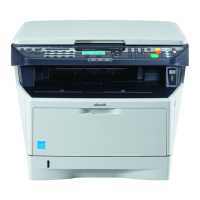
The Olivetti d-Copia 16W/20W is a digital multifunctional system primarily designed for printing, with additional capabilities for sharing within a network environment. This online manual focuses on the printer functions and how to utilize them effectively.
The d-Copia 16W/20W serves as a digital multifunctional printer, capable of handling various printing tasks. Its core function is to produce printed documents from a computer. Beyond basic printing, it offers advanced features such as printing multiple pages on a single sheet, fitting images to specific paper sizes, rotating print images, and applying watermarks. The device can also be configured as a shared printer within a Windows network, allowing multiple users to access its printing capabilities.
While specific technical specifications like print speed, resolution, or memory are not detailed in the provided excerpts, the manual implies a robust printing system with features suitable for office environments. The mention of "d-Copia 16W/20W" suggests different models possibly varying in speed or other core capabilities.
The system is compatible with various Windows operating systems, including Windows 95, Windows 98, Windows Me, Windows NT 4.0, Windows 2000, and Windows XP. The manual notes that screen images and procedures are primarily based on Windows XP, indicating that users of other Windows versions might experience slight visual differences.
The printer driver setup screen, which is central to controlling print settings, includes tabs for "Main," "Paper," "Advanced," and "Watermarks," suggesting a comprehensive set of configurable options. The "Paper" tab allows for selection of paper size and orientation, while the "Watermarks" tab enables the application of predefined or custom watermarks.
Basic Printing: To initiate printing, users must ensure the "ON LINE" indicator on the operation panel is lit, signifying the machine is ready. Documents can be printed from applications like WordPad by selecting "Print" from the "File" menu. The printer driver setup screen, accessible via the "Preferences" or "Properties" button, allows for detailed adjustments before printing.
Printer Driver Settings: The printer driver interface is organized with tabs for different setting categories. Users can activate or deactivate functions using checkboxes, select options from drop-down lists, and preview the effect of selected settings on a print setting image. The image of paper trays visually indicates the selected tray. Help for specific settings is available by clicking a question mark icon and then the desired setting.
Printing Multiple Pages on One Page: This feature allows users to reduce and print two or four document pages onto a single sheet of paper. This is configured under the "N-Up Printing" option on the "Main" tab of the printer driver setup screen. An optional "Border" checkbox can be selected to print borderlines around each page. This feature is not available when "Fit To Paper Size" is selected.
Fitting the Printed Image to the Paper: The printer driver can automatically adjust the size of the printed image to match the paper loaded in the machine. This is useful, for example, when printing an A3 document on A4 paper. Users select the original print image size and the actual paper size in the "Paper" tab, and then check the "Fit To Page" box. This feature is not available when "N-Up Printing" is selected.
Rotating the Print Image 180 Degrees: This function enables correct printing on envelopes or other paper types that can only be loaded in one orientation. Users select the image orientation in the "Paper" tab and then check the "Rotate 180 degrees" checkbox.
Printing a Watermark: Users can add watermarks like "CONFIDENTIAL" to their documents. This is done by selecting a watermark from the "Watermark" drop-down list on the "Watermarks" tab of the printer driver. Custom watermarks can also be created.
Printer Sharing: The d-Copia 16W/20W can be shared across a Windows network. This involves configuring the computer directly connected to the printer (the "print server") and then setting up other computers (the "clients") to access the shared printer. The manual provides detailed steps for different Windows versions (95/98/Me, NT 4.0, 2000, XP Home Edition, XP Professional) to establish shared printer settings and install the printer driver on client machines.
Print Status Window: When printing begins, a "Print Status Window" automatically opens. This utility monitors the printer's status, displays the name of the document being printed, and shows any error messages. It includes status icons to alert users to printer errors, with explanations and instructions for resolving problems. Users can cancel print jobs, access help, or close the window.
While the manual primarily focuses on usage, it briefly touches upon maintenance aspects by referring to the "Operation Manual" for topics such as:
The manual also notes that display screens, messages, and key names may differ slightly from the actual machine due to product improvements and modifications, indicating an ongoing commitment to device refinement.
 General
| Brand | Olivetti |
|---|---|
| Model | d-Copia 20W |
| Category | All in One Printer |
| Language | English |






 To Next Page