4-83
Operation Panel
2 Press [OK]. A confirmation screen appears.
3 Press [Yes] ([Left Select]). The Formatting... screen appears
and SSD formatting begins. Once the formatting ends, the standby
screen reappears.
Pressing [No] ([Right Select]) returns to the Device Common
menu without formatting the SSD.
Format SD Card (Formatting the SD/SDHC memory card)
The printer is equipped with a slot for an SD/SDHC memory card.
For details about the handling of the SD/SDHC memory card, refer to Installing and Formatting the SD/SDHC Memory
Card on page A-9.
A new SD/SDHC memory card must be formatted before it can be used in the printer. Formatting allows data to be written
to the SD/SDHC memory card.
When a new SD/SDHC memory card is inserted in the printer's slot, Format SD Card will appear on the message display.
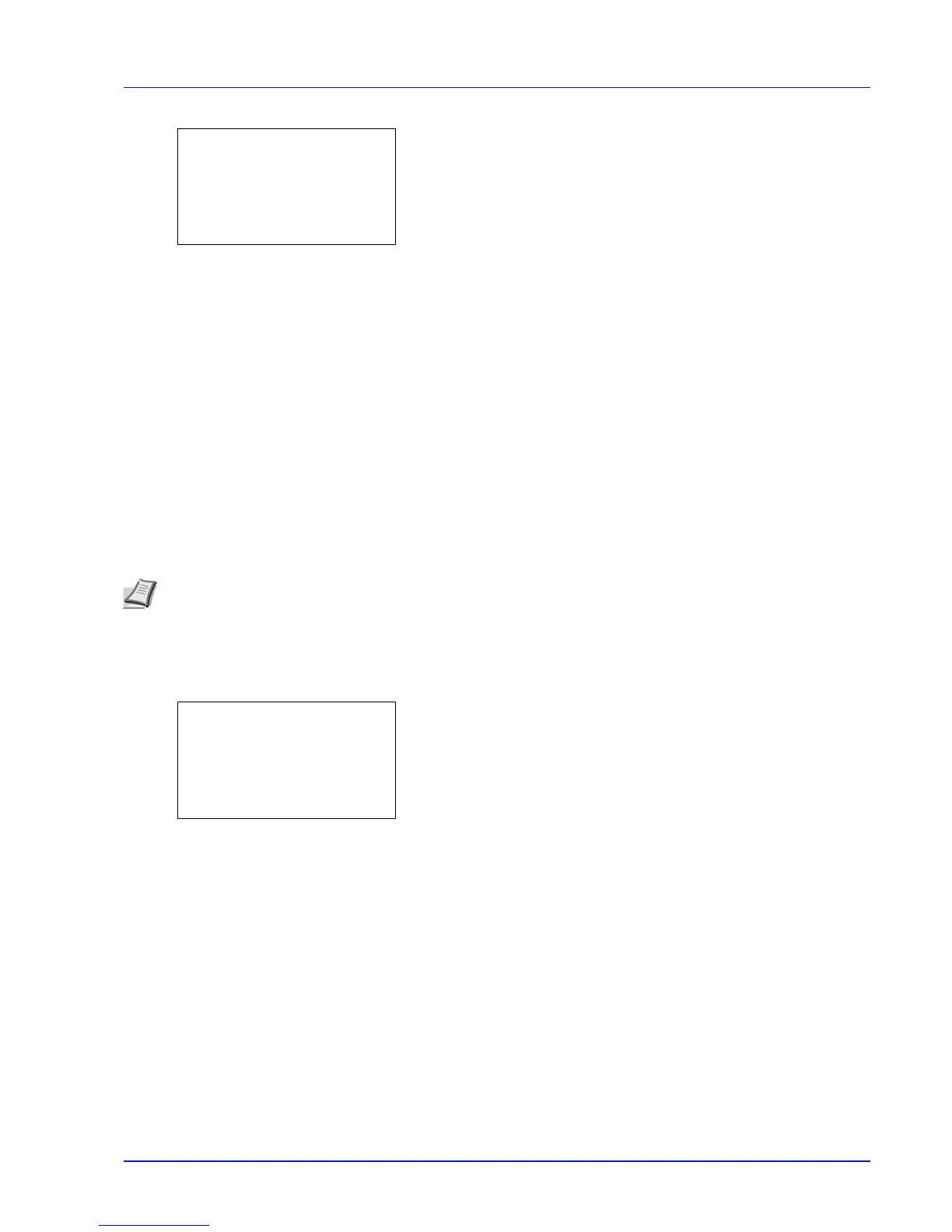
1 In the Device Common menu, press or to select Format SD
Card.
2 Press [OK]. A confirmation screen appears.
3 Press [Yes] ([Left Select]). The Formatting SD card...
screen appears and SD/SDHC memory card formatting begins. Once
the formatting ends, the standby screen reappears.
Pressing [No] ([Right Select]) returns to the Device Common
menu without formatting the SD/SDHC memory card.
Display Bright. (Display brightness setting)
Sets the brightness of the message display.
1 In the Device Common menu, press or to select Display
Bright..
IMPORTANT Format SD Card is only displayed when an SD/SDHC memory card is installed in the printer and
protection is disabled.
Note Formatting will destroy any existing data on a storage device including a used SD/SDHC memory card.
Formatting of the SD/SDHC memory card must be executed from the printer.





 To Next Page