4-31
Operation Panel
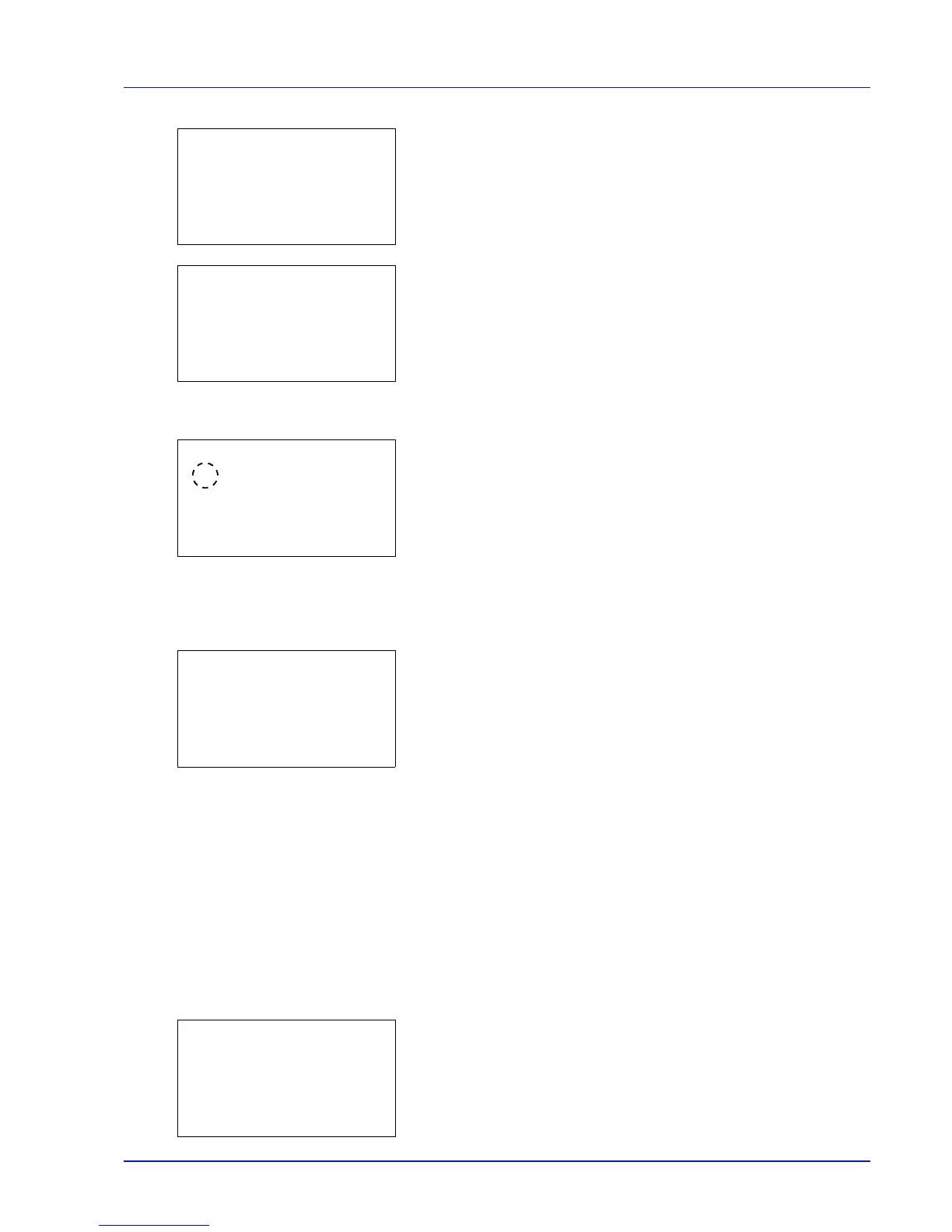
1 In the Cassette # Set. menu, press or to select Custom
PaperSize.
# shows the number of the cassette installed in the printer (1 to 5).
2 Press [OK]. The Custom PaperSize menu screen appears.
3 Press or to select Measurement.
4 Press [OK]. The Measurement menu screen appears.
5 Press or to select the paper size units and then press [OK]. The
unit for entering the paper size is set and the Custom PaperSize
menu screen reappears.
6 Press or to select Size Entry(Y).
7 Press [OK]. The Size Entry(Y) menu screen appears.
8 Use the numeric keys or press or to enter the paper length.
The range of paper lengths you can set for each cassette is as
follows:
• Cassette (PG L2140):
210 to 356 mm (8.25 to 14.02 inches)
• Cassette (PG L2145, PG L2150):
148 to 356 mm (5.83 to 14.02 inches)
• Paper Feeder PF-320:
162 to 356 mm (6.38 to 14.02 inches)
9 Press [OK]. The entered paper length is set and the Custom
PaperSize menu screen reappears.
10
Press or to select Size Entry(X).
11
Press [OK]. The Size Entry(X) menu screen appears.





 To Next Page