4-45
Operation Panel
Font (Selecting the default font)
You can select the default font. The default font can be one of the internal fonts or a font that is downloaded to the printer
memory or stored on SD/SDHC memory card, or SSD.
In this menu, you can also set the type and pitch for Courier and Letter Gothic.
The options available in Font menu are as follows:
• Selecting Regular or Dark Courier/Letter Gothic...4-46
• Changing the Default Font Size...4-46
• Character Pitch...4-47
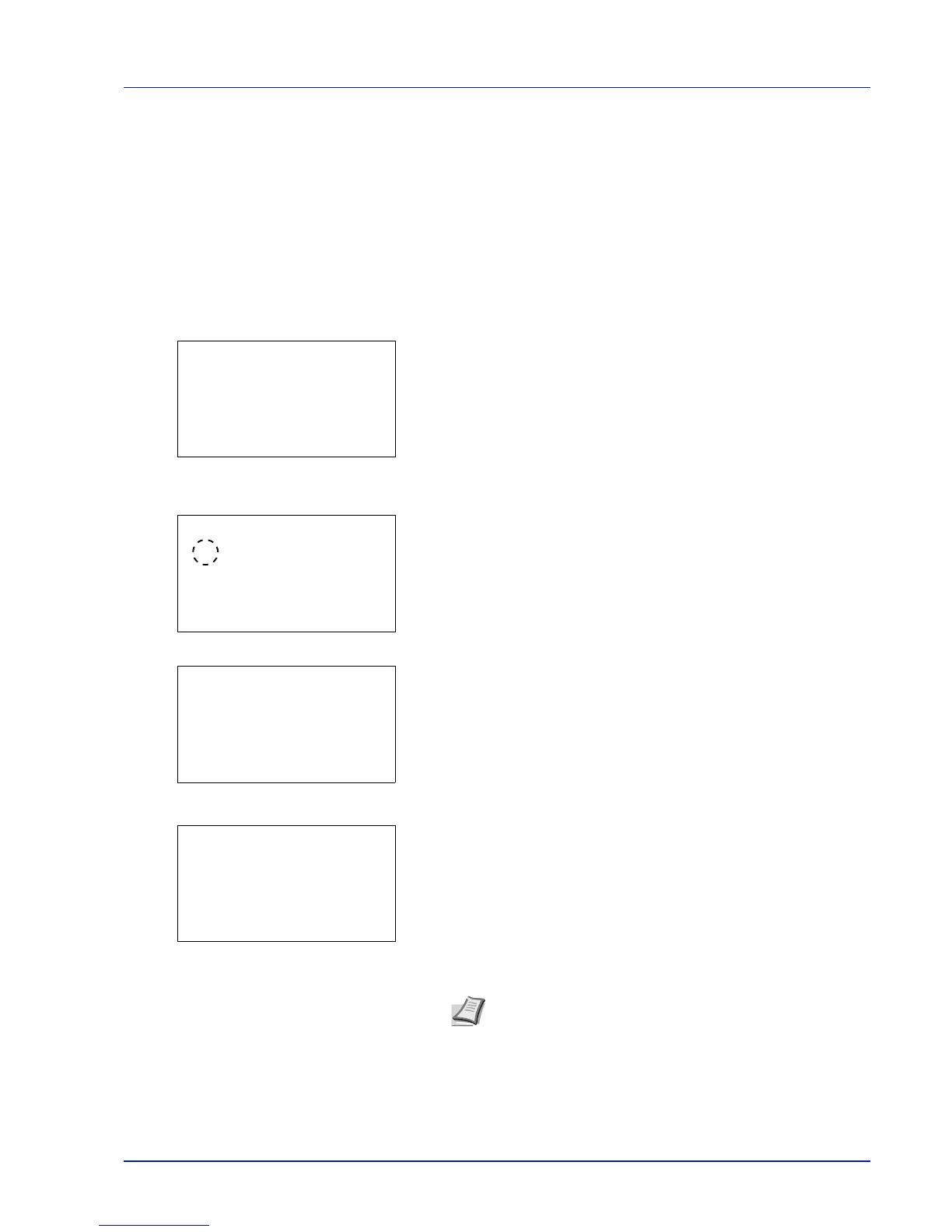
1 In the Print Settings menu, press or to select Font.
2 Press [OK]. The Font menu screen appears.
3 Press or to select Font Type.
4 Press [OK]. The Font Type screen appears.
5 To select a font built-in the printer, press or to select Internal.
6 Press [OK]. Select the font type and the Font menu reappears.
7 Press or to select Font ID.
8 Press [OK]. The Font ID entry screen appears.
9 Press or to select the number of the desired font.
Note It is possible to check the numbers of the built-in fonts
by outputting a Font List. For details, refer to Font List
(Printing a list of the printer's fonts) on page 4-14.
For details on entering characters, refer to Character Entry
Method on page A-2.





 To Next Page