4-63
Operation Panel
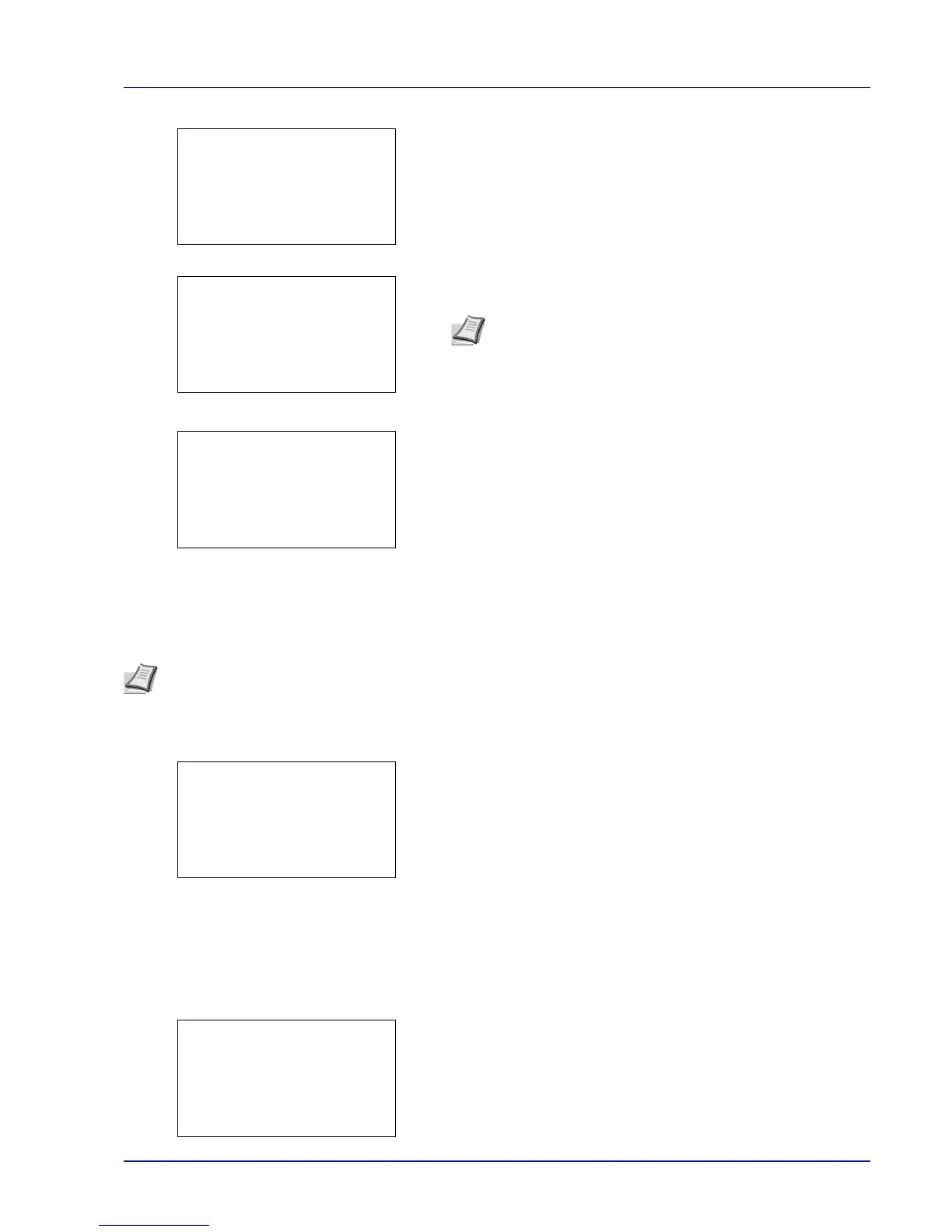
7 Press [OK]. The Login Password entry screen is displayed.
8 Enter the Login Password using the numeric keys then press [OK].
The login screen reappears.
9 Pressing [Login] ([Right Select]). If the entered Login User Name
and Login Password are correct, the Optional Network menu
appears showing a list of available options.
Wireless Network (Wireless network settings)
This selects the settings for Wireless network.
1 In the Optional Network menu, press or to select Wireless
Network.
2 Press [OK]. The Wireless Network menu screen appears.
The following operations are possible:
• ConnectionStatus (Wireless network connection status check)...4-
63
• Quick Setup (Quick setup for the wireless network)...4-64
• Custom Setup (Detailed settings for the wireless network)...4-66
ConnectionStatus (Wireless network connection status check)
When the optional wireless network interface kit (IB-51) is installed, you can check the status of the wireless network.
1 In the Wireless Network menu, press or to select
ConnectionStatus.
2 Press [OK]. The ConnectionStatus screen appears.
Note The initial setting for the administrator's Login
Password is "Admin".
For details on entering characters, refer to Character Entry
Method on page A-2.





 To Next Page