EasyManua.ls Logo

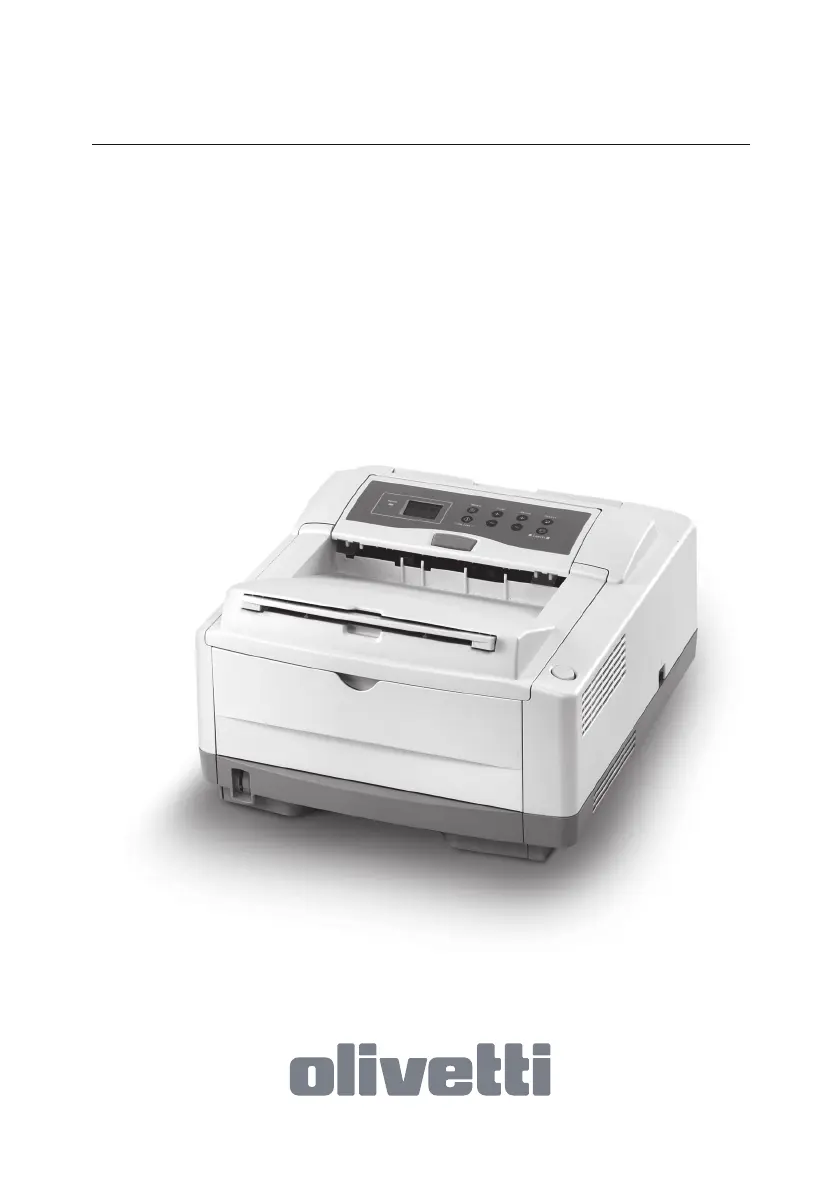
Olivetti PG L26 Special - User Manual

Olivetti PG L26 Special
93 pages
Print Icon
To Next Page IconTo Next Page
Loading...
Monochrome led page printer
User’s Guide
PG L26 - PG L26 Special
537207EN

Table of Contents

Questions and Answers

  • C
    Craig SnyderSep 7, 2025
    Why is the printed page light or blurred on my Olivetti PG L26 Special?
    • T
      taylortravisSep 7, 2025
      If the printed page from your Olivetti Printer is light or blurred, first check if the toner is low and replace the toner cartridge if needed. Also, ensure that you are using paper meant for laser printers. Lastly, a dirty LED array can cause this issue, so clean the LED array.
  • K
    Karen MasonAug 22, 2025
    How to fix an input jam on Olivetti Printer?
    • H
      higginsrobertAug 22, 2025
      If your Olivetti Printer is experiencing an input jam, start by removing the paper tray from the printer. Then, remove any crumpled or folded paper. Also, check and remove any paper from the underside of the printer. Finally, replace the paper tray.
  • K
    Kevin VasquezSep 4, 2025
    Why is the print faded on my Olivetti PG L26 Special?
    • K
      Kimberly ParkerSep 4, 2025
      If your Olivetti Printer has faded print, make sure the toner cartridge is correctly installed. If it is, the toner might be low, so replace the toner cartridge.
  • S
    Steve JohnstonSep 3, 2025
    Why does my Olivetti PG L26 Special print entire page faintly?
    • M
      mgraySep 3, 2025
      If the entire page prints faintly on your Olivetti Printer, it could be due to an empty toner cartridge. Install a new toner cartridge. Another possibility is that the LED array is dirty, so you should clean it.
  • M
    Martha SantiagoSep 2, 2025
    Why does my Olivetti Printer print all black?
    • D
      David CantrellSep 2, 2025
      If your Olivetti Printer is printing all black, it indicates a hardware problem. Contact service.
  • K
    Kim GrayAug 31, 2025
    Why does my Olivetti Printer produce garbage prints?
    • J
      johnpayneAug 31, 2025
      If your Olivetti Printer produces garbage prints, it could be due to an incorrect cable configuration. Check the cable configuration, continuity, and length.
  • A
    aaron83Aug 30, 2025
    Why does my Olivetti PG L26 Special Printer print a graphic image partly on one page, partly on the next?
    • W
      William HaysAug 30, 2025
      If a graphic image prints partly on one page and partly on the next from your Olivetti Printer, there may be insufficient printer memory for this image at this resolution. Try changing the resolution, reducing the image size, or installing more memory in your printer.
  • S
    Steven HughesAug 29, 2025
    Why are bold characters and dark lines smeared on my Olivetti Printer?
    • P
      Patrick JohnsonAug 29, 2025
      If bold characters and dark lines are smeared on your Olivetti Printer, the toner might be low. Install a new toner cartridge.
  • A
    Amanda SmithAug 27, 2025
    Why does my Olivetti PG L26 Special print with a grey background?
    • R
      rossdianaAug 27, 2025
      If your Olivetti Printer is printing with a grey background, static electricity, generally from dry environments, might be causing toner to stick to the background. To resolve this, change the paper to a smoother laser bond or use a humidifier.
  • E
    Elizabeth DrakeAug 27, 2025
    Why is the print darker than usual on my Olivetti Printer?
    • D
      David WoodAug 27, 2025
      If the print on your Olivetti Printer is darker than usual, the darkness setting might be too high. Try adjusting the darkness setting.

Summary

PREFACE

EMERGENCY FIRST AID

First aid measures for toner powder exposure.

NOTES, CAUTIONS AND WARNINGS

NOTE, CAUTION, AND WARNING TYPES

Explains the meaning and use of NOTE, CAUTION, and WARNING messages.

INTRODUCTION

PRINTER FEATURES

Details of the printer's capabilities and specifications.

USING YOUR PRINTER

Guidance on operating the printer effectively.

ABOUT THIS MANUAL

ONLINE USAGE

Instructions for navigating and using the manual on-screen.

ABBREVIATIONS USED

PRINTER COMPONENTS

OPERATOR PANELS

PG L26 Operator Panel Overview

Details the operator panel, its LEDs, and functions for the PG L26 model.

LED Indicators

Explains the meaning and states of the printer's status indicator lights.

Online Button Functions

Describes how to use the Online button to control printer status and functions.

MENU FUNCTIONS

General Printer Settings

Covers Information, Print, Media, and System Configuration menus.

Emulation and Interface Settings

Details PCL, PPR, FX emulations and various interface settings.

Maintenance and Usage Information

Provides access to maintenance functions and usage statistics.

PG L26 SPECIAL OPERATOR PANEL

PANEL ELEMENTS

Details the specific components of the operator panel.

MENU FUNCTIONS

Explains how to view and change printer's internal settings via menus.

PAPER RECOMMENDATIONS

Paper and Envelope Selection

Guidelines for choosing paper, envelopes, and special media.

Paper Loading and Feeding

Instructions for installing paper, face up/down printing, and feed sequences.

Media Settings and Types

Covers heavyweight paper, media settings, and size selection.

INSTALLING PAPER

Face Up and Face Down Printing

Explains how to achieve face up and face down print output.

Automatic Feed and Envelope Printing

Details automatic feed sequence and printing envelopes.

Heavyweight Paper and Media Settings

Advice on heavyweight paper and setting media type/size.

2-SIDED PRINTING (WINDOWS ONLY)

Manual Duplex Printing Methods

Instructions for 2-sided printing using paper and manual feed trays.

CONSUMABLES AND MAINTENANCE

Toner Cartridge Management

Covers consumable details, life, replacement, and safety.

Image Drum Management

Details image drum life, replacement, and counter reset.

GENERATING A CLEANING PAGE

Cleaning Page Procedures

Instructions for generating a cleaning page via Status Monitor or Online button.

TROUBLESHOOTING

Status Messages and Paper Jams

Explains error messages and how to clear paper jams.

Print Quality and System Problems

Addresses print quality issues, software, and hardware problems.

INSTALLING OPTIONS

Printer Performance Upgrades

Details installing network, memory, serial, tray, and PostScript upgrades.

SPECIFICATIONS

GENERAL PRINTER SPECIFICATIONS

Summary of the printer's basic characteristics.

PAPER AND TRAY INFORMATION

NOTES;SYMBOLS;TERMS

Olivetti PG L26 Special Specifications

General IconGeneral
BrandOlivetti
ModelPG L26 Special
CategoryPrinter
LanguageEnglish

Related product manuals