Mobile Phone Menu
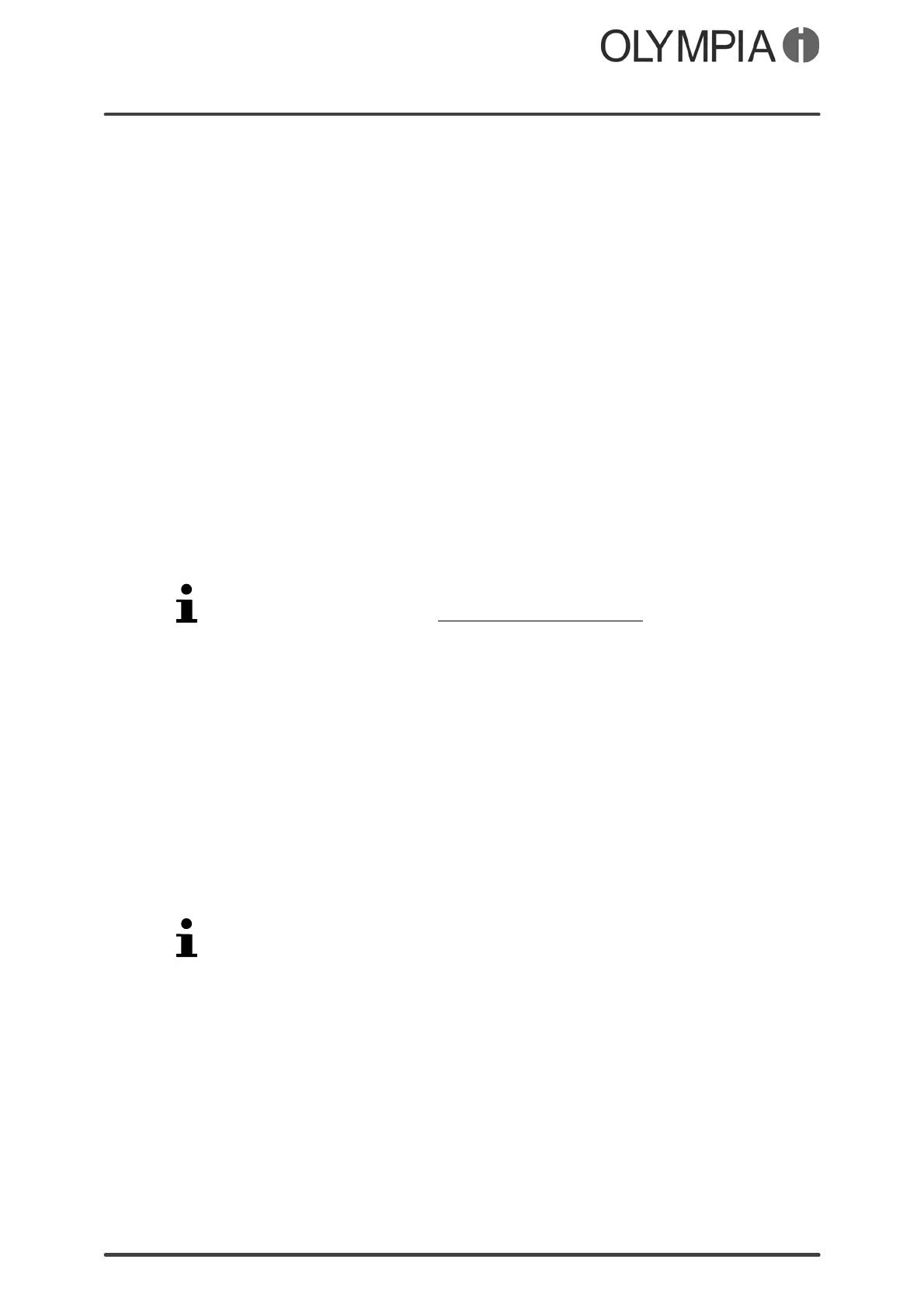
Picture Dialling VIVA Plus
48
System alert
You can define whether the mobile phone should issue an acous
tic signal when system alerts are issued.
1. Navigate to Systemalert Change.
2. Select the required setting.
3. Select Options Save. The user profile is saved.
Picture Dialling
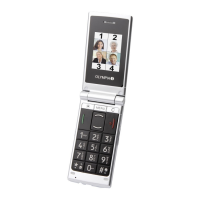
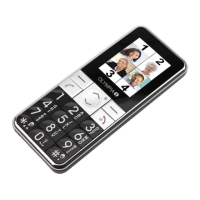
Assign pictures to your favourite contacts. These pictures are dis
played in the picture menu. On selecting a picture, the phone num
ber of the contact assigned to the picture is dialled.
You can transfer your own pictures from a computer to the mobile
phone or the memory card and set them up for picture dialling.
NOTE To ensure optimal display quality of the pictures, only use photos
with a resolution of 48 x 55 pixels. Otherwise, pictures could be
blurred or not shown at all. Only pictures in ".jpeg" format can be
displayed.
In order to adapt your pictures, use the image converter provided
on our homepage at www.olympia-vertrieb.de.
Transferring photos from a computer
1. Connect the mobile phone to a computer using the USB ca
ble.
2. Select Massstorage.
3. Transfer the pictures required to the mobile phone.
Adding a contact for picture dialling
1. Select Pic..
2. Press and hold the key of a storage location not yet as
signed.
An unused storage location can be recognised by the fact that the
image appears as a grey silhouette.
3. Select Add.
4. Select the required phone book entry and confirm the
prompt. The phone book entry is saved as a picture dialling
contact.


 To Next Page