Avoid opening the card cover, removing the SmartMedia card, or removing the
batteries while the camera is ON. Doing so could damage all pictures stored on the
SmartMedia card.
Olympus America, Inc.
Two Corporate Center Drive
Melville, NY 11747-3157
Need more help?
visit http://support.olympusamerica.com
for online automated help
START
HERE
It is strongly recommended
that you follow these step-
by-step numbered
instructions to set up and
quickly begin using your
new C-4000 Zoom digital
camera.
QuickStart Guide
C-4000 ZOOM
For more detailed instructions on advanced features, please refer
to the printed Basic Manual included in your package, or the
Reference Manual on the CD-ROM.
UNPACKING THE BOX CONTENTS
Gather your C-4000 Zoom and all the parts as shown in the illustrations. You'll need these to complete the steps for the
camera set-up procedures that follow.
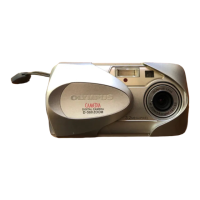
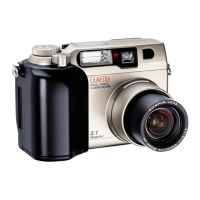
C-4000 Zoom
with lens cap
Lens cap
retainer string
Strap
Two CR-V3
lithium batteries
CAMEDIA
Master 4.0 CD-ROM
16MB SmartMedia card
with static-free case
and labels
USB cable
(beige color)
TIP: To maximize battery life, the C-4000 Zoom features a power saving mode in which the camera enters a sleep
mode after approximately three (3) minutes of non-use. Press the shutter button or zoom lever to wake up the camera.
Before you begin using your Olympus C-4000 Zoom Digital Camera…
The camera Power/Mode dial is used to select the various operation modes.
a.
b.
Insert the SmartMedia
™
Card
The SmartMedia card is where the camera stores your pictures. The pictures
you take remain on the SmartMedia card even when the camera is turned off
and/or the batteries are removed.
First, make sure the camera is OFF. Open the card cover door. Note the diagram on the inside of the
door. Match the orientation of the SmartMedia card to the diagram, and slide the card into the spring-
loaded slot as far as it will go. Close the cover until it locks into place; you will feel it snap closed.
Attach the carrying strap and lens cap retainer string (OPTIONAL)
We recommend that you attach the strap and lens cap retainer string at this time to make the
camera easier to handle and prevent loss of the lens cap. Attach the strap as illustrated.
To remove a SmartMedia card, push it into the camera, and then release it. The card partially ejects
and can now be removed.
c.
A
F
Z
O
O
M
6
.
5
-
1
9
.
5
M
M
1
:
2
.
8
O
L
Y
M
P
U
S
L
E
N
S
The following items are also included in the C-4000 Zoom package: Video cable, SmartMedia card instructions, Basic Manual,
warranty card, registration card, safety precautions booklet, and SmartMedia write-protect adhesive seals.
a.
Set the Date and Time (OPTIONAL)
Although this is not required, it is recommended that you set the date and time. This affects the way
image files are named, and each picture will be recorded with this information.
• Set the mode dial to "P" and press . The monitor turns on and the top menu appears.
• Press on the arrow pad to select MODE MENU.
• To access the Date/Time menu, press three (3) times to scroll to the SET tab. Now press .
• Press five (5) times to select , and then press .
• Use the keys to select the desired date format (usually M, D, Y).
• Press to proceed to the next field. Adjust the date and time in the appropriate fields using the
keys. Repeat the process until all date/time fields have been set.
• Press twice to set the date and time and exit the menu.
c.
TURNING ON THE CAMERA
Turn the camera ON
• Squeeze the tabs on the sides of the lens cap to remove it.
• Turn the Power/Mode dial counter clock-wise to the "P" position.The monitor will activate briefly,
and then turn off.
b.
Note: Time is entered using the 24-hour format.
Note: Depending on
the camera settings,
not all indicators
will be displayed
Camera Diagram and Controls
Now take a moment to familiarize yourself with the key areas of camera controls by reviewing the illustrations.
A
F
Z
O
O
M
6
.
5
-
1
9
.
5
M
M
1
:
2
.
8
O
L
Y
M
P
U
S
L
E
N
S
DC-IN jack
VIDEO-OUT jack
Connector cover
Lens cap
and retainer
string
USB connector
5-pin external
flash socket
Self-timer lamp
Strap eyelet
Flash
Shutter button
Zoom lever
Mode dial
Lens
Diopter adjustment dial
Battery compartment lock
Battery compartment cover
Tripod socket
AF target mark
Macro/Spot button
Print button
Arrow pad
Flash mode button
Erase button
Monitor
Viewfinder
OK/Menu button
Manual focus button
Monitor button
Card access lamp
Custom button
Protect button
Rotation button
Camera Settings in Shooting Mode as shown in Monitor
Camera Settings in Playback Mode as shown in Monitor
Battery check
Exposure compensation
Protect
White balance
ISO
Date and time
File number
Record mode
Print reserve
Number of prints
Number of pixels
FILE: 100-0016
02.06.10 12:30
ISO400
SIZE: 1984X1488
X10
Battery check
Exposure compensation
Exposure differential
AF Target mark
Shooting mode
Flash stand-by/Camera movement warning
Flash charge
Green lamp
Flash mode
Memory gauge
Spot metering
Macro mode
Super macro mode
Number of storable
still pictures
Seconds remaining
F2.8 1/800
2288x1712
0.0
Drive mode
Self-timer
AE lock/AE memory
Shutter speed
Aperture
value
White balance
ISO
Record mode
Number of pixels
AEL
TIP: For best results, Olympus strongly recommends using four AA nickel metal
hydride (NiMH) rechargeable batteries. An optional Olympus AC adapter also
is available, and is recommended when downloading images to ensure a consistent
power supply.
See the C-4000 Zoom Basic Manual for more information on battery use.
PREPARE THE CAMERA FOR USE
Battery compartment lock
Load the batteries
The CR-V3 lithium batteries included with your C-4000 Zoom
are much more powerful than standard AA alkaline batteries.
Please note that they are not rechargeable.
Load the two CR-V3 lithium batteries. Note they can only be
inserted with the indentations facing each other. The contact terminals
must be inserted first, as shown at right. Never force battery insertion.
When loading CR-V3 batteries ignore the illustration on the camera body.
If you are loading four AA type batteries into the compartment, load them as
indicated in the illustration on the camera body. Close the cover and lock the
battery compartment door.
VT452702 Printed in Japan


 To Next Page


 General