6
ENGLISH Quick Start Guide
Setup overview
Install the EPview software on your Windows PC. Alterna-
tively, install the free EPview app on your mobile device.
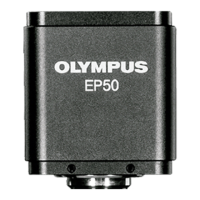
Plug the USB Ethernet adapter into the camera and plug the
network cable in, too.
Connect the camera to the power supply and switch it on.
Make sure that your Windows PC or your mobile device is
connected to the LAN or WLAN.
Start the EPview software or app and check the configuration.
Normally, active OLYMPUS EP50 cameras are automatically
recognized. The live image of each camera is displayed. For
the display, the EP50 Camera List tool window is used in the
EPview software, and the Camera List dialog box is used in
the EPview app.
Select the OLYMPUS EP50 camera you are interested in. To
do so, doubleclick the camera’s thumbnail in the EP50
Camera List tool window if you use the EPview software.
If you use the EPview app, tap the camera’s thumbnail in the
Camera List dialog box.
7 Contacting Customer Service
Please contact your local OLYMPUS support if you have any
questions about the product. The addresses can be found on the
following websites:
Life Science Solutions
https://www.olympus-lifescience.com/en/contact-us/
Industrial Solutions
https://www.olympus-ims.com/en/contact-us/
Note on data security
The data transfer of the OLYMPUS EP50 camera in LAN or WLAN is not
encrypted. Anyone who is connected to the network and has installed the
EPview software or app, can see the live image of all active OLYMPUS EP50
cameras. Operate the camera with the OSD software, if you want to make sure
that nobody in the network can see the camera’s live image.


 To Next Page