[Partial Erase] will flash
on the display.
2 button
`/
OK
button
ERASE
button
Erasing
3
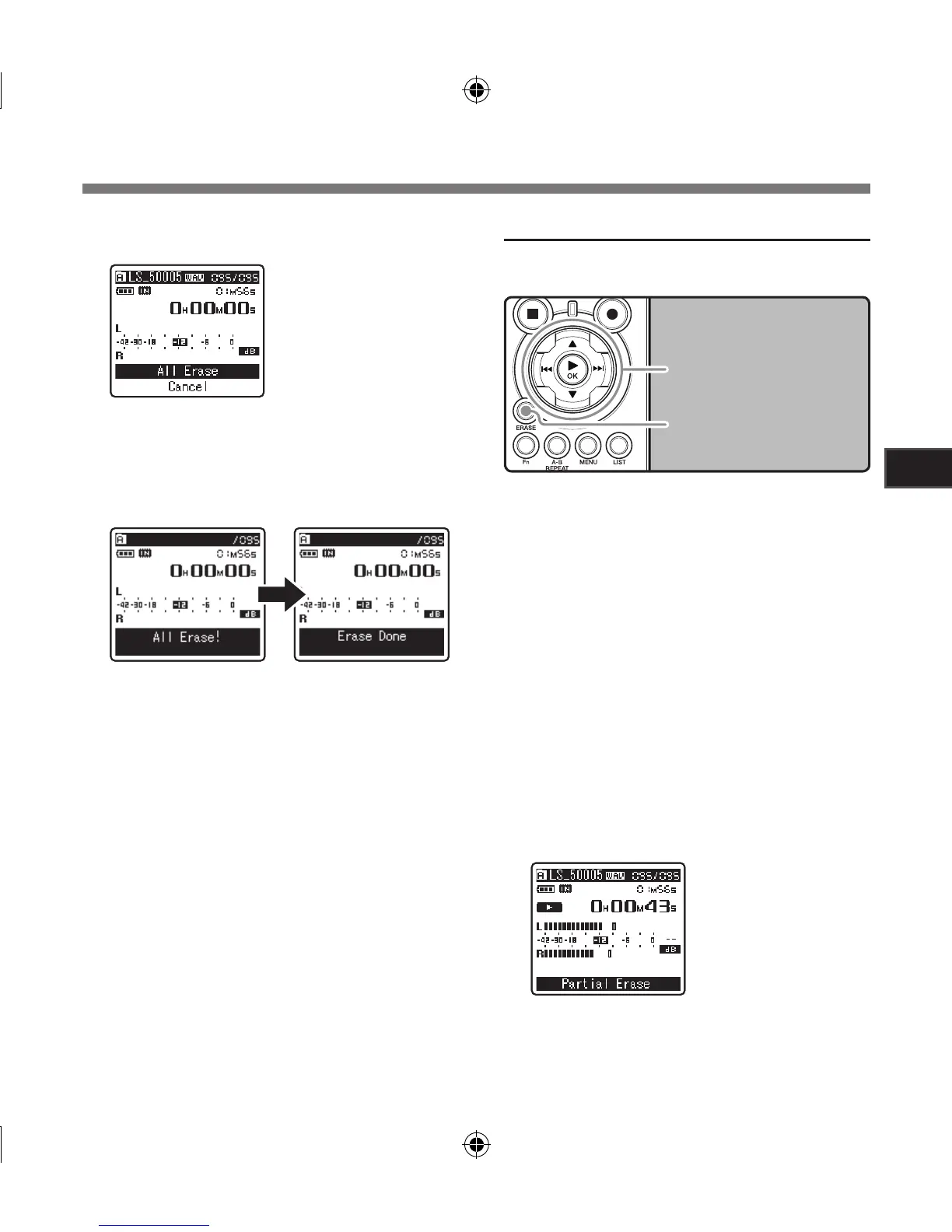
Press the 2 button to select [
All
Erase
].
4
Press the `/
OK
button.
• The display changes to [All Erase!] and
erasing will start. [Erase Done] is displayed
when the files are erased.
Partially erase a file
Only a PCM file recorded in the recorder can be
partially erased.
1
Select the folder which contains the
files you want to partial erase (☞ P.19
to P.21).
2
In the File list display, press the 2 or
3 button to select the file you want to
partial erase.
• In the File display, press the 9 or 0
button to select a file.
3
Play the file you want to partial erase.
• Forward a file to the position that shall be
erased. If the file is long, use the 9 button
to move to the position you want to delete.
4
At the starting position of the partial
erase, press the
ERASE
button.



 To Next Page