Automated Mode Exits
A user will be prompted to switch to Manual Mode to
complete certain actions. These actions include:
■
Manually pausing and starting insulin delivery.
■
Editing a Basal Program.
■
Changing the time or time zones.
In rare instances, a user will be required to switch to Manual
Mode if they receive an Automated Delivery Restriction. This
advisory alarm occurs in Automated Mode when insulin was
either paused or at maximum delivery for too long. The user
will be instructed to use a meter to check their blood glucose
(BG) and determine next steps. The user will need to switch
to Manual Mode for at least ve minutes and should not
return to Automated Mode until conrming CGM accuracy.
Condent Diabetes Management
Viewing History:
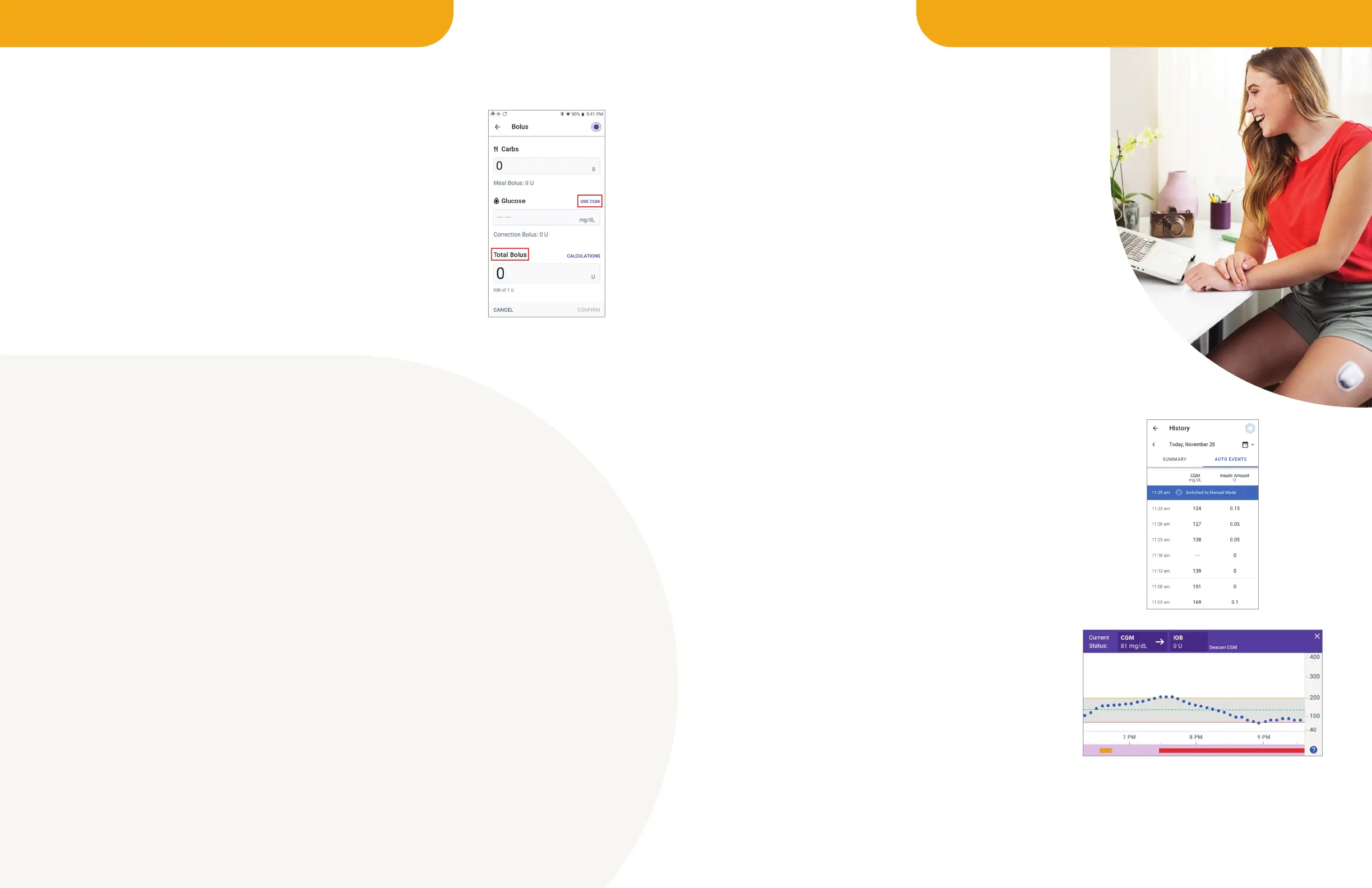
The Omnipod 5 App includes a CGM Graph to display
CGM readings and historical insulin delivery.
The History summary, including CGM time in range details
and insulin delivery, and a list of automated events can
also be accessed from the History Detail screen.
Cloud-Based Management:
The Omnipod 5 App will provide automatic ow of data to the
cloud-based data management system on an hourly basis.
This allows healthcare providers to review insulin delivery
and sensor glucose patterns without manual uploads.
Connectivity to cellular data or Wi-Fi is important when
using the Omnipod 5 System. Staying connected to cellular
data or Wi-Fi will allow notication of important over-the-
air updates as well as seamless auto-uploading of data
to Insulet’s secure cloud. The Omnipod 5 Controller is
equipped with a SIM card that allows connection to cellular
data at no cost.
SmartBolus Calculator
Omnipod 5 is the only system to incorporate CGM value and trend into the
Bolus Calculator.
CGM-Informed
■
Automatically increases or decreases suggested bolus based on CGM
value and trend.
■
Available in both Automated and Manual Modes.
Insulin on Board (IOB)
■
May reduce the suggested bolus based on existing IOB.
■
IOB may come from previous meal boluses, previous correction boluses,
or automated insulin deliveries.
Troubleshooting System Communication
Pod & CGM
At times, the Pod and CGM may lose connection while in Automated Mode.
Common reasons for loss of communication may include:
■
Pod and CGM not being within line of sight on the body.
■
Temporary loss of communication due to environmental interference.
■
Sensor warm-up or required calibration.
When this occurs, SmartAdjust™ technology can no longer fully adjust automated insulin delivery
and Automated Mode becomes “Limited”.
In Automated Mode: Limited, the Omnipod 5 System will deliver basal insulin based on a calculation
of user-entered settings and past insulin delivery history. When the System enters Limited state,
SmartAdjust technology never gives more than the Basal Program that would be active during
Manual Mode.
Check the Dexcom G6 app to see if there are any necessary CGM actions required to re-establish
communication. Full Automated Mode will automatically resume once CGM values become available.
Pod & Omnipod 5 App
At times, the Omnipod 5 App may lose communication with the active Pod. If this occurs, the POD INFO
tab on the Omnipod 5 App will display “No Pod Communication” and the user will have the option to tap
MORE INFORMATION for details.
When there is no Pod communication, the Pod continues delivering insulin according to settings active
on the Pod before losing communication. For example, automated insulin delivery from the Pod will
continue in Automated Mode.
Bring the Controller or smartphone within 5 feet of the Pod to restore communication.
Omnipod
®
5 System Management and Optimization Omnipod® 5 System Management and Optimization
10 11



 To Next Page