14
Software Setup
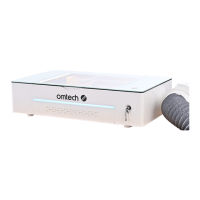
1 Your Light comes with a microSD card loaded with the open
source engraving program LaserGRBL and a trial version of
LightBurn. To access them, place the microSD card into its USB
reader by sliding the card into the slot above the USB’s handle.
The ridge on the microSD card should face up, away from the
reader’s handle.
DO NOT attempt to pull on the handle. It does not slide out.
2 Insert the reader into any available USB slot on your control
computer. (The microSD card’s ridge can be used to see which
side is up.) Go to the LaserGRBL folder and run its installation
wizard. Alternatively, you can also download the latest version of
the program from Arkypita’s website at lasergrbl.com/download
or from us at omtechlaser.com/pages/soware-download.
3 Open LaserGRBL. If it is in any language other than English, go
to the 4th item on the main toolbar and select the top option
beside the British ag. Restart the program when prompted.
4 Load the Light’s parameters by going to Grbl on the main
toolbar, selecting Grbl Configuration, and selecting Import.
Load the Light_B10.nc file from the microSD card’s LaserGRBL
folder.
5 See if your engraver appears in the COM eld. Most computers
will not be able to communicate with the Light without the
CH340 driver. Go to the Tools menu on the main toolbar and
select Install CH340 Driver. Install the driver and then close the
window using the X in the top right corner. You can also install
the driver separately from the Driver folder on the microSD card.



 To Next Page