30
English
User Controls
Display
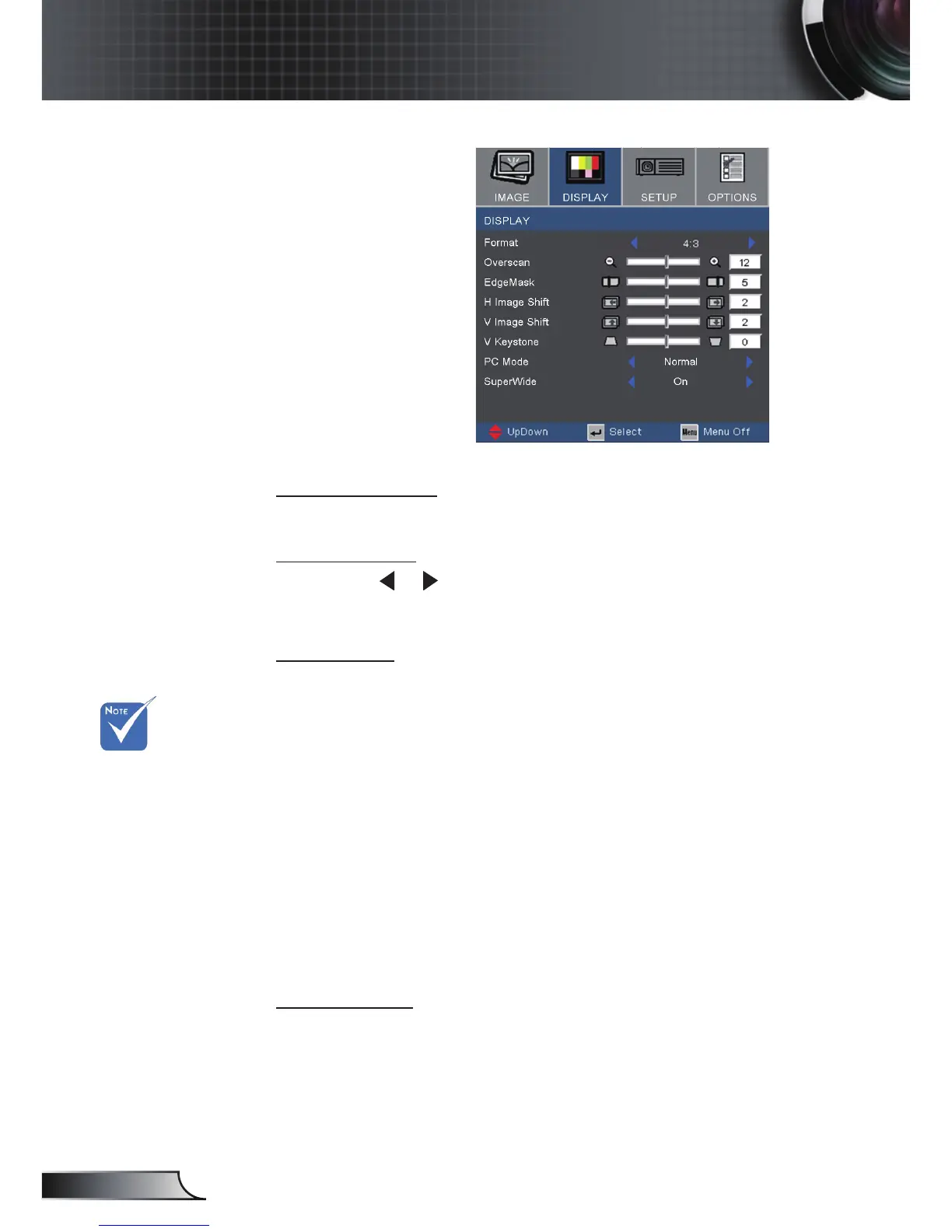
V Image Shift
Shift the projected image position vertically.
V Keystone
Press the or to adjust image distortion vertically and makes a
squarer image.
PC Mode
This Mode is only for use when using this projector unit with a PC
signal, either Analogue connector.
Wide: If your PC output is a wide screen format resolution, you
must select this setting.
Examples of Wide screen resolutions are: 1280 x 720 / 1920 x
1080.
Normal: If your PC output is a Normal (4:3) resolution you
must select this setting.
Examples of Normal resolutions are: 640 x 480 / 800 x 600 /
1024 x 768 / 1152 x 864 / 1280 x 1024 / 1400 x 1050.
* All supported resolutions are listed on pages 46-47.
SuperWide
Off: The format can be chosen your desired aspect ratio includ-
ing 4:3, 16:9, LBX and Native.
On: The format only can be chosen 4:3 and 16:9.
Auto: To solve the differences of the lm formats, the option
can keep the format in the same ratio.
“SuperWide“ is
“Off“ as default.
How to use “Super-
Wide”
1. Use a 2.0:1 screen
that buy from Op-
toma
2. Enable Super
-
Wide feature to
Auto
3. Use zoom ring in
top of projector to t
the image width to
the screen width


 To Next Page