8 9
If the battery is extremely low, you may not be able to power on the phone.
Wait 20 minutes and try again.
WARNING! Use only an approved charging accessory to charge your
phone. Improper handling of the charging port, and use of an incompatible
charger, may cause damage to your device and void the warranty.
TIP: Extend your battery’s life:
Conserve battery power by adjusting the settings on select applications:
Lower Screen brightness.
Reduce Backlight time.
Turn Bluetooth and Wi-Fi off when not in use.
Disable GPS when not in use.
Enable the battery saver feature.
Turning Your Phone On/Off
To turn your phone on, press and hold the power/lock key. Follow the
prompts.
Setting Up Your Phone Out of the Box
When you turn on your phone for the first time (or after a reset to factory
settings), you will need to set it up before use. Select your language
preference and follow the prompts.
Home Screen
Using the Touch Screen
Your phone’s touchscreen allows you to control actions to move around the
screen, open menus, select items like apps, zoom in and out of websites,
take photos and more with a variety of touch gestures.
Swipe or Slide – quickly drag your finger across the screen horizontally
or vertically.
Drag – Touch and hold your finger on an item to move it into a new
position.
Pinch – Place two fingers on the screen simultaneously and pinch them
together to zoom out or spread your fingers apart to zoom in.
Rotate the Screen – Rotate your phone sideways to rotate the screen
from portrait to landscape.
Note: The auto rotate function must be turned on for this to work. Touch
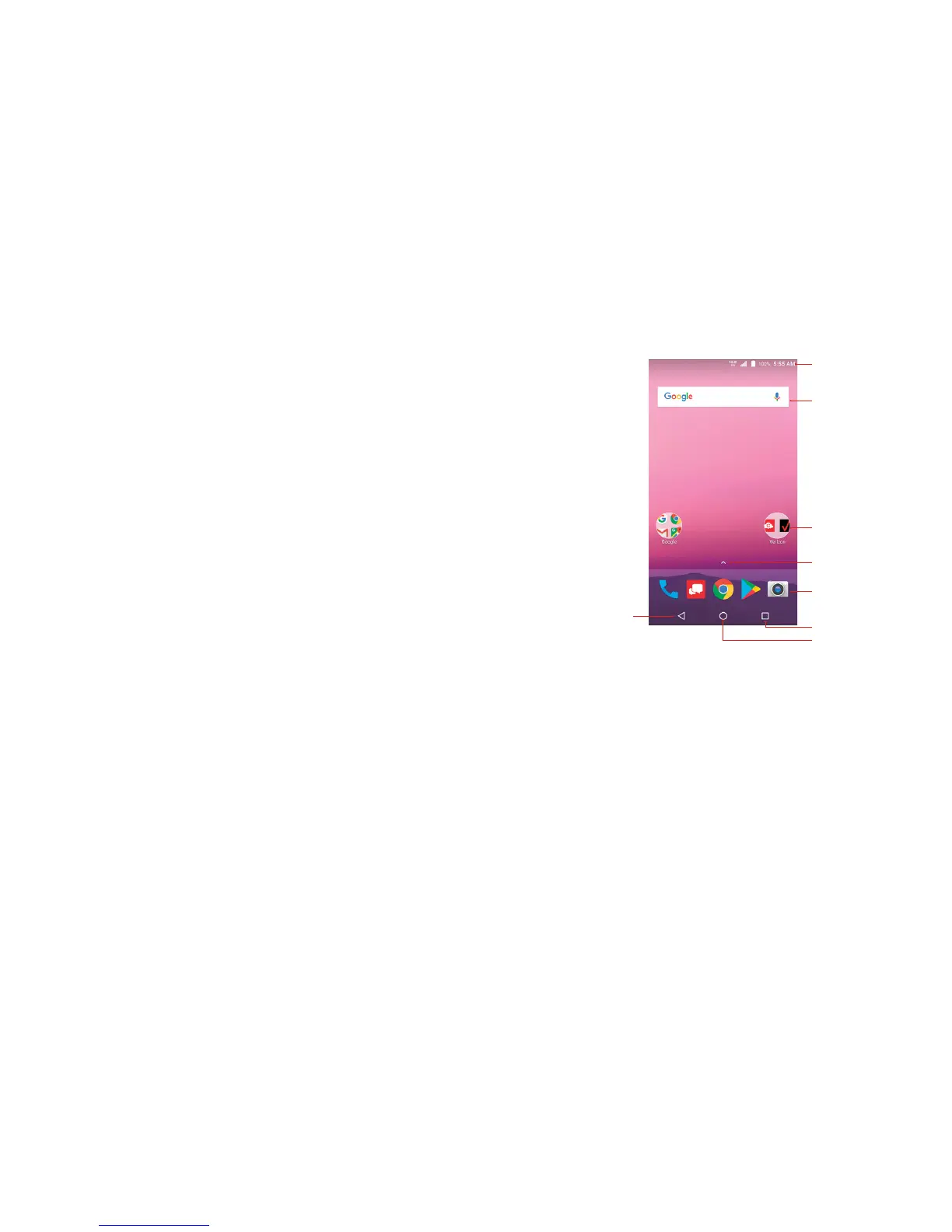
Back
Home Key
Recent Apps
App Shortcuts
Apps List
Folders
Google
Search Bar
Status Bar



 To Next Page