16 17
Music Playing
Shortcuts and Widgets
• To create an app shortcut touch and hold any preloaded or down-
loaded app and drag it to the home screen.
• To select a Widget, touch any empty area on the Home Screen and
select Widgets.
• Touch and hold a widget or application to drag it to the home screen.
• To move an application or widget, touch and hold and drag it to the
desired location.
• To remove a widget or shortcut to an application, touch and drag it
to “Remove”.
Folders and Organization
Create folders on your home screen to organize shortcuts to your apps.
Touch and drag an application on top of another application to create a
folder. Once a folder is created, you can name it and drag other
applications into it. You can move folders in the same manner as you move
applications.
Primary Shortcuts
On the bottom of the home screen is a customizable area for your primary
applications. You can keep up to five applications here. Drag applications
in or out of this area to customize.
Entering Text
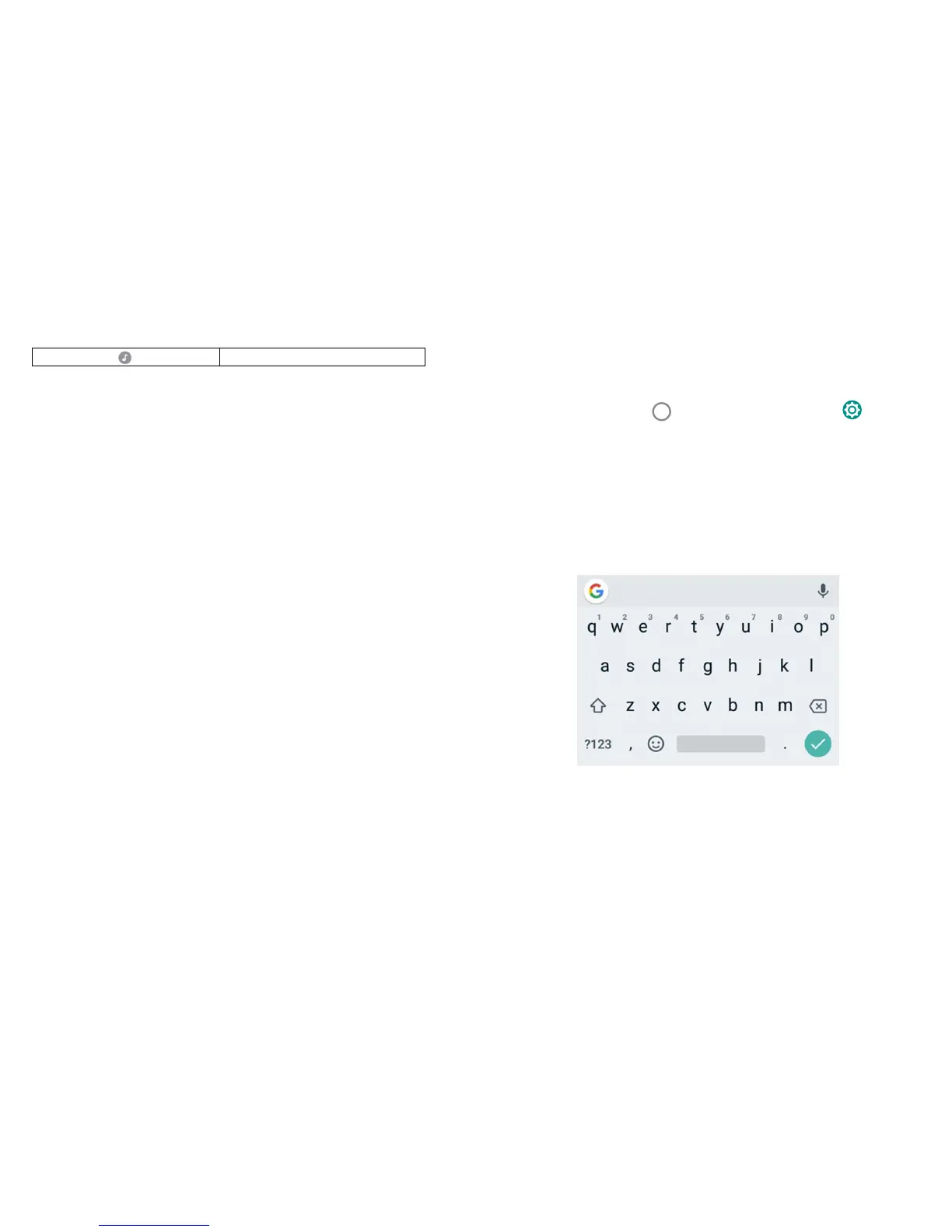
Enter text using the onscreen keyboard. Most applications open it
automatically. In others, you can open the keyboard by touching where you
wish to type. Touch the Back key to hide the on screen keyboard. Or, use
Google voice to enter text via speech.
To enable additional keyboards:
• Touch the Home key
> swipe up for apps > Settings >
Languages & Input > Virtual Keyboard > Manage Keyboards.
• Select a keyboard in the list by touching it to enable/disable it.
Keyboard
The Google board is similar in layout to a computer keyboard. Touch a
letter to enter it.



 To Next Page