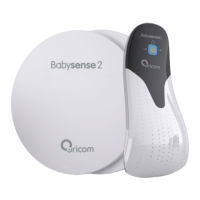
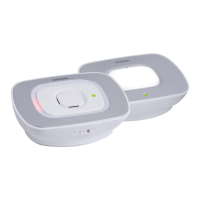
08BUN User Guide
Specifications: USB power adaptor: 5V-500mA (not supplied)/Battery: 3.7V 500mAh Lithium/Charge time: 2~3 Hours
Warnings: • For your continued safety and the reliability of your clock, please observe normal electrical safety precautions.
• This product is not a toy, keep out of reach of children. Rechargeable Lithium Ion batteries are potentially
hazardous and can present a serious fire hazard if damaged, defective or improperly used. Do not leave
your product unattended whilst charging the battery.
• Keep the product away from water and moisture. It’s intended for indoor use only.
• This product does not include any user serviceable parts. DO NOT DISASSEMBLE THIS PRODUCT.
• Dispose of this product which includes a lithium battery in accordance with local disposal waste regulations.
On/Off
This will turn off the screen and backlight.
Device will wake when the alarm time is reached.
Power Switch
Use a paper clip or similar shaped tool to press the power switch to turn the LCD display ON.
KEEP THIS USER GUIDE FOR FUTURE REFERENCE
Always retain your proof of purchase in case of warranty service.
Risk of suffocation!
Keep all packaging materials out of reach of children.
Adjust Backlight (7 levels of brightness)
Press to increase brightness.
Press to decrease brightness.
To Set:
Press once to set ‘wake-up time’
Backlight will change from blue to orange (Range allowed 04:00AM – 2:59PM.)
To add/remove alarm sound:
Note: Hold both + and – for 3 seconds to return to default setting (6:00AM)
Press at any stage while setting. A bell icon will appear when turned on.
Any button will turn off alarm when it sounds.
Note: Hold both + and – for 3 seconds to return to default setting (6:00PM)
Press twice to set ‘sleep time’
Backlight will change from orange to blue (Range allowed 3:00PM – 3:59AM.)
To Set:
Hold for 3 seconds Adjust hour:
Press Adjust minute:
Hold for 3 seconds Adjust hour: Press Adjust minute:
Press three times to set ‘Current Time’
To Set Time:
Hold for 3 seconds Adjust hour:
Press Adjust minute:
Reset
To reset all settings to default setting (except current clock setting) Press and hold all three
buttons at once: + + until CLr appears on the display.
Lock
Lock clock to prevent settings from being accidently changed.
To Lock or Unlock: Press and hold for 5 seconds.
Tip: When not in use for an extended period, charging every two months will help protect the life of
the lithium battery.
Low Battery Alert
When battery becomes low, the icon will appear.
When clock battery is low, backlight will be turned off.
C
M
Y
CM
MY
CY
CMY
K
OR017457 - 08BUN User Guide_06-03-19.pdf 1 2019/6/4 9:44:32

 Need help?
 General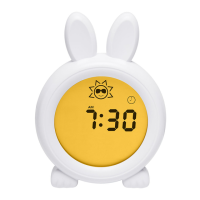

 To Next Page