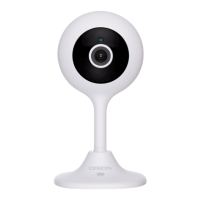
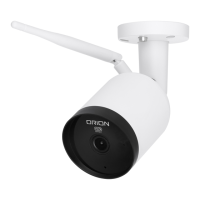
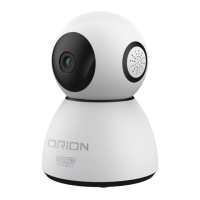
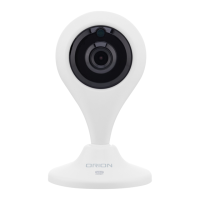
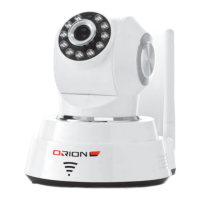
The Orion Grid Connect Smart Pan & Tilt Security Camera is a versatile wireless security camera designed for use in homes, apartments, offices, garages, and sheds. It offers comprehensive monitoring capabilities, allowing users to see and record everything that happens using their smartphone.
Function Description
The primary function of this device is to provide real-time security monitoring with the added flexibility of pan and tilt movement. It automatically detects and tracks motion, ensuring that any activity within its field of view is captured. The camera records video 24/7 when a micro SD memory card is inserted (up to 64GB supported), allowing users to review past events.
The camera features a 1080p HD camera lens with an 80° field of view, providing clear video quality. Infrared LEDs enable night vision, allowing the camera to capture both day and night images. A light sensor detects low light conditions and automatically activates the infrared lights. The integrated microphone and speaker facilitate two-way audio communication, enabling users to listen and speak through the camera.
Usage Features
The Orion Grid Connect Smart Pan & Tilt Security Camera is designed for easy setup and remote operation via the Grid Connect mobile app, available for both iPhone and Android devices.
Setup and Installation:
- App Download and Account Setup: Users first download the Grid Connect app from the Apple App Store or Google Play. New users create an account, agreeing to the Privacy Policy, while existing users can log in.
- Location Management: The app allows users to add and manage locations (e.g., Home name, Home location) and select or add rooms (e.g., Living Room, Bedroom, Kitchen). This helps organize and customize settings for multiple Grid devices.
- Device Pairing:
- Power on the camera using the supplied adapter and USB cable. The camera will take approximately 20 seconds to start up, emitting a welcome sound and then a double beep sound every 15 seconds, indicating it's ready for pairing.
- In the Grid Connect app, tap the '+' icon and select "Security" from the "add device" page.
- Confirm hearing the double beep sound and tap "next step."
- Enter the Wi-Fi password (only 2.4GHz Wi-Fi networks are supported) and tap "confirm." Users can change the Wi-Fi network if needed.
- Tap "continue" to scan a QR code displayed on the mobile phone screen. Hold the camera 15-20 cm in front of the phone for the camera to scan the QR code.
- After hearing a sharp beep sound from the camera, tap "heard the beep." The app will then automatically connect to the camera.
- Once successfully added, users can edit the device name or assign it to a dedicated room before tapping "done."
- Mounting: The camera can be ceiling-mounted using the provided mounting bracket, screws, and wall plugs. The bracket serves as a template for drilling holes. After securing the bracket, the camera is attached, and the knob screw is tightened to secure it. For ceiling mount, the "flip screen" option in the app's settings (settings > basic function settings > flip screen) should be enabled for correct orientation.
Operating the Camera (via Grid Connect App):
- Live Screen:
- Video Quality: Users can switch between Standard Definition (SD) for smoother movement and smaller file sizes, and High Definition (HD) for clearer images and larger file sizes.
- Capture Photo/Video: Tap to capture a photo or video during live view. These are saved to the smartphone's internal memory.
- Two-Way Talk: Enable the talk function to communicate through the camera's microphone and speaker.
- Pan & Tilt Controls: Activate pan and tilt controls to remotely adjust the camera's viewing angle.
- Tracking Function: Enable the tracking function for automatic motion tracking.
- Flip Screen: Adjust screen orientation if the camera is mounted upside down.
- Motion Detection Alerts: Enable motion detection alerts and adjust the sensitivity of motion detection.
- Mute/Hear Sound: Mute or hear the sound from the camera.
- Access Live Screen: View the live feed.
- Full Screen Display: Switch to full screen display for a larger view.
- Settings: Access settings for sharing the device, motion detection settings, firmware information, and removing the device.
- Playback Screen:
- Scroll Playback Video: Scroll forward or backward through recorded video using a time slider.
- Capture Photo/Video (Playback): Capture a photo or video from playback. These are saved to the smartphone's internal memory.
- Select Date: Review playback from the SD card by selecting a specific date.
- Access SD Card Setting: Manage SD card settings.
- Access Playback Screen: Navigate to the playback interface.
- Mute/Hear Sound: Mute or hear the sound during playback.
Maintenance Features
- Reset Button: A reset button is available on the camera. Holding it for 5 seconds will reboot the device and clear all settings to factory defaults. This is useful for connecting to a different Wi-Fi network or troubleshooting.
- Micro SD Card Slot: The camera supports micro SD memory cards up to 64GB for continuous video recording. The slot is accessible by tilting the camera lens up.
- Troubleshooting Guide: The manual provides a comprehensive troubleshooting guide for common issues such as pairing failures, Wi-Fi network checks (2.4GHz vs. 5GHz), forgotten app passwords, and problems with QR code scanning or beep sounds.
- Online Assistance/Customer Service: For further assistance, users can visit grid-connect.com.au or contact customer service via a toll-free number.
The Orion Grid Connect Smart Pan & Tilt Security Camera offers a user-friendly experience with robust features for home security and monitoring, all managed conveniently through a smartphone app.

 Need help?
 General

 To Next Page